Archive

Author Archives: B-List Microsoft Celebrity, Available for Weddings and Bar Mitzvahs

So, your alchemist’s apprentice finally brewed a mana potion that doesn’t explode. Great! Now what?

In Advanced Dungeons & Dynamics 365, inventing a magical formulation is just the first step. The real challenge comes when the Waterdeep Trading Company needs to scale that formula from a single cauldron to a full-blown manufacturing process across multiple guild-operated facilities.

Let’s talk about Upscaling Formulations in Dynamics 365 Supply Chain Management—and how a little configuration can transform your backroom brew into a continent-wide best seller.

Lock Down Your Base Formulation

Every formulation begins as a Bill of Materials (BOM) and Formula version in D365. For potion-makers and stillmasters, this includes:

  • Ingredients: Dragon’s blood, marshmallow root, powdered sapphire
  • Ratios: Carefully calibrated by milligram, ounce, or “casting”
  • Yield quantities: One flask, one vial, or one barrel
  • Batch attributes: Potency, color, viscosity, arcane infusion level

This small-batch version is perfect for testing and QA—but what happens when the Mage College places a standing order for 3,000 units a month?

Scale It Like a Stone Giant

To upscale your formulation in D365:

  1. Adjust the Formula Size
    • Multiply all raw material inputs based on the new target yield
    • Maintain ingredient ratios with scaling factors built into the formula setup
  2. Link to a Production Route
    • Define steps like crushing, infusing, boiling, bottling, enchanting
    • Assign work centers: Alchemical vats, arcane infusion rooms, bottling lines
  3. Update Capacity Constraints
    • Ensure equipment like your multi-flask condenser can handle the new batch sizes
    • Use Resource Planning to avoid bottlenecks in critical magical infrastructure

Test with a Pilot Batch (and Avoid Arcane Accidents)

Before you push full-scale, D365 lets you run pilot production orders:

  • Monitor actual vs. planned ingredient usage
  • Track any batch deviations (e.g., viscosity too high, potion turns sentient…)
  • Apply adjustments to the master formula using version control

Any changes are logged and audited for regulatory compliance (especially important if you’re trading across realms with different potion standards—looking at you, Calimshan).

Integrate with Inventory & Quality

Once your upscaled formula is finalized:

  • Link it to Inventory Dimensions (batch numbers, expiration dates, quality ratings)
  • Define co-products and by-products (e.g., arcane sludge disposal or residual essence collection)
  • Set up testing specifications in Quality Management for automated batch approval

Bonus: Monitor Yield, Margin, and Magical Efficiency

D365 provides powerful analytics to support your production at scale:

  • Yield variance reports
  • Ingredient cost analysis (what’s eating your margin—pixie dust or packaging?)
  • Batch traceability from root to retail
  • Rework and scrap tracking for those potions that… didn’t quite make it

Final Thoughts: Scaling the Magic Responsibly

Upscaling formulations in Advanced Dungeons & Dynamics 365 is about more than “making more potions.” It’s a holistic process of version control, quality assurance, equipment planning, and operational efficiency.

Done right, it ensures your next batch of Greater Healing Elixirs doesn’t come with unintended side effects (like sprouting wings).

Want to Master Manufacturing in Faerûn?

You’ll find all of this and more in the Advanced Dungeons & Dynamics 365 books—a perfect mix of technical how-tos and storytelling charm. Learn how to run an enchanted manufacturing operation with real ERP tools and fantasy flair.

Order your copy today and take your formulas from the workshop to the warehouse:
Buy the AD&D365 Books

In a realm where dragons hoard treasure and adventurers barter with platinum, managing the movement of gold, silver, and copper across a multi-realm operation is no small feat. That’s why the Waterdeep Trading Company relies on the robust financial tools of Dynamics 365 Finance to tame the chaos of coin.

Welcome to Advanced Dungeons & Dynamics 365, where cash and bank management gets the high-fantasy treatment—and works like magic in the real world too.

What Does “Cash Management” Mean in a Magical Economy?

Whether your business operates out of a single storefront in Luskan or oversees multi-planar trade through the Sigil portal network, tracking liquid assets is essential. In Faerûn, this includes:

  • Coin purses carried by field agents and caravans
  • Banking with regional branches like the Vault of the Moon or Baldur’s Gate First National
  • Currency exchanges (when trading with Zakhara or the Feywild)
  • Magical escrow accounts for high-value artifacts
  • Donations, tributes, and adventuring guild deposits

In Dynamics 365, it’s all part of Cash and Bank Management.

Key Setup: Establishing Your Coin Flow

Here’s how the Waterdeep Trading Company handles it:

1. Bank Accounts & Coin Repositories

  • Operating Account – Waterdeep Vault (WDV-01)
  • Cash On Hand – Sword Coast Sales Office
  • Petty Cash – Traveling Sales Wizard Team
  • Magical Holding Account – Arcane Transactions Only

Each account in D365 is tied to your chart of accounts (1110 for bank, 1000 for cash on hand) and can be associated with a specific legal entity, currency, and payment method.

Day-to-Day Coin Movements

D365 supports multiple cash operations:

  • Payment Journals – Used to track customer payments (yes, even if they pay in diamonds)
  • Vendor Disbursements – Record outgoing payments to potion suppliers, wagon builders, or guild services
  • Bank Transfers – Move funds between branches (and planes) for liquidity
  • Cash Counting and Reconciliation – For when your tavern registers or traveling merchants return to HQ

Using workflows and approvals, transactions are automatically posted and reconciled. Magical fraud detection optional (but encouraged).

Multi-Currency Support (Copper, Silver, Gold… and GPX?)

Faerûn uses a mixed coinage system, so Waterdeep Trading Company leverages multi-currency accounting in D365. Key features include:

  • Defined currency types (Gold, Silver, Platinum, Electrum, and major regional standards like Calimshan Credit Notes)
  • Currency exchange rate providers (like the Faerûn Board of Trade)
  • Automatic revaluations for foreign-held balances (e.g., Feywild Starlight Credits → Gold)

And yes, you can report financials in GP (gold pieces) and consolidate in another currency like Waterdhavian Crowns.

Reporting That Counts (Every Coin)

With built-in Power BI dashboards and D365 reports, the company tracks:

  • Daily cash position
  • Cash flow forecast (especially handy before major trade events or war preparations)
  • Currency exposure
  • Bank reconciliation summaries
  • Cash inflow/outflow by region or realm

There’s even support for budgeting, cost allocation, and cash reserves—because even in fantasy ERP, you don’t want to blow all your platinum on cursed inventory.

Final Thoughts: Because Gold Doesn’t Track Itself

Cash and coin management may not involve slaying dragons, but it’s just as important for keeping your adventuring supply company running. With Dynamics 365 Finance, you get full control over every pouch, vault, and transfer—whether your treasury is held in stone or starlight.

Want to Master Coin Like a Merchant Prince?

If this sparked your interest, the Advanced Dungeons & Dynamics 365 books cover everything from inventory control to intercompany trade to financial wizardry. It’s ERP learning with storytelling flair—and practical use cases even Mordenkainen would approve of.

Buy your copy today and take command of your gold, silver, and spreadsheets:
Buy the AD&D365 Books

Let’s face it: even a +2 Flaming Sword needs a little upkeep. Whether you’re tracking enchanted siege engines, teleportation pads, or just a warehouse full of delivery carts, Asset Management in Dynamics 365 keeps the gears turning—and the dragons from eating your depreciation schedules.

In the world of Advanced Dungeons & Dynamics 365, Asset Maintenance isn’t just about compliance. It’s about making sure your investments—magical or mundane—stay in top condition, are properly accounted for, and deliver value across their lifecycle.

Let’s grab our wrenches (and maybe a wand or two) and dive in.

What Counts as an “Asset” in Faerûn?

At the Waterdeep Trading Company, assets aren’t just furniture and forklifts. They include:

  • Arcane-powered warehouse lifts
  • Elven-crafted brewing kettles
  • Spell-imbued cartography tables
  • Portable towers (foldable, but pricey)
  • Good old-fashioned stone buildings

Each of these is capitalized in D365 as a fixed asset, linked to a financial ledger, and optionally connected to preventive maintenance schedules.

Setting Up Asset Maintenance in Dynamics 365

Here’s how you’d set up asset maintenance in your realm (or organization):

1. Create and Register the Asset

  • Name: Teleportation Circle – Warehouse 3
  • Asset Group: Magical Infrastructure
  • Acquisition value: 10,000 GP
  • Location: Waterdeep Distribution Center

2. Define Maintenance Plans

You can create preventive maintenance schedules using work orders that trigger based on time, usage, or condition.

Example:

  • Monthly Arcane Calibration every 30 days
  • Usage-based Inspection every 1,000 teleportations
  • Emergency Repair workflow for portal misfires

Each plan can include checklists, resources (labor or magical essence), spare parts, and cost estimates.

3. Assign Work Orders to a Technician (or Wizard)

In AD&D365, work orders are routed to your maintenance team—whether that’s a dwarven engineer or a gnome with a wrench and a scroll of Identify.

Work orders track:

  • Job instructions
  • Duration and cost
  • Downtime tracking
  • Replacement parts used

You can view upcoming maintenance on the Asset Calendar, which is color-coded for urgency (and potential explosions).

Financial Tracking of Assets

In the Fixed Assets module, you can:

  • Track depreciation (straight-line, declining balance, or “it disappeared into a portal”)
  • Allocate costs to different departments or guilds
  • Post maintenance costs to the General Ledger
  • Track insurance, warranties, and lifecycle status

Need to retire or sell an asset? Just initiate the disposal process—no resurrection spells required.

Reporting & Monitoring

Key reports available in Dynamics 365:

  • Asset Utilization Rate
  • Mean Time Between Failures (MTBF)
  • Maintenance Cost Trends
  • Asset Condition Score

Pro tip: Pair this with Power BI to visualize asset hotspots—areas where breakdowns occur more often than cursed doorways in the Undermountain.

Final Thoughts

Asset Maintenance in Dynamics 365 isn’t just about keeping the lights on—it’s about making strategic decisions with full visibility. Whether you’re managing a tavern’s delivery fleet or a guild hall’s magical forge, keeping your assets in top shape pays off in gold, uptime, and peace of mind.

Want to Master Your Magic (and Machines)?

Everything in this post (and so much more) is covered in the Advanced Dungeons & Dynamics 365 book series. It’s the perfect blend of ERP knowledge and fantasy storytelling—with practical examples drawn straight from the realms of Faerûn.

Grab your copy now and charm your way into trade success: Buy the AD&D365 Books
In the world of Advanced Dungeons & Dynamics 365, the real heroes of commerce aren’t always wielding swords—they’re wielding spreadsheets.

Whether you’re a potions distributor in Amn or a magical cookware wholesaler in Waterdeep, running trade promotions is one of the best ways to boost volume, clear seasonal inventory, and gain favor with merchant guilds. But managing those promotions across city-states, planes of existence, and fluctuating economic zones? That’s where Dynamics 365 Trade Promotion Management becomes your best magical artifact.

Let’s unpack how it works, with a few scrolls from our campaign log.

What Are Trade Promotions?

Think of trade promotions as targeted campaigns that offer discounts, incentives, or bundled offers to specific customers—usually retailers, guilds, or channel partners.

Here’s what they look like in Faerûn:

  • “Buy 3 Healing Potions, Get 1 Free” in Baldur’s Gate
  • 10% discount on Moonshines for the Brewers’ Guild during Brewfest
  • Extra 2% off all scrolls shipped via teleportation (because logistics costs are lower!)
  • Flat rate rebates on armor bundles during wartime (high demand = high reward)

In Dynamics 365, these promotions are configured as Trade Agreements, Discounts, and Rebate Programs, tracked across customers, products, and timelines.

Setting Up a Promotion in Dynamics 365

Let’s say you’re the Trade Master for Waterdeep Trading Company, and you want to launch a “Potion Palooza” campaign. Here’s how you’d do it:

  1. Define the Offer
  2. Configure the Trade Agreement
  3. Add a Rebate Program (optional)
  4. Link to Promotions Calendar
  5. Monitor Effectiveness with Power BI

Why It Matters in a Fantasy World (or Real One)

Trade promotions allow you to:

  • Move inventory before seasonal demand drops (hello, summer furs…)
  • Strengthen partner relationships by offering exclusive deals
  • Drive competitive advantage in crowded marketplaces (especially in cities like Calimshan)
  • Track ROI on every promotion (you don’t want to offer discounts that eat your margin like a gelatinous cube)

And with D365, it’s not just about setting up the discount—it’s about controlling it, automating it, and analyzing the results across your financial and supply chain modules.

Ready to Power Up Your Promotions?

Trade promotions are just one of the many magical tools in your ERP grimoire. Want to learn how to blend economic models, regional pricing, product variants, and guild contracts into a single unified system?

The Advanced Dungeons & Dynamics 365 books are your spellbook. Whether you’re a merchant prince or a humble configuration wizard, these guides will show you how to run your kingdom (or company) like a pro.

Grab your copy now and charm your way into trade success: Buy the AD&D365 Books

Creating a local virtual machine (VM) for Dynamics 365 Finance & Operations (F&O) or Supply Chain Management (SCM) can be a highly valuable setup for testing and development. Here’s a step-by-step guide to building and configuring a new VM using a demo database.


Step 1: Building a 10.0.39 VM

  1. Download the Archive Files: Begin by downloading the 10.0.39 version archive files from Microsoft’s Lifecycle Services (LCS).
  2. Extract the Files: After downloading, extract the files to a designated location on your system.
  3. Create a Virtual Hard Disk (VHD): Using Hyper-V Manager, create a new VHD for the VM. For optimal performance, allocate as much memory as possible (32,868MB is recommended for smoother operations).
  4. Start the VM: Once the VM is set up and configured, boot it up to initiate the virtual environment.

Step 2: Extend the VM License

  1. Rearm the VM: Open the Command Prompt as an Administrator and enter the following command:
    slmgr /rearm
    This will extend the licensing period for the VM.
  2. Reboot the VM: After rearming, restart the VM to apply the license extension.

Step 3: Configure Security and Admin User

  1. Create a Signed Certificate: Run the certificate creation batch file to establish a signed certificate for secure communications.
  2. Provision an Admin User: Execute the Admin User Provisioning Tool located at:
    C:\AOSService\PackagesLocalDirectory\bin\AdminUserProvisioning.exe
    This tool configures an administrator account for access and system management.
  3. Start the Azure Storage Emulator: Launch the Azure Storage Emulator to enable necessary storage for F&O operations.
  4. Test F&O with the Default Database: At this point, verify that the F&O environment runs smoothly with the default database. This ensures the VM setup is correctly configured before moving on to the demo database replacement.

Step 4: Replace the Demo Database

  1. Open SQL Server Management Studio (SSMS): Connect to the SQL Server instance where your F&O database is hosted.
  2. Replace the AXdb Database: Within SSMS, replace the existing AXdb database with the new demo database. This will refresh your VM with a demo environment suitable for testing.
  3. Re-run the Admin User Provisioning Tool: After updating the database, run the Admin User Provisioning Tool once more to ensure the admin settings apply to the new database configuration.

Summary

Congratulations! You’ve successfully set up a new local VM with the Dynamics 365 F&O demo database. This environment is now ready for testing and development, providing a robust local setup that can emulate a production or sandbox environment.

“Advanced Dungeons & Dynamics 365” is a clever take on blending the high fantasy of Dungeons & Dragons (D&D) with the practical world of Microsoft Dynamics 365, combining storytelling and ERP system configuration to make learning and using Dynamics 365 more engaging and accessible. Here’s how this mash-up can play out in a professional context, especially for training and development:

1. World-Building for Context

  • Just like a Dungeon Master (DM) in D&D sets the scene and creates a world with its own lore, you can set up a narrative around a fictional company or kingdom within Dynamics 365. For example, The Waterdeep Trading Company or Fife’s Mystic Goods might be fictional organizations with business operations configured within the ERP.
  • Each “kingdom” (or business division) might need specific configurations in Dynamics 365, such as unique charts of accounts, inventory locations, or even custom workflows, which require specialized problem-solving.

2. Character Personas as System Roles

  • Instead of standard user roles, users can adopt personas, such as:
    Greta Ironfist, the CEO of Waterdeep Trading Company (similar to the DM’s role): Manages overarching strategies in Finance and Operations, sets up customer hierarchies, and oversees the company’s vision.
    Ava Thompson, the COO: Manages operational efficiency, streamlines supply chain processes, and ensures resource allocation aligns with the company’s growth strategy.
    Daniel Alexander Reed, the System Administrator: Oversees system configurations, maintains security protocols, and optimizes the system for the business needs.
  • These characters can add an interactive storytelling layer, helping trainees see how different system roles interconnect.

3. Quest-Based Learning Modules

  • Each training goal or functionality demonstration becomes a quest, such as:The “Order-to-Cash Adventure”: Learning to set up a new customer record, maintain multiple contacts, configure default payment terms, and manage parent-child relationships in Dynamics 365.The “Inventory & Distribution Challenge”: Setting up an item master record, configuring SKUs, assigning item types, tracking expiration dates, and linking items to warehouses.
  • Completing these quests can “level up” the user’s knowledge and skill, adding a bit of gamification to the learning process.

4. Fantasy-Themed Data and Scenarios

  • Use fantasy-inspired data, such as selling “enchanted swords” or “mystic potions,” where each item has a unique set of characteristics, financial values, or expiration dates that need careful tracking and management.
  • You could also create a fictional economy with vendors like Baldur’s Gate Blacksmiths Guild for procurement or Lara’s Fine Fabrics and More for specialty textile items.

5. Guilds and Teams for Collaboration

  • Teams within the Dynamics 365 environment can be seen as guilds, each with a unique focus area (e.g., finance, supply chain, human resources).
  • A guild could be tasked with solving specific challenges that arise, such as managing a large influx of orders or handling complex customer hierarchies, simulating real-world business problems.

6. Encounters with System “Monsters”

  • Just as adventurers face monsters, users might encounter “monsters” in the form of system errors, process bottlenecks, or tricky configurations.
  • These “monsters” could be defeated with specific skills or tools, such as leveraging Power BI for data visibility, configuring Power Automate workflows, or setting up credit limits to manage customer debt in Finance and Operations.

7. Magic Items & Tools for ERP Users

  • Just as D&D characters have magical items, users can be equipped with “magic items” (custom solutions or add-ons) that enhance their capabilities in Dynamics 365.
  • For example, a “Wand of Reconciliation” could be a custom reconciliation tool, or the “Scroll of Analytics” could represent Power BI insights.

8. Spellcasting for Automation

  • Spellcasting could represent various levels of automation in Dynamics 365. Simple spells might be quick automations in Power Automate, while high-level spells could be complex workflows and integrations with Power Platform.
  • A “casting” could represent running a script or a bot in Power Automate that automates tasks like data validation or customer follow-ups.

By using a storytelling approach, Advanced Dungeons & Dynamics 365 can make complex ERP concepts relatable, help trainees engage with the system, and build connections that are memorable, enjoyable, and practical. And just like in D&D, it builds a strong sense of collaboration, problem-solving, and role-playing that elevates the learning experience.

To start your journey visit: https://adnd365.com/start

Even with my Surface Studio having to go to the Computer Hospital last week, I was able to get the next installment of the Bare Bones Configuration Guide for Dynamics 365 edited and published this weekend.

This next edition continues to chronicle the implementation at the Waterdeep Trading Company and shows how to implement Activity Tracking within the Sales and Marketing module within the Supply Chain Management area of the system.

This guide covers the configuration of Activity Types, Phases, and Plans, the setup of the Activity default parameters, and also shows the activity tracking in action within Collections. There is even a touch of Astral Projection included.

If you want to check it out then here is the latest version:

I’m back on track and am starting my next set of chronicles following the implementation of Dynamics 365 at the Waterdeep Trading Company. Now they are tackling the implementation of the Sales and Marketing area of the system, starting with the configuration of the Sales and Marketing controls.

I’ve laid out ten labs in this series, so this one is going to be HUGE – literally! I have planned the following labs that I will create over the next couple of months:

• Configuring Sales and Marketing Controls

• Configuring Activity Tracking

• Configuring Case Management

• Configuring Contact Management

• Configuring Prospect Management

• Configuring Opportunity Management

• Configuring Lead Management

• Configuring Campaign Management

• Configuring Telemarketing & Call Lists

• Configuring Call List Questionnaires

If you want to check out the other guides that I have released on the Dynamics Companions site: https://www.dynamicscompanions.com/…/bbcg-d365-2-bare…

Watch out for additional content on Patreon: https://www.patreon.com/dynamicscompanions

#dynamicscompanions#waterdeeptradingcompany#dynamics365#dynamics365fo#salesandmarketing

Introduction

If you have ever worked with the Electronic Reporting feature within Dynamics 365 Finance & Supply Chain Management, then you have probably spent a little bit of time trying to find out which are the right fields to bind within the data models. You have probably bound a field, thinking that it is the right one, only to find that the field is blank, and then all your electronic reports start failing.

I know how frustrating this can be, because I spent half a day trying to find where the customers email address was stored in the data model

Then I discovered that there is a handy feature within the Electronic Reporting, that allows you to Debug the data that is being returned by the Electronic Reporting, while you are running the reports.

As soon saw this, all my data hunting and pecking became a thing of the past.

In this quick do!torial, I will show you how to turn on the Electronic Reporting Debugging, and how it works.

Topics Covered

  • Enabling Electronic Reporting Debugging
  • Debugging Electronic Reporting
  • Exploring the Data Model

Enabling Electronic Reporting Debugging

The first task that we need to do is to turn on the debugging feature for the Electronic Reports within Dynamics 365.

How to do it…

Step 1: Open the Electronic Reporting form

To turn on the Electronic Report debugging feature we will want to go to the Electronic Reporting workspace.

We can access the Electronic Reporting form through the main menu.

To do this, we will need to open the navigation pane, expand out the Modules and group, click on the Organization Administration group to see all the available menu items and then click on the Electronic Reporting menu item within the Workspaces group.

Step 2: Click the Reporting configuration tile

Then we will want to open the Reporting Configuration page.

To do this, all we need to do is click on the Reporting configuration tile.

This will open the reporting configuration page for us where we will be able to see all of the different Electronic Report configurations and models.

Step 3: Click the User parameters button in the Advanced settings group of the Configurations action pane

Now we will want to access the user parameters for the electronic reporting.

To do this, just click on the User parameters button within the Advanced settings group of the Configurations action pane tab.

This will open the User parameters configuration panel, and we will see that there are a lot of different options that we can configure for Electronic Reporting.

Step 4: Toggle the Enable data debugging at format run field and click the OK button

We are just interested in enabling the data debugging at format run.

To do this, we will need to toggle the Enable data debugging at format run option and click on the OK button.

This time, we will want to toggle Enable data debugging at format run to Yes .

Debugging Electronic Reporting

Now that we have enabled the debugging feature within Electronic reporting, we can now take a look at it in action.

How to do it…

Step 1: Click the Sales order record and click the Confirmation button in the Generate group of the Sell action pane

For this example, we will be debugging the sales order confirmation process. We have a Sales Confirmation Configurable Business Document configured within our system, and it is also configured to send the order confirmation to the customer, using the primary email address that is on the customer’s account.

We are having a problem finding the right email address field, so we will use the debugging feature to find it for us.

To do this, click on the Sales order record and click on the Confirmation button within the Generate group of the Sell action pane tab.

Step 2: Toggle the Print confirmation field, toggle the Use print management destination field and click the OK button

When the Confirm sales order dialog box is displayed, we will want to print the confirmation using the print management.

To do this, toggle the Print confirmation option, toggle the Use print management destination option and click on the OK button.

This time, we will want to toggle Print confirmation to Yes, toggle Use print management destination to Yes .

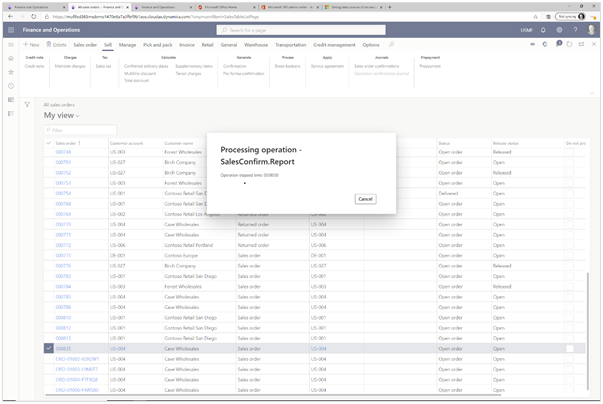
This will start the process of printing the Sales confirmation report.

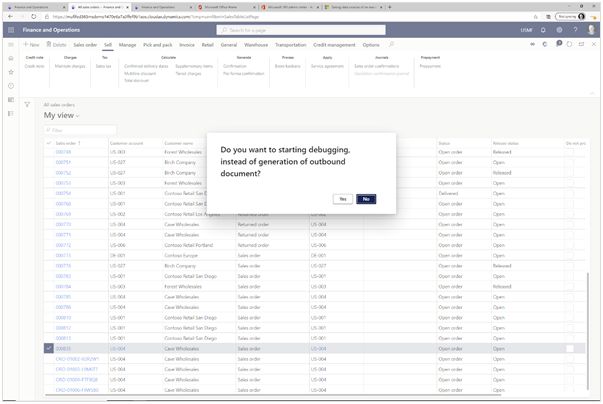
Step 3: Click the Yes button

Since we have the debugging enabled for the electronic reports turned on, we will not go straight to the report, we will be asked if we want to debug the electronic document.

Which we want to do.

To do this, just click on the Yes button.

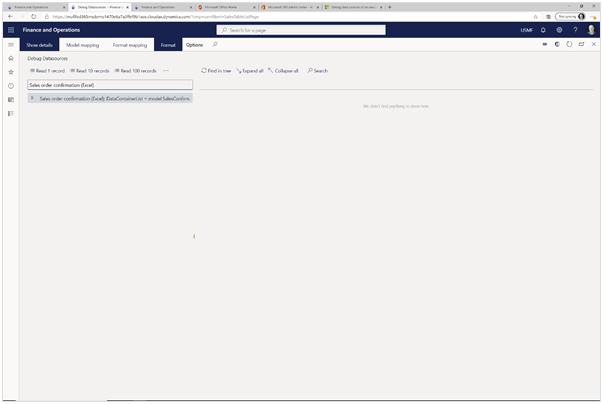
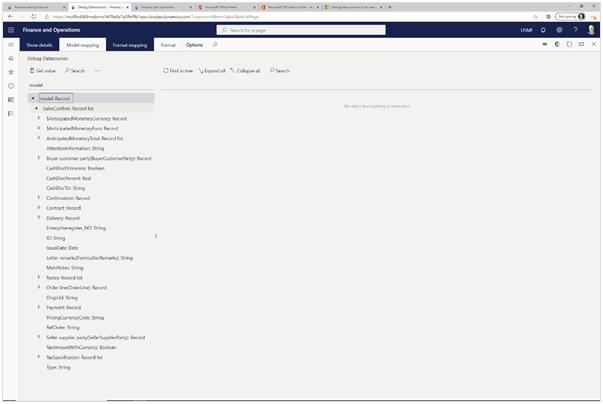
Now, rather than seeing the sales order confirmation report, we will be taken into the Debug Datasources explorer panel.

Exploring the Data Model

Now that we are in debug mode for the Electronic reporting, we can do a lot of different things, including browsing the data that is being returned from the data model, which is the data source for our Sales order confirmation.

How to do it…

Step 1: Click the Format mapping button

We will want to switch our view so that we can see the model mapping details.

To do this, just click on the Format mapping button.

Step 2: Expand the model Record node

Let’s explore the data that we are working with.

To do this, all we need to do is expand the model Record node.

Step 3: Expand the SalesConfirm Record list node

Now that we can see that we are getting data back from the SalesConfirm record list, let’s see what fields are there.

To do this, just expand the SalesConfirm Record list node.

Step 4: Expand the Buyer customer party Record node

Now we will see all the fields that are mapped to the data source. Let’s drill further into the data source and look at the data that is in the customer party record.

To do this, just expand the Buyer customer party Record node.

Step 5: Expand the Party Record node

Now we will drill into the party details.

To do this, all we need to do is expand the Party Record node.

Step 6: Expand the Contact Record node

Now we are getting somewhere. We suspect that the email address is in the Contact record, so let’s drill in further.

To do this, expand the Contact Record node.

Step 7: Click the ElectronicMail String node

Under that node we can see that there is an ElectronicMail field that is probably where the email address is stored.

Let’s select that field.

To do this, just click on the ElectronicMail String node.

Step 8: Click the Get value button

Now we can get the value that is being passed through to the data model.

To do this, just click on the Get value button in the menu bar.

Step 9: Click the Expand all button

On the right hand panel we will now see that there is a Record model showing up. This is where we will be able to see the data that is linked to our data model.

To do this, just click on the Expand all button in the menu bar.

When we expand out the record model, we will see that the ElectronicMail field has a value, and that is what we are looking for.

Review

How cool is that? Now we don’t have to guess what data is being returned through Electronic Reporting. We can use the debugging feature to wrangle our records and see where the data is within the data model.

This is a huge timesaver, and takes all of the guesswork out of linking data from the Electronic reporting models.