Archive

Author Archives: B-List Microsoft Celebrity, Available for Weddings and Bar Mitzvahs

The Common Data Model is a feature within PowerApps that allows us to store data within a separate database that we can populate with data from other data sources and then within PowerApps. This allows us to create apps that don’t need to be connected to the lower level databases.

In this walkthrough we will show how we can take advantage of this and create a simple mobile maintenance form.

Configuring the Common Data Model Data

Before we start creating our PowerApps we will need to make sure that our Common Data Model is configured and has some data within it that we can use within our applications.

Getting ready…

To do this we will just need to open up the PowerApps website and click on the Entities link within the Manage menu group on the left hand side for the page.

This will allow us to see all of the entities that are delivered with the Common Data Model.


If we drill into any of them we will be able to see all of the fields and objects that are included in the Entity.

To view all of the data just click on the Open In Excel icon in the top right of the page.


This will open up Excel and also the PowerApps add-in for Excel and you will be able to see all of the data.

In this example we loaded in a few more records than the ones that are delivered in the demo database so that we would have a little more information to play with.


Creating a Power App

Once we have got our data loaded into the Common Data Framework we can move to the next step and create a new PowerApp that accesses the data.

To do this all we need to do is open up Power Apps and click on the menu bar icon in the top left of the form. This will open up the menu for us and we can click on the New menu item.

Now we will see that there are a number of options available for us including an option to create an application from the Common Data Model. To start the process off we just need to click on the tile.


Next we will be given a list of all of the Connections that we can use for the PowerApp, and when we select the Common Data Model we will be able to see all of the entities that are available for us to connect to.


In this example we will select the Customers entity and then click on the Connect button.


This will start off the wizard that will build our initial PowerApp for us.


Within a couple of seconds it will return back with one of the default templates built for us which is already connected to our Common Data Model Entity.


Updating the Fields

When PowerApps creates the initial application, it is just guessing about the fields that you want to show on the form, so we may want to change some of the fields that are selected by default and choose ones that are a little more useful to us.

To do this all we need to do is select the field on the form template and it will show you all of the fields that are linked with the form.
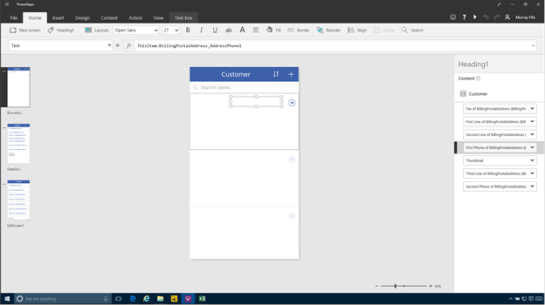

To change the field that you want to display, just click on the field and select the new one from the dropdown list.


Here we changed the first field to show the Description of the customer.


We can repeat the process and then change some of the other fields in the initial search panel to make the form more searchable.


Taking the PowerApp for a Test Drive

Once the PowerApp has been created we can test it out at any time and see how it works in the real world.

To test out the form, just click on the Play button in the header of the page.


This will open up the form in Preview mode and we will be able to see all of the records as if they were being displayed on a device – a Phone in this example.


If we want we can even test out the searching functions to filter out the data.


Updating the Detail forms

Now that we have updated the main search form we may want to tweak some of the other forms as well. There are two other forms that have been added to this project, a detail form which is used to view the record, and then an edit form that is used to update and create new records within the Common Data Model.

First we will update the Data page. To do this select the second PowerApp form. Here we will see that some of the fields have been added to the page, and if we select any of the fields then the fields that are included in the Data Card will show up on the right of the page.


Some will have an eye beside them to indicate that they are visible on the form. All of the other fields will be hidden.

In this case we don’t need any of those default fields to click on the visibility icon to toggle them off the form.


After doing that the form will be blank.


Now we will be able to find the fields that we really want and then toggle the visibility icon to add them back to the form.

Here we start off with the Customer ID.


Then we can repeat the process and add in some more fields to the form.


If we select the Edit card then we will see that there are a number of default fields that have been added as well.


If we select any of the fields then we will be able to see the same field editor as the previous form.


We can toggle the visibility on all of the fields that we don’t want to see.


And then add in all of the fields that we do want to see and maintain on the form.


Updating Records within a PowerApp

Now that we have updated the Data and Edit cards we can try using the app again, but this time we can try updating some of the data within the Common Data Model.

Start off by previewing the app, then find a record that you want to maintain and then select it.


This will take us into the Detail card with all of the data from the record. To maintain the record all we need to do is click on the Pencil icon in the top right of the form.


This will take us to the Edit card with all of the fields that we allow the user to maintain.


All of the fields that have lookups can be searched as well.

After we have updated the record, just click on the Check mark in the top right to save the record.


Adding new records within PowerApps

Now that we have updated records we can test out another feature which is the adding of new records. This will create new data within the Common Data Model for us as well.

To do this we just return to the main card for the PowerApp that we created and then click on the + button in the top right hand corner.


This will take us to the Edit card for the PowerApp.


Now we can start updating the new record.


After we have added all of the data for the record we just click on the check mark in the top right hand corner of the app to save the record.


If we return to the Excel worksheet that has all of the data from the Common Data Model we can refresh the data and then scroll to the bottom of the form. We will see that there is a new record that matches the record we just added.


Also as we browse through the field we will see that all of the fields that we updated within the PowerApp form have been added to the record – i.e. the shipping address in this case.


Sharing the Power App

Once we have created a PowerApp we chan share it with others within our organization.

To do this, just click on the menu bar and we will be able to see a Share option. Just click on it.


This will open up a Share panel for us.


All we need to do here is type in the alias of the person within the organization that we want to share the PowerApp with and select their name from the dropdown list.


After we have selected all of the people that we want to share the app with, just click on the Share button.


Now it’s shared.


Using a Shared PowerApp

Once the PowerApp is shared the users will be notified that they have access to it and will then be able to consume the app in a number of different ways.

When we invite someone to the app they will receive an e-mail notification that they can start using it. They are able to access the app either through the PowerApp mobile app, or through a web browser.

To see the app within the Mobile App, just click on the Open inPowerApps mobile link in the e-mail.


This will open up the PowerApps mobile application and confirm that you want to access the shared Common Data Model.


Then they will be able to browse all of the data and even update and add data through the app.


If they select the Web version then they will be taken to the PowerApps website and then confirm that they accept the Terms and Conditions.


Then they will be asked to confirm that they want to access the Common Data Model again.
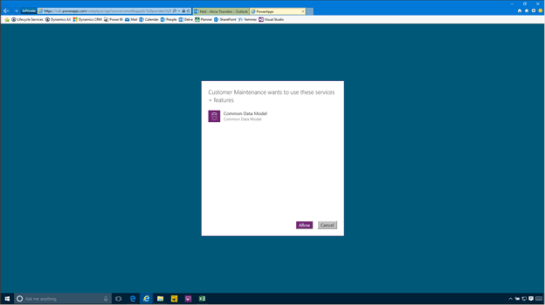

And then they will be able to access all of the data through the web interface as well.


Drilling into all of the detail the users are also able to see all of the same information as in the mobile app.


Conclusion

How cool is that!

Over the past couple of weeks, I have been working on my Author Tools project, and I wanted to pass along an update just in case you all are interested.

If you haven’t heard about this tool, it’s an add-in that I have written for PowerPoint that allows me to layout structured walkthroughs and notes within PowerPoint, along with structure and different types of page elements like this:

And then with a click of a button, convert it into a Word document with all of the headings, formatting, content, and also images laid out for me so that I don’t have to do all of the leg work:

And also with another click of a button, create PowerPoint presentations from the content with just the information that I want to show, and have it all look clean and consistent:

If you have been following any of the writing that I have been doing, then this is really the secret sauce that I have been taking advantage of in order to quickly organize and structure my content and then let it do all of the hard work.

Writing walkthrough guides are easy.  It’s the formatting of the content that will take you forever to do, especially of you are wanting to repurpose the content into other formats like scripts, blog posts, summaries and even books. 

As I mentioned above, I have been adding a number of bells and whistles to the add in, and also fixing a few bugs here and there and if you have seen previous versions of the add-in, then here are some of the tweaks that I have made lately:

  • Added section names and level numbers to the print from and to lookups
  • Fixed the section lookup find when there were multiple sections with the same name
  • Fixed the walkthrough topics covered to show the heading only if there are topics
  • Added an option to show the title or subtitles in the summary
  • Added language defaults and format tab to allow changing of the section, step, chapter, and part headings
  • Fixed the part titles that were not showing up in the search lookup
  • Fixed the Review slides so that they will show up in the walkthrough as a separate section
  • Fixed the review slide so that it does not show twice in the walkthrough
  • Added the ability to add custom presentation layouts to be used if they exist
  • Added extra CrLf to the speaker notes to make them more readable
  • Added Page + To Section in From and To selection list
  • Fixed Part Page on Presentation only showing first chapter
  • Allow placeholders for Title, Series, Author on non-Title/Cover Pages
  • Added a “Sway” Style
  • Added Subtitles to the Data and Exercise Steps
  • Added a Quizzes Story Board Element
  • Added a Chapter Summary on Parts Pages
  • Allow the merging of Tips and Picture on presentations
  • Automatically copy all master style on refresh
  • Added Section Heading and # for Quiz, Exercise and Data elements
  • Added a new document layer called “Articles” and a new Template “Text”
  • Fixed Part and Chapter Breaks on sections
  • Steps now get created on Parts, and Chapters with no sections below
  • Copy Test, Notes, Captions as RTF to preserve the formatting and font color
  • Added Illustration Slide Group
  • Added Appendix Slide Group at the same level as Chapters
  • Fixed Walkthrough Subheading title display
  • Added an option not to repeat Subtitle on Walkthrough – not needed for lab, needed for step by step
  • Added extra content buttons to the Write ribbon bar
  • Added a “Parent Placeholder” to show the parent title, regardless of the level
  • Added repeating Subtitles to the presentation
  • Fixed Step Numbers not showing because of comparison error
  • Add Picture Placeholder first in presentation to allow text overlay

Yes, I have been busy. I have even started a blog that I have been using to show how some of the features within Author Tools work. You can see it here: http://bit.ly/29FuIaT

If you are interested in checking the Author Tools out then here is a link to the suite of products: http://bit.ly/29CC43n

You can dive in straight away and use the Author Edition, or if you don’t want to make a financial commitment, then check out the Student Edition – it has all of the same features, but is just limited to 25 slide decks. Great for small blogs and walkthroughs.

I hope this is interesting, and remember – Write Smarter, not Harder.

Dynamics AX 2012 allowed us to create Partitions which were great for demonstrations and training because they allowed you to create new Dynamics AX instances within the same database.

The business data in each partition is isolated from the data in all other partitions in the same installation of Microsoft Dynamics AX.

Business data that is shared among companies is shared only among companies that are in the same partition.

Each Microsoft Dynamics AX client session starts in a partition. The session cannot later be switched to another partition. Instead the user must start a new session and direct it to start in a different partition, if the user is authorized for another partition. The system prevents even the system administrator from accessing data in any partition other than the current partition of the session.

But with the release of Dynamics AX online, the partition function is conspicuously absent from all of the System Administration menu.

This would make you think that the Partitions functionality is no longer available or supported.

This is partly correct. The partition functionality is still available, just not supported any more by development or R&D. A number of important features do not recognize non-primary partitions. Data entities, MR reports and attachments to name a few.

That doesn’t mean that we can’t take advantage of Partitions within non-production environments and create training environments and test cases. Also if you want to create new companies from scratch, then this is a great way to do this without having to fire up a new Dynamics AX instance and pay for all of the hosting charges.

Accessing the Partition Administration Form

The first thing that we will want to look at is how we can access the Partition Administration form which will show us all of the Partitions that we have configured within our environment and also allow us to create new partitions.

Even though the menu item is not available within the System Administration menu, that doesn’t mean that it’s gone for good. The menu item is still available, and if we want to hack the Dynamics AX URL then we can pull up the form.

But what is even more interesting is that even though the menu item is not there, you can still get to the Partition Administration form through a URL hack.

All we have to do is update our URL and add the following qualifier to it to tell it to open the PartitionAdministration menu item:

mi=partitionadministration

The full URL will look something like this:

https://yourservername.cloudax.dynamics.com/?cmp=USMF&mi=partitionadministration

When the page refreshes we will be taken to the Partition Administration form and we will see that in addition to the initial partition, there are a couple more that are waiting to be accessed.


Switching between Partitions

Now that we know what partitions are available, we can switch between them.

To do this we just need to add a new partition qualifier to the end of our Dynamics AX URL to specify the alternate partition that we want to use.

Here is the secret code that we would add:

&prt={partition}

For example, if we wanted to switch to the Public Sector partition within the demonstration database then the URL would look something like this:

https://yourservername.cloudax.dynamics.com/?prt=ps&mi=DefaultDashboard&cmp=DAT

When Dynamics AX refreshes we will see that our companies have changed to the Public Sector organizations.

And also all of the demo data is now Public Sector data.


Creating a new Partition

Taking advantage of the standard demonstration partitions is pretty neat, but the major benefit that we can get from the Partition functionality is that we can actually create our own new partitions that could be used for training or for testing setups.

To do this all we need to do is return to the Partition Administration form and then click on the New button in the menu bar.


Then we can enter in a new Partition Key and a Description and then click on the Save button in the menu bar.


Now that we have created our new Partition key we can hack the URL and specify our new Partition by adding the &prt= qualifier to Dynamics AX URL


When Dynamics AX refreshes we will be in our new Partition and we will see that it just has the DAT company.


Also, if we look at the users in the new Partition we will see that the Admin user has been set up already.

All we need to do now is start building our data.


Summary

Although this is not an officially supported feature within Dynamics AX, it is still there for us to take advantage of. Just be warned that not everything will work when it comes to integrating some of the more advanced features, but it is good to know that it is there.

About the Author
Murray Fife is an Author of over 25 books on Microsoft Dynamics AX including the Bare Bones Configuration Guide series of over 15 books which step the user through the setup of initial Dynamics AX instance, then through the Financial modules and then through the configuration of the more specialized modules like production, service management, and project accounting. You can find all of his books on Amazon at http://www.amazon.com/author/murrayfife.

Murray is also the curator of the Dynamics AX Companions (www.dynamicsaxcompanions.com) site which he built from the ground up as a resource for all of the Dynamics AX community where you can find walkthroughs and blueprints that he created since first being introduced to the Dynamics AX product.

For more information on Murray, here is his contact information:

Email: mcf@blindsquirrelpublishing.com
Twitter: @murrayfife

Facebook: facebook.com/murraycfife
Google: google.com/+murrayfife
LinkedIn: linkedin.com/in/murrayfife

Blog: atinkerersnotebook.com

Docs: docs.com/mufife
Amazon: amazon.com/author/murrayfife

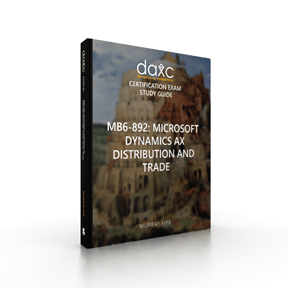
If you are like me and having to study up on the MB6-892 Microsoft Dynamics AX Distribution and Trade content so that you can get your certification, then I may have something that you all would be interested in. After creating the master study guide for the course this week I decided that it would be a good idea to reformat all of the individual courses that are recommended as study content into mini study guides, and also add in a little more content for you all as well.

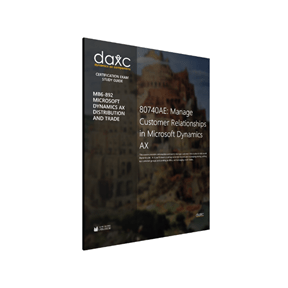
As a result, I have finished the first study guide for the 80740AE: Manage Customer Relationships in Microsoft Dynamics AX course and have released it for you all to take advantage of.

80740AE: Manage Customer Relationships in Microsoft Dynamics AX Study Guide Contents

This module shows how to create and maintain customers, manage customer pricing for trade or sales agreements, set up customer groups and post profiles, and configure credit limits.

Topics Covered

  • Lesson 1: Customers
  • Lesson 2: Customer Trade Agreements
  • Lesson 3: Customer Groups
  • Lesson 4: Credit Limits

This guide is more comprehensive than the master study guide and has all of the walkthroughs documented:


Additionally, all of the walkthroughs have detailed walkthrough steps that show you each screen shot so that you can follow along with the guide visually:


Also the Exercises include the sample data in a format that is much easier to follow than what is in the original documentation:


And of course there are all of the sample Questions, and also the Answers so that you can quickly test your knowledge:


Disclaimer: I have to admit, I didn’t write all of the content, I just made it usable, so if you want to do all of the legwork yourself, then all of this information is publicly available – apart from the screen shots which I had to do manually.

The guide has about 95+ pages all told so there is a lot of information for you all to help you with your studies.

If you want to check it out then here is the link to the download location: http://bit.ly/29zbhRR

I have to get certified on MB6-892 Microsoft Dynamics AX Distribution and Trade this year so I started looking at all of the prep guides that are available, and although there is a lot out there, it really isn’t in a format that is easy to sit down and study. So over the past few days I have been compiling all of the information that I can into something that is a little more useful for anyone else that is wanting to get certified on Distribution and Trade for the new Dynamics AX.

The Study Guide Contents

This study guide contains all of the exam prep content, including walkthroughs, practice exercises and sample Questions and Answers for the following core courses that are recommended for the MB6-892 certification.

  • 80740 Manage Customer Relationships in Microsoft Dynamics AX
  • 80741 Manage Products and Services for Sales in Microsoft Dynamics AX
  • 80811 Enrich Product Data in Microsoft Dynamics AX
  • 80835 Control and Manage Sales in Microsoft Dynamics AX
  • 80836 Manage Sales Commissions in Microsoft Dynamics AX
  • 80837 Create Sales Quotations in Microsoft Dynamics AX
  • 80838 Perform the Sales Process in Microsoft Dynamics AX
  • 80839 Process Outbound Delivery and Invoices in Microsoft Dynamics AX
  • 80816 Customer Payment Receipts in Microsoft Dynamics AX
  • 80819 Bills of Exchange in Microsoft Dynamics AX
  • 80840 Manage Vendor Relationships in Microsoft Dynamics AX
  • 80841 Manage Products and Services for Procurement in Microsoft Dynamics AX
  • 80842 Control and Manage Purchases in Microsoft Dynamics AX
  • 80843 Create Purchase Requisitions in Microsoft Dynamics AX
  • 80844 Create Requests for Quotations in Microsoft Dynamics AX
  • 80845 Perform the Procurement Process in Microsoft Dynamics AX
  • 80846 Receive Products and Services in Microsoft Dynamics AX
  • 80808 Vendor Invoicing in Microsoft Dynamics AX
  • 80813 Vendor Invoice Journals in Microsoft Dynamics AX
  • 80815 Vendor Payments in Microsoft Dynamics AX

Disclaimer: I didn’t write all of the content, I just made it usable, so if you want to do all of the legwork yourself, then all of this information is publicly available. And also there were about 5 courses that didn’t have the best content, so I did the best with what I could.

The guide has about 500+ pages all told so there is a lot of information for you all to help you with your studies.

If you want to check it out then here is the link to the download location: http://bit.ly/29Gozi7

To showcase Dynamics AX’s full potential within presentations, you really want to work with multiple personas with different job roles. This highlights the different access that all of the different people have, it cuts down on the number of functions that users are allowed to access, and also it just looks nice to change the view of the Dynamics AX world every now and then.

The problem though is how do you log into multiple personas at once. All of the session information is held in the browser cookies, so you probably start up In Private sessions, or open up other browsers that don’t share the session information. Even then you are still limited to the number of sessions that you can open and also having multiple browsers open like IE, Safari, Chrome etc. although it shows the compatibility of Dynamics AX with the different browsers, looks a little cluttered.

If only there was a better way.

Don’t fret. There is a better way, and it’s pretty simple to do. All you need to do is use the New Session function in Internet Explorer.

How to do it…

Step 1: Open up your first Persona

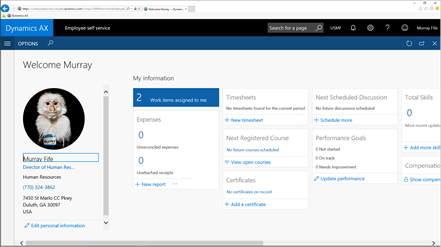
Start off by opening up your first Persona in Internet Explorer. Don’t do this in Edge because the feature is not available in that browser.


Step 2: Click on the New Session menu item

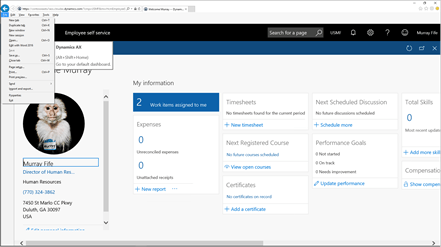
Now open up the File menu (ALT+F) and select the New Session menu item.


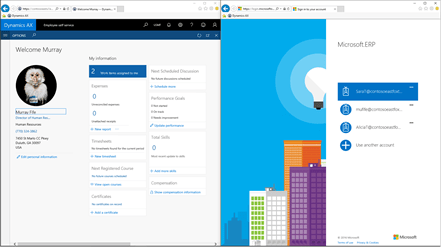
Step 3: Log in as your new Persona

This will open up a new Internet Explorer browser but the interesting thing is that the session will not share any of the information with the other browser window so you will be able to log in as another persona with different credentials.


How it works…

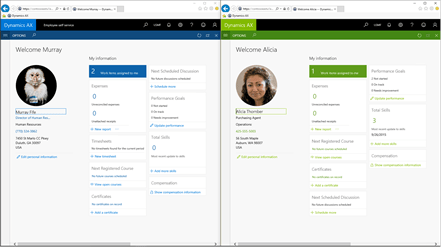
Step 4: Two separate Personas

When the second browser logs into Dynamics AX, you will see that the session is running as the new persona and you can now swap between the different users without a problem.


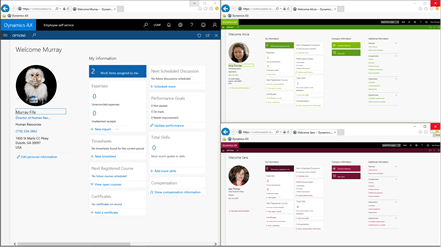
Step 5: You don’t have to stop there

You don’t have to stop there; you can create as many different sessions that are logged into Dynamics AX with their own separate sessions.

As a side note, you can also take advantage of the different color options within the users’ preferences to make it easier to see which user you are logged in as.


Summary

Logging in as different users has a whole slew of benefits. It allows you to work as a user other than the system administrator who has global access, and show what the real users would see and it allows you to show the interaction between the users through workflow and collaboration.

Also, by staging the sessions so that you don’t have to sign out and back in to show the different users makes the process seamless, and also makes the presentation a lot simpler.

About the Author

Murray Fife is an Author of over 25 books on Microsoft Dynamics AX including the Bare Bones Configuration Guide series of over 15 books which step the user through the setup of initial Dynamics AX instance, then through the Financial modules and then through the configuration of the more specialized modules like production, service management, and project accounting. You can find all of his books on Amazon here http://www.amazon.com/author/murrayfife.

Murray is also the curator of the Dynamics AX Companions (www.dynamicsaxcompanions.com) site which he built from the ground up as a resource for all of the Dynamics AX community where you can find walkthroughs and blueprints that he created since first being introduced to the Dynamics AX product.

For more information on Murray, here is his contact information:

Email: mcf@dynamicsaxcompanions.com

Twitter: @murrayfife
Facebook: facebook.com/murraycfife
Google: google.com/+murrayfife
LinkedIn: linkedin.com/in/murrayfife

Blog: http://www.atinkerersnotebook.com

Docs: docs.com/mufife
Amazon: amazon.com/author/murrayfife

With Update 1 of Dynamics AX, a new feature was added that allows you to use Microsoft Exchange Server as the e-mail provider for both workflows and also for sending e-mails directly from Dynamics AX. Previously the email transport options were SMTP and the client applications.

This is an important feature because it means that the outgoing emails are tracked within Exchange and stored as sent mail just in case you need to go back and reference them later on. With SMTP, you have no record of the sent e-mail unless you CC yourself. And if you use the client method to create your emails, then you can’t send the emails unless you have Outlook open, which is a little inconvenient.

Getting ready…

Step 1: Configure the Microsoft Exchange Server Parameters

To get this configured within Dynamics AX, first start by making sure that the Microsoft Exchange Server parameters are configured to point to your Exchange server.


Step 2: Use Autodiscovery to set the Microsoft Exchange Settings

If they are not configured, then just click on the Autodiscover button in the menu bar and then type in your Email and Password and then Dynamics AX will discover where the Exchange server is for itself.


Step 3: Set the default Email Provider to Exchange

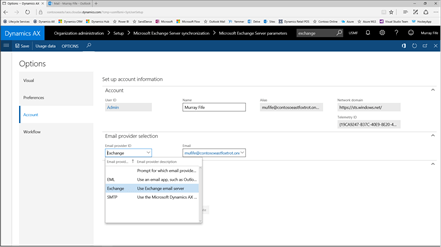
Then within the user Options,
browse to the Account page and click on the Email Provider ID and you will be able to select the Exchange option, which will tell the system to send all of your emails through Microsoft Exchange Server.


How it works…

Step 4: Create a Statement to Contact through Customer Collections

To see this in action, open up a customer and navigate to the Collections form with all of the transactions and history for the customer account.

Then click on the Statement to customer button within the action panel to create a new Statement, and then click on the OK button.


Step 5: Personalize the email

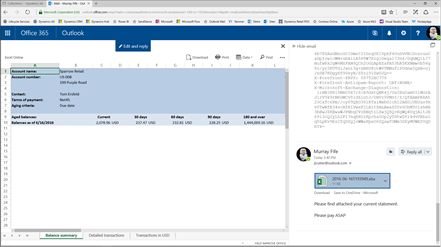
This will automatically create the statement for us ax an Excel file (you can see it at the bottom of the Send Email panel that pops up) and also allow you to personalize the email that you are going to send to the customer.

After updating the Subject and also adding a personal message in the email body, we just need to click on the Send button.


Step 6: Email archived within Exchange

Now if we switch over to our Exchange account we will see that the email that we just created is sitting in our Sent email box.


Step 7: The Statement is an Attachment

Also from here we can see that the Statement is attached to the email as well and if we need to peek inside and see what Dynamics AX created for us then we can.


Step 8: There are multiple tabs on the Statement

The statements aren’t just single worksheets as well; they have multiple pages within the workbook which is pretty cool as well.


Summary

If you are wanting to audit emails, or archive correspondence that is sent out to the customer (and vendors etc.) then this is a great way to do it. Also this is a much better option than SMTP or using the client because it is completely hands off and integrated into Dynamics AX.

If you ask me, this is the only way that we should be sending emails.

About the Author

Murray Fife is an Author of over 25 books on Microsoft Dynamics AX including the Bare Bones Configuration Guide series of over 15 books which step the user through the setup of initial Dynamics AX instance, then through the Financial modules and then through the configuration of the more specialized modules like production, service management, and project accounting. You can find all of his books on Amazon here http://www.amazon.com/author/murrayfife.

Murray is also the curator of the Dynamics AX Companions (www.dynamicsaxcompanions.com) site which he built from the ground up as a resource for all of the Dynamics AX community where you can find walkthroughs and blueprints that he created since first being introduced to the Dynamics AX product.

For more information on Murray, here is his contact information:

Email: mcf@dynamicsaxcompanions.com

Twitter: @murrayfife
Facebook: facebook.com/murraycfife
Google: google.com/+murrayfife
LinkedIn: linkedin.com/in/murrayfife

Blog: http://www.atinkerersnotebook.com

Docs: docs.com/mufife
Amazon: amazon.com/author/murrayfife


Dynamics AX allows us to Save document attachments in a number of different locations including within SharePoint. This is a great option because not only do you have a way now to index and manage the documents, but also the documents are also indexed and made available to users through other Office 365 tools like Delve. This provides an enterprise indexing and search option which is extremely helpful, without adding any additional work for the administrators.

Getting ready…

Step 1: Create a Document Type linked to SharePoint

To start off, create a new Document Type within Dynamics AX, and make sure that you set the Location to SharePoint. This will enable the SharePoint Address field and you can click on the pencil icon to the right of the field.


Step 2: Select the SharePoint Document Library

This will allow you to navigate through all of your sites that you have configured within SharePoint and select the default document library that you want to save the document into.

In this example we have created a number of sites, and these are just Office Groups that we created within SharePoint.


How to do it…

Step 3: Open a new Released Product

Now that we have the document types linked to SharePoint we can start saving documents away there. To do this start by opening up a Released Product and then click on the Document Attachment icon (the paper clip) in the top right hand corner of the form.


Step 4: Attach a document within SharePoint

When the Document Attachment window is displayed, attach a file to the record using the SharePoint enabled Document Type that you just created.


How it works…

Step 5: Document saved to SharePoint

Now the document will be saved within SharePoint within the library that you assigned to the Document Type.


Step 6: Document becomes visible within Delve

But there is more. Since the Document has been saved within SharePoint then it will start to be surfaced within Delve as a document that the user created.


Step 7: Open Delve as another user

This becomes even more useful because the document is now searchable through Delve by other users (that have access) to the SharePoint library that you stored the document within.

For example, here we will sign into Delve as Alicia.


Step 8: Document found based on key words

If Alicia searches for any document that has a particular keyword that matches the document, or the indexed contents of the document then she will be able to find the file that we just saved from within Dynamics AX.

More importantly, since we saved a PDF file, Delve will search through the contents of the document as well and allow us to do a full text search within the file.


Summary

By saving Dynamics AX attachments within SharePoint, all of the documents become a resource for the entire organizations. Performing an Enterprise Search using keywords and time frames becomes enabled through not only SharePoint but also through Delve. Along the way these documents can then be Shared with non-Dynamics AX users (that have permission of course) and also we can use Office 365 as a document management system, rather than locking up all of the documents within the database and using up valuable space within SQL.

About the Author

Murray Fife is an Author of over 25 books on Microsoft Dynamics AX including the Bare Bones Configuration Guide series of over 15 books which step the user through the setup of initial Dynamics AX instance, then through the Financial modules and then through the configuration of the more specialized modules like production, service management, and project accounting. You can find all of his books on Amazon here http://www.amazon.com/author/murrayfife.

Murray is also the curator of the Dynamics AX Companions (www.dynamicsaxcompanions.com) site which he built from the ground up as a resource for all of the Dynamics AX community where you can find walkthroughs and blueprints that he created since first being introduced to the Dynamics AX product.

For more information on Murray, here is his contact information:

Email: mcf@dynamicsaxcompanions.com

Twitter: @murrayfife
Facebook: facebook.com/murraycfife
Google: google.com/+murrayfife
LinkedIn: linkedin.com/in/murrayfife

Blog: http://www.atinkerersnotebook.com

Docs: docs.com/mufife
Amazon: amazon.com/author/murrayfife

I’m sure that you all are thinking about your mid-year resolutions, and we can’t think of a better one than to learn how to configure Dynamics AX.


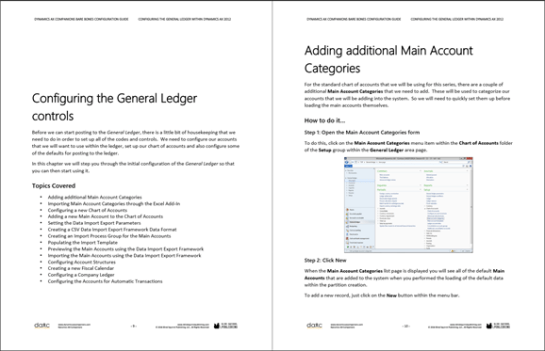
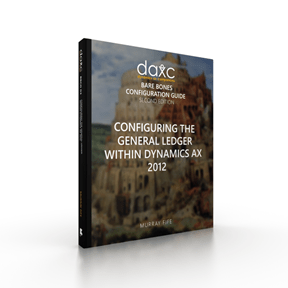
To help you along we have been busy revising and updating our Bare Bones Configuration Guides to make them even more helpful. The first one that we have updated is our Configuring the General Ledger within Dynamics AX 2012 guide, and we are happy to say that it is now available for you all to download.


We listened to all of your feedback from the last version of the guide and with this edition and have:

  • added 137% more content to the guide and in most cases rewrote all of the narratives
  • added more context around the configuration of the General Ledger setup to help you understand the Why of what you are doing
  • included sample data tables to help you as you are setting up data, so that you don’t have to squint at the screen shot as much
  • updated the format of the document to a recipe view, which trimmed up the guide by about 40% even though there is more content.


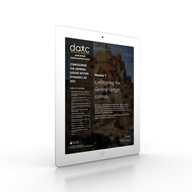
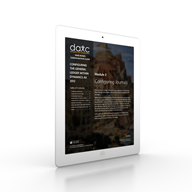
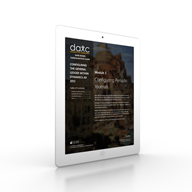
Here is a quick preview of the new guides – we think we did a pretty good job if we do say so ourselves. (We are using our Author Tools to automate the formatting of the guides and it’s working great)


If you want to take a look at it then you can check out the Print and Digital version on the New
Dynamics AX Companions website www.dynamicsaxcompanions.com (we are finally migrating off the old site that has served us well, but had a few quirks that we couldn’t debug)


If you are a Premium Member on the new Dynamics AX Companions then you can download this new guide, right away, at no additional cost. If you want to be a premium member then all you need to do is sign up here: http://bit.ly/25SOcEj


Along the way we have also started the reorganization process for the website to make it easier for you all to find just the resources that you want. One of these bonuses for you all is that we have also split up the guide into the individual modules that you can download in an à la carte fashion. This allows you to pick and choose what you want to learn and choose your own adventure with Dynamics AX.


To sweeten the deal even more you can download the first module Configuring the General Ledger controls within Dynamics AX 2012 for free to test drive the content. We’re sure that once you start the journey you will be hooked and have to do all eight of the modules.


So if you are looking for something to do in the second half of 2016, why not start off by learning the General Ledger within Dynamics AX. All of your friends will be so impressed with you when you start explaining how to configure the Ledger Controls, Journals, Periodic Journals, Organizational Structures, Financial Dimensions, Allocations, Accrual Schemes and Currency Management.

We’re sure you all know about the Bare Bones Configuration Guides for Dynamics AX that we slaved over for about two years to compile. Just in case though and as a reminder there are currently sixteen guides now published that will allow you to lean Dynamics AX by implementing a simple company from scratch. The series includes the following guides:

  • Configuring A Base Dynamics AX 2012 Test System
  • Configuring an Organization within Dynamics AX 2012
  • Configuring the General Ledger within Dynamics AX 2012
  • Configuring Cash and Bank Management within Dynamics AX 2012
  • Configuring Accounts Receivable within Dynamics AX 2012
  • Configuring Accounts Payable within Dynamics AX 2012
  • Configuring Product Information Management within Dynamics AX 2012
  • Configuring Inventory Management  within Dynamics AX 2012
  • Configuring Procurement and Sourcing within Dynamics AX 2012
  • Configuring Sales Order Management within Dynamics AX 2012
  • Configuring Human Resource Management within Dynamics AX 2012
  • Configuring Project Management and Accounting within Dynamics AX 2012
  • Configuring Production Control within Dynamics AX 2012
  • Configuring Sales and Marketing within Dynamics AX 2012
  • Configuring Service Management within Dynamics AX 2012
  • Configuring Warehouse Management within Dynamics AX 2012

If you are wanting to learn more about the guides then you can go to http://www.dynamicsaxcompanions/barebones and if you haven’t pick up your very own copy then just go to the sister site at http://shop.dynamicsaxcompanions.com and we can hook you up with copies.

Now that the hard work is done, we have been working on additional ways that we can help you even more. To do this we are making all of the Bare Bones Configuration Guides available as training guides and PowerPoint presentation so you can take the next step with the Bare Bones Configuration project and give your own training to your customers and peers.

Also in addition to having the content available as the self-paced walkthrough guides with the big pictures, we are offering some more formats specifically designed specifically for the classroom environment. Here is a quick of what we are now letting you take advantage of:

Training PowerPoints


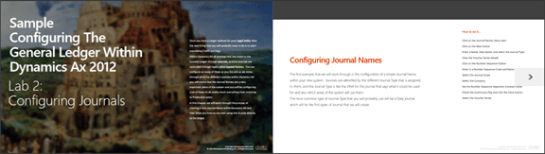
We have taken all of the content from the Bare Bones Configuration guides and formatted them as PowerPoint presentations.

Each step is shown in the PowerPoint including all of the screen shots and there are options to include the Speaker Notes on the PowerPoint to make a Slideument version or have the notes hidden away as Speaker Only notes.

Additionally the guides have been split even more into individual Labs so you can pick and choose the order and the content for the training yourself.

Additionally, since this is a PowerPoint, then you will receive a license to rebrand the content and white label it if you like your own internal training classes.

Here is a link to the sample PowerPoint presentation: https://doc.co/EPqRsR

Students Guides


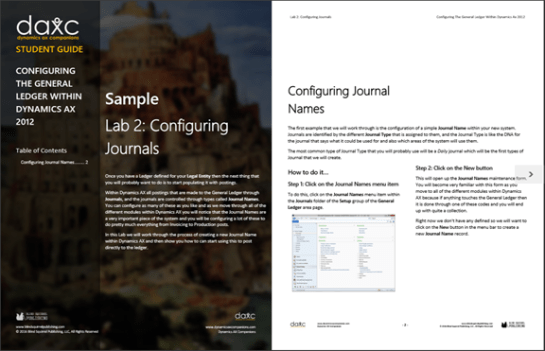
To make this look even more organized we have also converted all of the labs into Student Guides.

These guides are a more concise version of the walkthrough guides which also includes sample data and also some exercises.

To make the guide more manageable for the student we have includes all of the images as well, but these are shown as thumbnail images for reference.

We are making these student labs available in both the Digital and Print format.

If you want to white label these labs then we can definitely help you all with that and work with you all on the design that you like.

If you want to see an example of the Student Lab then here is a link: https://doc.co/8i5Ypd

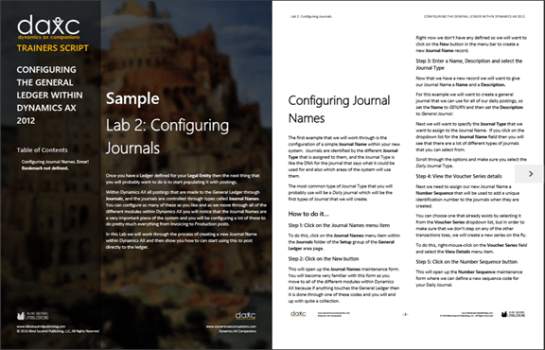
Trainers Script


To finish off the set we have also compiled a Trainers Script which is an even more concise version of the guides. This version though is for the Expert and is designed to be used by the teacher as a guide during the training. No need for pictures in this case.

This will also be available in both the Digital and Print format.

If you would like to see what this document looks like then here is a link: https://doc.co/KDFjaW

Licensing the Source

One final note that we want to highlight is that if you want to repurpose the content and white label it yourself then we are now offering the option to license the source Word File.  This will be the entire content of the guides including all of the images, but the only restriction would be that you don’t republish it in a way that would compete directly with the original content.

This will allow you to convert the training program into other guides, convert into help, use for more extensive training, or just cut up for internal use.

If that sounds like something that would be interesting then just drop us a note.

How can you get these?

Hopefully this has been interesting and shows you how we are taking the Bare Bones Configuration Guides to the next level to help you all out as well. If you want to take advantage of any of these additional offerings then just drop us a note and we will definitely be able to help you all.