Archive

Author Archives: B-List Microsoft Celebrity, Available for Weddings and Bar Mitzvahs

Everyone is probably familiar with the Document Attachments feature that is built into Dynamics AX, but you may not know that there is a second document management function that allows you to drag and drop files into it and also add additional notes against documents. If you didn’t know this then don’t feel too left out, it is part of the Sales and Marketing module, and is only available on a handful of forms.

Why this is interesting though is because if you want to do some light configuration within Dynamics AX, you can easily add this to other forms and start getting the same drag and drop document management capabilities. You don’t even have to write a single line of code.

The question you need to be asking yourself is why not do this?

Getting Ready

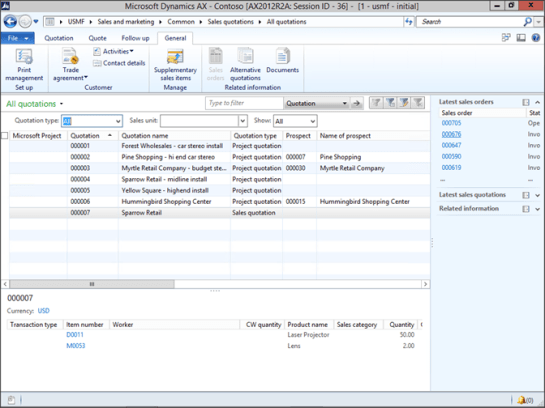
To show you what we are talking about, just open up the Sales Quotations form and switch to the General ribbon bar. If you look in the Related Information group you will see the Documents button.


Before we can use it though there is a little bit of setup. So click on the Sales and Marketing Parameters menu item within the Setup group of the Sales And Marketing area page.

When the Sales and Marketing Parameters form is displayed, switch to the Documents page.

Click on the Document Type for Incoming Email and select the File option.

Do the same for the Document Type for Outgoing Email and Document Type for Other Documents fields.
When you have done that, click on the Close button to exit from the form.


Now you can click on the Documents button within the Quotations form and a new document linking form will be displayed.

To test it out, just grab a file, and frag it over to the Drag Files Here box in the form.

BAM! The document is attached.


How To Do It

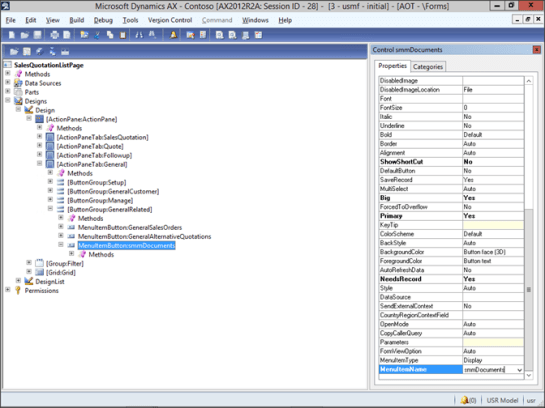
To add this capability to other forms, open up AOT and then open up the SalesQuotationListPage form.
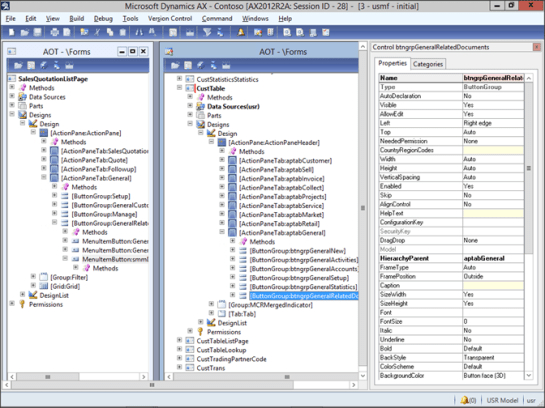
Expand out the Design section and then drill into the ActionPanel until you get to the button group containing the smmDocuments button. If you look carefully at it, it actually calls another menu item.


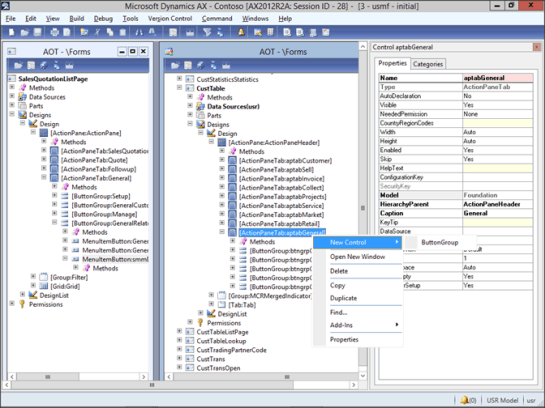
To add this to the Customers form as an example, open up the CustTable form and expand out the ActionPanel and then the General ribbon bar.Right-mouse-click on the ActionPanel and select the New Control menu item and then the ButtonGroup sub item.


When the new Button Group is created, change the Name to btngrpGeneralRelatedDocuments.

Then move the Button Group to the bottom of the list.


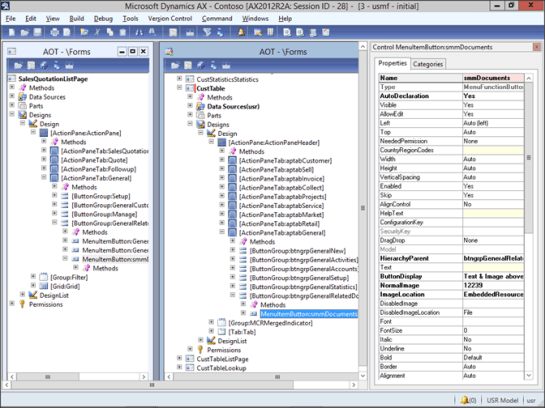
Now drag the smmDocuments button from the SalesQuotationListPage form over to the new button group that you just created. Remember to hold down the CTRL key to make sure that you copy, and not move.


After you have done that, click on the Save icon and let the form update.

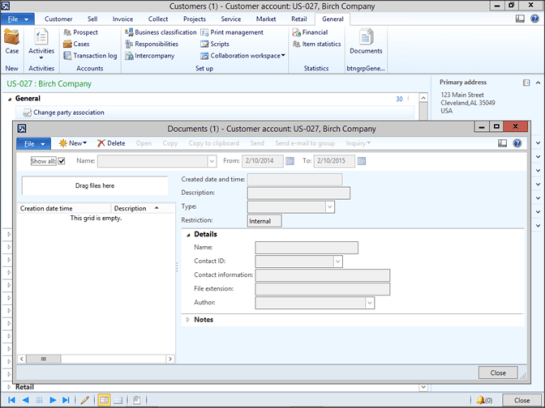
Now when you return back to the Customers form you will see that there is now a button for the documents.

If you click on it then it will open up the document linking form.

Just drag and drop the files over there to link them with the customer account.


Now you can add notes to the document and update the description.

Conclusion

This is such an easy change to make, you may start doing it everywhere else in the system. What’s more, there are no coding changes required.

If you dig into this feature a little more you will find that there is a class associated with the smmDocuments form that allows you to add additional linking logic as the files are being attached. This allows you to change the default key fields that are used to index the document, which could be useful if you are wanting to do just a little bit of coding.

How cool is that?

About The Author:
Murray Fife is a Microsoft Dynamics AX MVP, Author of over 20 books on Microsoft Dynamics AX, and Solution Architect at I.B.I.S. Inc. with over 20 years of experience in the software industry. Like most people in his industry he has worked in many different roles during his career, including as a developer, an implementation consultant, and a trainer which gives him a great understanding of the requirements for both customers and partners. He is a regular contributor to the Dynamics AX community and in addition to hosting presentations for I.B.I.S. presents regularly for the AXUG and MS Dynamics World, has spoken at Microsoft Convergence and AXUG Summit conferences. If that was not enough, he works closely with Microsoft evaluating with their beta products and also is a Council Member on the Microsoft Dynamics Academic Alliance trying to help educate the new generation of consultants on Dynamics AX.

The Product Information Management area within Dynamics AX not only allows you to manage all of the core product details. It is also the central location for all the other product information such as the Product Attributes, Product Categories, External Product Descriptions and Product Structures. It also allows you to track the interrelationships between the products through this part of the system with the Product Relationships. If you want to add more control over the products lifecycle then you can use the Product Change Management Cases. All of this information is managed through this one location and then consumed within all of the other modules.


Setting up the Product and Service details are not hard either and this guide is designed to give you step by step instructions to show you how to configure the Product Information Management area, and also how some of the basic parts work to get you up and running and working with your Products and Services.


To help you all, I have published book #7 in the Bare Bones Configuration Guide series that lays the foundation for Configuring Product Information Management Within Dynamics AX 2012. The book covers all of these areas related to Product Information Management:


  • Configuring Product Information Management Controls
  • Configuring Products
  • Configuring Dimensional Products
  • Configuring Product Categories And Attributes
  • Configuring Product Catalogs
  • Configuring Product Relationships
  • Configuring Product Change Management Cases


If you want to get a printed copy of the book, or if you want an easy way to download a PDF copy then you can now get it from Blind Squirrel Publishing. As a bonus, you will get a 20% discount off the standard list price. How generous is that? Just follow this link and it will take you directly to the book details.


If you want more information on this book then you can check it out on the Dynamics AX Companions website by clicking on the book icon below::


I hope this is useful, or at the very least interesting and don’t hesitate to drop me a note if you have any comments or suggestions on other cool things to do with AX.


I just wanted to drop you all a quick note to remind you that the AXUG Academy Class that I am teaching on Accounts Payable Configuration within Dynamics AX 2012 is coming up next week.  This is the fourth in the series, and continues on from the General Ledger, Cash and Bank Management and Accounts Receivable classes that we have held over the past few months.

Even if you are one of the enlightened ones that have already started taking these classes, you can easily start with this class.  Here is the link to the AXUG Academy website with more information.

Academy – AX Configuration Series – Accounts Payable Setup April 2015

Friday, April 10, 2015 (12:45 PM) to Friday, April 10, 2015 (5:00 PM) (Eastern Time)

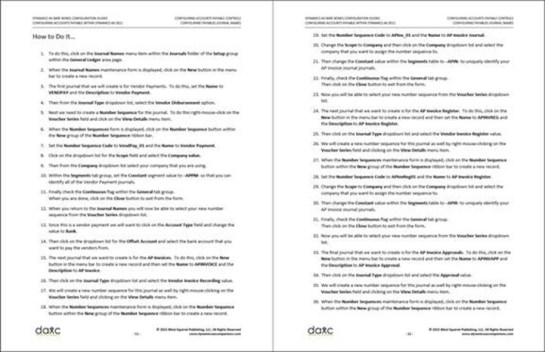
I have been rebuilding the training material for this class and all of the students will get a new and improved version of the Configuring Accounts Payable within Dynamics AX 2012 Bare Bones Configuration Guide Training Workbook which has been expanded (both page count wise and also physically) to make it easier to follow during the training.  This book is not even available on Amazon yet (https://www.createspace.com/5405484)


All of the exercises have been reformatted to give you a quick reference guide, a thumbnail cheat sheet and also a detailed step by step guide with screen shots.  Also we have improved the quality of the images so there is no more pixilation of the screen shots which makes is even betterer (I know this is not a real word).


Here is a quick summary of the class and also the areas that we will be going through:

Summary:

The Accounts Payable area is one of the three foundation financial modules within Dynamics AX that you will want to set up.  It not only allows you to manage all of your vendor information, post your invoices, and make in your payments, but also allows you to manage approval workflows, and much more.

It’s not hard to configure either and this book is designed to give you step by step instructions to show you how to configure the payables area, and also how some of the basic transactions work to get you up and running and working with your vendors.

Configuring Accounts Payable Controls

Before we start adding vendors and creating invoices within the Accounts Payable module of Dynamics AX, there are a couple of codes and controls that need to be configured so that everything else later on in the book will run smoothly.  In this section we will walk through everything that you need to set up to get the basic Accounts Payable features working.

Topics Covered:

  • Configuring Payables Journals
  • Configuring Vendor Posting Profiles
  • Configuring Cash Payment Terms
  • Configuring Net Days Payment Terms
  • Configuring Net Day Of Month Payment Terms
  • Configuring Equal Monthly Scheduled Payment Terms
  • Configuring Proportional Monthly Scheduled Payment Terms
  • Configuring Cash Discount Codes
  • Configuring A Check Payment Method
  • Configuring An Electronic Payment Method
  • Configuring A Postdated Check Payment Method
  • Configuring Accounts Payable Parameters

Configuring Vendor Accounts

Now that you have all of the codes and controls configured you can start adding some real data into the Accounts payable, and the best place to start is by setting up your vendors.

In this chapter we will show you how you can set up individual vendors, and also how you can load in all of your vendors in bulk through the Data Import Export Framework.

Topics Covered:

  • Changing the Vendor Numbering Sequence
  • Configuring Vendor Groups
  • Creating A New Vendor Account
  • Importing Vendors Using The Data Import Export Framework
  • Updating Vendor Information Manually
  • Performing Bulk Updates Using The Edit In Grid Function
  • Performing Mass Updates Using Excel

Configuring Invoicing

Now that we have all of our vendors set up, we can start doing some real work by entering in invoices and processing payments.

Topics Covered:

  • Creating An Invoice Journal
  • Viewing All Open Vendor Invoices

Creating Vendor Payments

Once you have invoices within the system, you can start selecting invoices for payment and print checks.

Topics Covered:

  • Creating A Payment Journal Using Payment Proposals
  • Generating Payments From A Payment Journal
  • Viewing Vendor Transaction History

Configuring Payables Invoice Journal Approvals

Payables is one of the most common areas within Finance that people want to add workflows and a great place to start within this module is to configure workflow approvals around the Payables Invoice Journals so that you can make sure that only the invoices that you want to pay get paid.

Topics Covered:

  • Creating An Invoice Journal Workflow
  • Defining Invoice Journal Approval Workflow Submission Instructions
  • Assigning Multiple People To The Journal Approval Workflow Task
  • Defining The Journal Approval Workflow Task Instructions With Context Links
  • Publishing And Activating The Journal Approval Workflow
  • Assign The Invoice Journal Workflow To The Invoice Journal
  • Submitting AP Invoice Journals For Workflow Approval
  • Accessing Workflow Tasks Through The Work Item Notifications
  • Accessing Workflow Tasks Through The Work Item List
  • Viewing Workflow Status And History
  • Approving Workflow Tasks Through The Work Item List
  • Posting AP Invoice Journals After Workflow Approvals Have Been Completed
  • Adding Status Notifications To Workflows
  • Publishing A New Version Of The AP Invoice Journal Approval Workflow
  • Receiving Workflow Status Update Notifications
  • Viewing Workflow Versions
  • Viewing All Workflow Statuses

Here is the link for more information: http://www.dynamicsaxcompanions.com/Bare-Bones-Configuration-Guides/Configuring-Accounts-Payable

Last three classes on Configuring The General Ledger, Cash and Bank Management and Accounts Receivable classes were a great success and I hope to see some of you at this next class on the 10th.  There is limited seating so reserve your place soon

I have a confession to make – although you all may know this already – like all struggling authors, my writing and curating the Dynamics AX Companions site is my second job, and the only way that I am able to do this is through the support of I.B.I.S. Inc.

So to return the favor back to them I am asking all of my community of readers that if you like what I am doing through the Dynamics AX Companions site, then show the love by creating a review for my benefactor on Pinpoint. For those of you that are not familiar with Pinpoint, it’s also a forum that allows people to comment on services and solutions that would be akin to online Business to Consumer sites like Yelp or Angie’s List.


If you want to help me out then just sign into to the Pinpoint site (https://pinpoint.microsoft.com), do a search for I.B.I.S. Inc. and then write a quick recommendation.

Apart from helping my benefactor, it will also butter them up and keep me in the good graces with them so that I can spend more time releasing out the remaining Bare Bones Configuration Guides that I have been trying to find time to finish.

Thanks so much.

Thanks for everyone that stopped by to see me at Convergence this year. It was great to see all of you in person and connect with you all in real life. I enjoyed giving you all the free copy of the book that I created for the conference – I don’t think that there were any left after the first few days.

For those of you though that did not manage to make it to Atlanta, Georgia for Convergence ’15 I thought that I would drop you all a note with a link that will let you download a free copy of the book that I was giving away all week – for free.

If you want then you can just use this OneDrive link and you will be able to download the eBook:

http://1drv.ms/1MGMn07

If you want the full PDF version as well, then I am making that available also to all of the Premium Subscribers on the Dynamics AX Companions project website. If you haven’t found the site yet, and would like some more information on it then click here for more details about what we are doing.

When you first start implementing Dynamics AX, it may seem like you have bitten off more than you can chew and it may seem a little overwhelming. Even though you know your business inside and out, you don’t know how this is supposed to translate into the setup and configurations required by Dynamics AX. To make it even worse when you talk to implementation consultants, initially it may seem like they are talking a different language because they know the application, and you can barely pronounce journal. In order to successfully implement Dynamics AX, you need to translate your business knowledge into terms Dynamics terms so that your business partners will be able to then find the best configuration for you to meet your needs.

The best way to learn Dynamics AX is to actually roll up your sleeves and start setting it up yourself, and there are a few options available to you to get there…

  • You can get your partner to give you training on-site, which is a great option, except it is rather expensive and every time that you need to train someone then there is an additional cost, and also there is a lot that may be left unsaid by the trainers just because they assume a certain level of knowledge that you may not have yet.
  • You could try to download the training material that is available on the Microsoft site, but this is very granular and usually focuses on a very particular topic and it also has an expectation that you know a little about Dynamics AX as well, so there is a learning hurdle that you need to get over before you can start using it to training yourself, and also there isn’t a clear path on where to start.
  • You could buy some of the Overview books that are available on Amazon, but most of these are geared towards developers and tell you the minutia of how to program the system or on how to create a report, but it doesn’t show you how to perform a single transaction.
  • You could go to Customer Source and try to try to use that to guide you through the setup, but that is even worse for a Dynamics AX novice because although all of the documentation there is technically correct, there are no examples, or screen shots to guide you on your way while you are travelling through the system.

All of the options initially look like this:


When what you really need is this:


The Solution

That’s where we come in. The Dynamics AX Companions project was developed to give people a resource that they could use to start building the foundation of knowledge about Dynamics AX starting right at the beginning, and also then build upon that foundation so that you can learn some of the more clever features within the system that you can take advantage of without overwhelming you.

One of the resources that we provide are the Bare Bones Configuration Guides for Dynamics AX which is a set of 19 hands on guides that take you step by step through all of the setup of Dynamics AX along with instructions telling you exactly what you need to do, where you need to do it, and also every step is illustrated with a screen shot so that you don’t have to guess where you should be, or what the screens should look like.


Each guide builds upon the prior guides starting off with the creation of a blank company, all the way through the configuration of all the main modules. When you are done working through all of them you should know 90% of what there is to know about setting up a simple company within Dynamics AX giving you a great jumpstart on learning how everything works.


In The Works

To make this a true training resource we are also reformatting the books as PowerPoint presentations that you can use as a trainer to guide the classes, and when used in conjunction with the Student Guides you have a classroom in a box that you can use yourself for performing your own in-house training.


Getting Access

Through the eBook subscription on the Dynamics AX Companions site you get access to all of Bare Bone Configuration Guides, plus all of the additional premium content that is delivered on the site through the Tips and Tricks for Dynamics AX, and also the Introduction and Configuration Blueprint Guides that fill additional training gaps that you might find useful after you have gained a level footing with Dynamics AX.

The Enterprise eBook Subscription allows you to give your entire staff access to these resources through one single subscription, which you can purchase in increments of 10 users and works out to be a 50% discount on the licenses.

Need More Information?

Web:         www.dynamicsaxcompanions.com
Email:         info@dynamicsaxcompanions.com
Twitter:    @daxcompanions

I just wanted to drop you all a quick note to remind you that the AXUG Academy Class that I am teaching on Accounts Receivable Configuration within Dynamics AX 2012 is coming up in two weeks. This is the third in the series, and continues on from the General Ledger, and Cash and Bank Management classes that we have held over the past months.   Even if you are one of the enlightened ones that have already started taking these classes, you can easily start with this class. Here is the link to the AXUG Academy website with more information.

Academy – AX Configuration Series – Accounts Receivable Setup

Friday, March 6, 2015 (12:45 PM) to Friday, March 6, 2015 (5:00 PM) (Eastern Time) 

I have been rebuilding the training material for this class and all of the students will get a new and improved version of the Configuring Accounts Receivable within Dynamics AX 2012 Bare Bones Configuration Guide Training Workbook which has been expanded (both page count wise and also physically) to make it easier to follow during the training. This book is not even available on Amazon yet (https://www.createspace.com/5327894)

All of the exercises have been reformatted to give you a quick reference guide, a thumbnail cheat sheet and also a detailed step by step guide with screen shots. Also we have improved the quality of the images so there is no more pixilation of the screen shots which makes is even betterer (I know this is not a real word).

Here is a quick summary of the class and also the areas that we will be going through:

Summary: The Accounts Receivable area is one of the three foundation financial modules within Dynamics AX that you will want to set up. It not only allows you to manage all of your customer information, post your invoices, and receive in your cash payments, but also allows you to manage your collections, track deductions, and much more.   It’s not hard to configure either and this class is designed to give you step by step instructions to show you how to configure the receivables area, and also how some of the basic transactions work to get you up and running and working with your customers. The individual topics that we will be working through over the four hour class are:

  • Configuring Accounts Receivable Controls
    Overview: Before we start adding customers and creating invoices within the Accounts Receivable module of Dynamics AX, there are a couple of codes and controls that need to be configured so that everything else later on in the book will run smoothly. In this section we will walk through everything that you need to set up to get the basic Accounts Receivable features working.
  • Configuring Customer Accounts
    Overview: Once you have all the base configuration done within the Accounts Receivable area, you can start getting to the meat and potatoes of the module, which is the configuration of the Customer Accounts. This may seem like a daunting task if you have a large customer base, but if you use the import tools, and features like the Excel Add-In for tidying up your data, then this isn’t very hard, and regardless of if you have 100, or 10,000 customers can be a breeze to load.
  • Configuring Invoicing
    Overview: Now that we have the customers configured we can start getting down to business and doing some invoicing. There are a number of different invoicing options within Dynamics AX and in this section we will walk through the main ones.
  • Configuring Collection Management
    Overview:
    Once you have your invoicing configured you will probably want to set up the Collections Management portion of the Accounts Receivable area. This will allow you to track your customer aging’s, pools for segregating customers, collection letters and much more.
  • Configuring Cash Receipts
    Overview:
    Hopefully you won’t have to use the Collections Workbench very much and your customers will just pay their invoices on time, or before they are due. So the next area that we are going to look at is the Cash Receipts functions within Dynamics AX and show you how to record customer payments.
  • Configuring Deduction Management
    Overview:
    Unfortunately customers don’t always pay the amount that you ask them to, and tracking the discrepancies can be a chore in itself, because you may have given an incentive to the customer that they are taking as a valid deduction, the customer may be penalizing you for one reason or another, or they may just be wrong. You don’t want to have the invoices sitting out there waiting to be investigated and cluttering up the aging’s though, which is where the Deduction Management feature comes into play. This allows you to record deductions as you are receiving cash and close out the invoices. Then the deductions are set them aside for someone to investigate them and decide if they are valid or not.

Along the way we will also show you a couple of neat things that you can do including

  • Using the DIEF to import in all of your existing customers in bulk
  • Using Excel to massage your data
  • Maybe even how to write a little bit of X++ code to perform mass data updates

Here is the link for more information: http://www.dynamicsaxcompanions.com/Bare-Bones-Configuration-Guides/Configuring-Accounts-Receivable 

Last two classes on Configuring The General Ledger and Configuring Cash and Bank Management class were a great success and I hope to see some of you at this next class on the 6th. There is limited seating so reserve your place soon J

There are still a couple of spaces left in the AXUG Academy Class that I am teaching tomorrow (Feb 13th) on Cash & Bank Management within Dynamics AX 2012. Don’t be fooled by the title, in this class we will be going through, Cash Management is a cool feature within Dynamics AX, and we will be stepping through:

  • Configuring Bank Management Controls
  • Configuring Bank Accounts
  • Configuring Advanced Bank Reconciliation
  • Configuring Positive Pay

Along the way you will be

  • creating workflows for the approvals of the cash management transaction
  • setting up automatic statement matching rules
  • and also dipping into AOT to create automatic bank statement uploads

As a door prize you will get a free copy of the 400 page companion book that this course is based around.


Here is the link for more information: http://www.dynamicsaxcompanions.com/Bare-Bones-Configuration-Guides/Configuring-Cash-Management

But wait, there’s more!

Additionally you will also get access to all of the labs that are worked through within the class for your own training – this is the only way to get access to the labs and training content right now.

Last month the Configuring The General Ledger class was sold out with people waiting outside the doors at the last minute so if you want to spend a couple of hours with hands on examples of how to set up the Cash & Bank Module within Dynamics AX then act fast. Here is the link for you to register for the class.

AXUG Academy Configuration Series – Cash Management Setup
Friday, February 13, 2015 (12:45 PM) to Friday, February 13, 2015 (5:00 PM) (Eastern Time)

I have to confess that I may not have told the truth a while back – I had said that I had completely finished the Financial portion of the Bare Bones Configuration Guides when I completed the Accounts Payable and Accounts Receivable Guides. And that’s because the Cash & Bank Management guide was more bare than bones, and only contained enough information to get a bank up and running.

As I was preparing for the AXUG Academy class on Cash & Bank Management that is being held on the 13th of February I sat down and expanded on the Cash & Bank Management content and yesterday quadrupled the content to 409 pages covering the following topics:

  • Configuring Bank Management Controls (Mostly New)
  • Configuring Bank Accounts (A Little New)
  • Configuring Advanced Bank Reconciliation (New)
  • Configuring Positive Pay (New)

The Advanced Bank Reconciliation section is the builk of the guide and shows you how to configure approval workflows, configure BAI2 statement imports, the Reconciliation Workbench and much more.

Who said that Cash Management was boring? Not me!

If you need a copy right now then you can download the eBook directly from the Dynamics AX Companions website.  Just use the link below to go directly to the books
home page, and then add the Configuring Cash and Bank Management Within Dynamics AX subscription for your account. Then you will be able to download the PDF version of the book. If you have already subscribed to this book then you will be able to download the expanded version at no additional cost. For those of you with an eBook subscription, you can download the book right now without spending another dime.


Here is a link to the home page for the book containing all the information and links that you may need:

http://www.dynamicsaxcompanions.com/Bare-Bones-Configuration-Guides/Configuring-Cash-Management

PS. The book will also be available on Amazon within the next day or so.

Sometimes the menus within Dynamics AX can be a little overwhelming because there are so many different menu items, and really you just use a handful of the menu items on a daily basis. Also, sometimes to perform a business flow you need to go to a couple of different area pages in order to find all of the things that you need.

You can use the Favorites to create a collection of all the menu items that you use, but if you really want to be clever you can create your own custom menu which will become your go-to location to find everything that you need. This also gives you the option to re-arrange the business processes a little so that they follow a more business process centered flow. You only have to go off the reservation if you need to find a menu item that you don’t usually use.

In this walkthrough we will show you how you can create a new Master menu that has just the menu items that you need.

How To Do It…

  1. For this tweak we need to get into the development environment. The quickest way to do this is just press CTRL+D.
  2. Once you are in AOT, expand the Menu group so that you can see all of the menu area pages and then right-mouse-click on the Menus folder and click on the New Menu item to create a new menu for our master page.
  3. That will create a new menu link for you. Within the properties panel change the Name and Label to Master.
  4. Now we want to create groups for each of our business processes. To do this, just right-mouse-click on the Master menu and click on the New menu item and then select the Submenu option.
  5. This will create a new folder for you under the master menu and you can change the Name and Label properties to Financials.
  6. Repeat the process for the other business processes that we commonly use i.e. Hire To Retire, Order To Cash, Procure To Pay, and Operations, and then repeat the process for each of the business processes under each of the business processes.
  7. Now right-mouse-click on the Master menu and select the Open New Window menu item and tile the windows so that you can see both the AOT tree and the menu. Then navigate to the menu items that you want to include in the Master menu and drag them over to the business process that they belong in. Keep on doing this for all of the menu items until your menu has all of the main business forms added to it.

    Tip: Make sure that you are pressing the CTRL key when you do the dragging so that you make a copy, and don’t just move them.
  8. Now we need to add an icon to the menu so that it looks like all of the other menus. To do this, click on the Master menu and then change the Image Location property to EmbeddedResource. That will allow you to click on the at the right of the Normal Image property and search through the resource file for a menu icon that looks good. 10054 looks like a keeper.
  9. Now click on the Save button to update the menu.
  10. Next we need to add the menu to the main menu so that we will be able to access it. Start off by expanding out the MainMenu menu item within the Menus group. Then right-mouse-click on the MainMenu folder, select the New menu item and then click on the Menu Reference menu item.
  11. This will open up a new Select Menu list – you may need to tile the windows to see both it and the AOT window. All you need to do is drag the Master menu from the list of menu items into the MainMenu menu.
  12. After you have done that, save the changes and then exit the Dynamics AX Client and restart it to refresh the menus.

How It works

Now when you look at the list of menus you will see the Master menu has been added to the list.

When you click on it you will see your new menu with just the key business processes and menu items.

Tip: To get to the master menu from anywhere, just press F11 to access the breadcrumb bar and then type in Master. You will instantly be transported to the Master menu.

Summary

You can use this procedure in other ways as well. Rather than including all of the business processes in one menu, you could break them out into their own menus so that you can give them to certain user groups to make their lives a little less complicated.

How cool is that!

Additional Resources: If you are looking for a more detailed walkthrough of all the features and functions then you can check out the Dynamics AX Companions site. Just click on the images below to find it.


About The Author:
Murray Fife is a Microsoft Dynamics AX MVP, Author of over 20 books on Microsoft Dynamics AX, and Solution Architect at I.B.I.S. Inc. with over 20 years of experience in the software industry. Like most people in his industry he has worked in many different roles during his career, including as a developer, an implementation consultant, and a trainer which gives him a great understanding of the requirements for both customers and partners. He is a regular contributor to the Dynamics AX community and in addition to hosting presentations for I.B.I.S. presents regularly for the AXUG and MS Dynamics World, has spoken at Microsoft Convergence and AXUG Summit conferences. If that was not enough, he works closely with Microsoft evaluating with their beta products and also is a Council Member on the Microsoft Dynamics Academic Alliance trying to help educate the new generation of consultants on Dynamics AX.