Archive

Uncategorized

Writing walkthrough guides is easy. It’s the formatting of the content that will take you forever to do, especially of you are wanting to repurpose the content into other formats like scripts, blog posts, summaries and even books. And if you want to make a change to a guide, or correct mistakes then that can take just as much time because you might break some of the formatting, or pagination, or you may miss one of the formats. And if you wanted to have specific page breaks, formatting requirements or different page sizes for different versions then it just doubles or triples the work.

Some people may have lackeys or interns that they can give this job to, but I wasn’t one of them, and have literally spent weekends formatting books and transferring images one by one into Word so that I can publish document or create detailed blog post series.

One day it became too much and I decided that I had to stop the insanity and find a better way. Because I capture all of my walkthroughs in PowerPoint – just because it makes everything look consistent and tidy – I looked into how I could automate the process and have it do all of the work for me. I blew the dust off my copy of Visual Studio and created Author Tools for PowerPoint.

These tools automate a lot of the leg work that I used to do manually by using PowerPoint as a repository for all of the walkthrough details and then uses pre-defined word templates as a basis which it then transfers all of the images and text automatically and also formats all of the walkthroughs in a number of different ways based on how you are wanting the information to be consumed. For example, if you are building a book then you may want headings on pages, but if you are publishing it as a blog then you probably don’t.

This reduces the time to format a 400+ page book from 8+ hours and tens of thousands of repetitive keystrokes to probably about half an hour and a single click.

In this walkthrough (which is created with Author Tools for PowerPoint) I will show some of the setup and also how it works. Read More

If you are creating walkthroughs that include screen shots, then it is sometimes useful to include elements that highlight what is being done. This could include mouse clicks that are being performed, text that is being entered, or simply areas that you want to highlight or emphasize in the document.

It is a big hassle to go and edit the pictures each time in order to include the added information, and also you corrupt the original image when you do this. A better way to include tips is just to add them as shapes on the draft.

By default, though the Author Tools copy the main picture to the documents, but there is an option that will allow you to merge both the Picture and the extra graphics together when the document is being generated to create a merged illustration.

Here is how you can do that.

How to do it…

Start off with your PowerPoint step that you want to add a tip to.

Then add the tip shapes on top of the picture.

Make sure that the shape is either called Tip or if you have multiple shapes that make up the tip graphic that the parent shape is called Tip. This will be how the tools are able to find the tip and merge it.

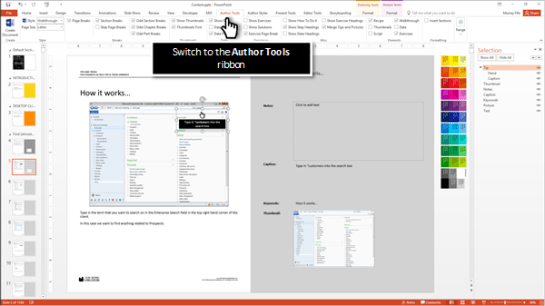
Then switch to the Author Tools ribbon bar.

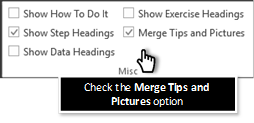
Make sure that the Merge Tips and Pictures check box is checked. If you have this unchecked, then the document that you create will just have the Picture element and not the tip – which is useful if you are wanting to create clean documents and have the tips as captions.

How it works…

To see the finished walkthrough, just click on the Create Walkthrough button within the Author Tools ribbon bar.

When the walkthrough is created the image that is pasted into the document will include both the Picture and also the Tip element

Review

This is a great tool that allows you to add annotations to your walkthroughs and screen shots without adding a lot of editing administration to the draft content. Additionally, the way that the tips appear in the draft is how they will appear within the document so you don’t have the situation where the illustrations don’t match because of resizing of the image components.

How easy is that!

About the Author

Murray Fife is an Author of over 25 books on Microsoft Dynamics AX including the Bare Bones Configuration Guide series of over 15 books which step the user through the setup of initial Dynamics AX instance, then through the Financial modules and then through the configuration of the more specialized modules like production, service management, and project accounting. You can find all of his books on Amazon (www.amazon.com/author/murrayfife) and also even more on the BSP (www.blindsquirrelpublishing.com) site.

Murray is also the curator of the Dynamics AX Companions (www.dynamicsaxcompanions.com) site which he built from the ground up as a resource for all of the Dynamics AX community where you can find walkthroughs and blueprints that he created since first being introduced to the Dynamics AX product.

Throughout his 25+ years of experience in the software industry he has worked in many different roles during his career, including as a developer, an implementation consultant, a trainer and a demo guy within the partner channel which gives him a great understanding of the requirements for both customers and partner’s perspective.

For more information on Murray, here is his contact information:

Email:         mcf@blindsquirrelpublishing.com
Twitter:    @murrayfife
Facebook:    facebook.com/murraycfife
Google:        google.com/+murrayfife
LinkedIn:    linkedin.com/in/murrayfife
Blog:        atinkerersnotebook.com
Docs:        docs.com/mufife
Amazon:    amazon.com/author/murrayfife

Sandeep Chaudhury's avatarMicrosoft Dynamics 365 Blog

Hello All,

With the Public Preview of the “New Microsoft Dynamics AX” now out, I am sure all of us are excited to learn more about it and start exploring all possibilities with the new version.

Read  more about the new Dynamics AX on the Blog Post on SBS Group’s Blog spot.

Regards,

Sandeep

View original post

I just thought that I would drop you all a note to say that I have set a date and a time for the first one and that is next Monday, November 30th, at 2pm Eastern Time ‎(UTC-5).  I realize that this is short notice, and this may not be the best time for everyone, and if this session is successful then I will try to hold another one next month, so if you can’t make it then I will understand.

For the on-line seminar where we will walk you through all of these steps in real time.  In addition to showing you how easy writing and publishing books are, we will also give the seminar attendees:

  • All of the PowerPoint templates that I use to streamline the process
  • All of the Publisher files that make the cover creation a breeze
  • And also the beta of my Author Tools add in for PowerPoint that will re-publish all of the PowerPoints into Word and reformat your content for publishing, blogging, scripts, and other formats
  • Also you will get a digital copy of the companion guide for class that I finished last week as well to follow during the class.

I will be walking through the five steps that I work through when I am writing my visual walkthrough guides and I am sure that when you see how easy this is to do you will want to start up your own little publishing business as well. I have distilled the process into these simple steps.


I used this process to create the companion guide for this event, and all up it took about 10 hours of work, which isn’t that much time if you ask me.

If you are interested in attending then you can sign up for the session here http://bit.ly/21k9Dcs – this is a paid training event so we will then send you instructions on how to pay the $99.95 and then we will send you all the required login details and password to the event. We need the RSVP’s so that I can make sure that my GoToWebinar account is able to handle the number of attendees

Drop me a note if you have any questions.

Last week I mentioned that I am planning to hold an on-line seminar to teach anyone who is interested how I plan out, write and publish books so that maybe some of you all might be able to follow the process that I work through and become published authors as well.

The response was great and I received more RSVP’s than my current GoToMeeting account can handle – don’t get me wrong, I’m not complaining – so now I am trying to find a couple of dates and times that will fit with everybody’s time zones and schedules so if you have dropped me a note saying that you are interested in attending then watch out for an e-mail with the proposed times and details.

Because of that I thought that it was probably a good idea to formalize the seminar and plan out what I was going to show and I have distilled the writing process into five key steps which are:


And as I was doing that I needed an example to work through so I wrote, and published a book on how to write and publish books, using the book as the worked example for the screen shots and examples. I thought this was ingenious if you ask me.

As a result, after about 10 hours of actual work I now have a new book that you all can download to get a sneak peek into the training class that I will be giving and also a guide on how you can do the same on your own. You can grab a copy at the BSP site.


If you want to check it out then here is a link: http://bit.ly/1l7ia1w

For the on-line seminar where I will walk you through all of these steps in real time. In addition to showing you how easy writing and publishing books are, I will also give the seminar attendees:

  • All of the PowerPoint templates that I use to streamline the process
  • All of the Publisher files that make the cover creation a breeze
  • And also the beta of my Author Tools add in for PowerPoint that will re-publish all of the PowerPoints into Word and reformat your content for publishing, blogging, scripts, and other formats

If you want to learn more, and also join the others that have signed up then drop me a note at mcf@blindsquirrelpublishing.com

I don’t know if you all have noticed, but over the past couple of years I have been able to publish a couple of books. They’re not the Da Vinci Code, but they do uncover a couple of secrets here and there.

The number one question that I get from people is “How do I write the books so quickly?”, and the second most common question is “When do you find the time to write the books?”

The answer is that I have fine-tuned the process of authoring walkthrough guides over the years and by creating templates and also automating a lot of the formatting work through macros and pre-built templates. The creation of the content happens automatically as I document processes for myself, and the publishing of the content becomes a simple byproduct. As a result I am able to share everything that I learn with you all in a easy to follow format. And to make this even better, I self-publish and it doesn’t really cost me a cent out of pocket.

In a nutshell there are just a simple set of steps that I go through with all of my books in order to get them out to you all and I have distilled them into these five categories:


I think that this is something that everyone should be able to do and want to teach everybody that this isn’t rocket science and that you shouldn’t be afraid of writing and sharing your knowledge with the rest of the community. Heck, if I can do it everybody should be able to. And along the way you all could make a little bit of pocket money as well.

Informally I have helped a couple of people start down this track, but I am thinking that I am going to hold a small on-line training seminar with any of you all that may be interested in learning how to do it. In the session I will walk through all of the steps that I go through to create, and publish books, and I will also share with the attendees all of the templates that I have generated that they will be able to use to start off their own publishing empire.

It will probably be about 2-4 hours long (I’m estimating), held on a Saturday, and to cover the setup and online costs it will be a fee per participant – probably US$99 per attendee, so keep that in mind if you want to sign up, but if you follow my guide then you will make this back and more in no time.

I don’t have a date yet, but want to hold this before the end of the year, and I wanted to get feedback as to who would be interested in taking part, and also the time zones that I will be working with so that I can find the right time that suits everyone.

So if you are interested then just drop me a note (mcf@blindsquirrelpublishing.com) – If I get more than a handful of people then I will start planning a date.

Role Centers are cool, but you don’t have to just personalize them with Dynamics AX information – you have a whole slew of standard SharePoint web parts that you can use to spice up the pages.

An example of something that you may want to do is add a banner image to the role center to display corporate banners or branding information. This is easy to do – all you need to do is create the banner image and then add it to your role center through the personalization.

If this sounds interesting to you all then just read on and learn how you.
Read More

I was tinkering with an idea and thought that I would pass this on to you all just in case you could use it.

I create all of my walkthroughs and scripts in PPT (just in case I want to use them in presentations, and also they look tidy).

But if I want to use them as a blog post or create a white paper on them then I have to transfer all of the images and text by hand – the export as handouts does not export out the images and text in a way that they can be reformatted in Word.

So I looked around and found one PPT Macro that would walk through the PPT and convert it into a Word document element by element.  I tinkered with it and created the following Macro:


Sub WriteToWord()

Dim aSlide As Slide

Dim aTable As Table

Dim aShape As Shape

Dim TablesCount As Integer

Dim ShapesCount As Integer

Dim MyDoc As New Word.Document

Dim MyRange As Word.Range

Dim i As Word.Paragraph

On Error Resume Next

With MyDoc

.Application.Visible = False

.Application.ScreenUpdating = False

For Each aSlide In ActivePresentation.Slides

For Each aShape In aSlide.Shapes

Set MyRange = .Range(.Content.End – 1, .Content.End – 1)

Select Case aShape.Type

Case msoTextBox

aShape.TextFrame.TextRange.Copy

MyRange.Paste

With MyRange

.ParagraphFormat.Alignment = wdAlignParagraphLeft

.ParagraphStyle = “Normal”

.Font.ColorIndex = wdBlack

End With

Case msoAutoShape

If aShape.TextFrame.HasText Then

aShape.TextFrame.TextRange.Copy

MyRange.Paste

With MyRange

.ParagraphFormat.Alignment = wdAlignParagraphLeft

.ParagraphStyle = “Normal”

.Font.ColorIndex = wdBlack

End With

Else

aShape.Copy

MyRange.PasteSpecial DataType:=wdPasteMetafilePicture

ShapesCount = .Shapes.Count

With .Shapes(ShapesCount)

.LockAspectRatio = msoTrue

.ConvertToInlineShape

End With

End If

Case msoPlaceholder

Select Case aShape.PlaceholderFormat.ContainedType

Case msoAutoShape

If aShape.TextFrame.HasText Then

aShape.TextFrame.TextRange.Copy

MyRange.Paste

With MyRange

.ParagraphFormat.Alignment = wdAlignParagraphLeft

.ParagraphStyle = “Normal”

.Font.ColorIndex = wdBlack

End With

Else

aShape.Copy

MyRange.PasteSpecial DataType:=wdPasteMetafilePicture

ShapesCount = .Shapes.Count

With .Shapes(ShapesCount)

.LockAspectRatio = msoTrue

.ConvertToInlineShape

End With

End If

Case msoPicture

aShape.Copy

MyRange.PasteSpecial DataType:=wdPasteMetafilePicture

ShapesCount = .Shapes.Count

With .Shapes(ShapesCount)

.LockAspectRatio = msoTrue

.ConvertToInlineShape

End With

Case msoTextBox

aShape.TextFrame.TextRange.Copy

MyRange.Paste

With MyRange

.ParagraphFormat.Alignment = wdAlignParagraphLeft

.ParagraphStyle = “Normal”

.Font.ColorIndex = wdBlack

End With

End Select

.Content.InsertAfter Chr(13)

Case msoPicture

aShape.Copy

MyRange.PasteSpecial DataType:=wdPasteMetafilePicture

ShapesCount = .Shapes.Count

With .Shapes(ShapesCount)

.LockAspectRatio = msoFalse

.Width = Word.CentimetersToPoints(14)

.Height = Word.CentimetersToPoints(6)

.Left = wdShapeCenter

.ConvertToInlineShape

End With

.Content.InsertAfter Chr(13)

Case msoEmbeddedOLEObject, msoLinkedOLEObject, msoLinkedPicture, msoOLEControlObject

aShape.Copy

MyRange.PasteSpecial DataType:=wdPasteOLEObject

ShapesCount = .Shapes.Count

With .Shapes(ShapesCount)

.LockAspectRatio = msoFalse

.Width = Word.CentimetersToPoints(14)

.Height = Word.CentimetersToPoints(6)

.Left = wdShapeCenter

.ConvertToInlineShape

End With

.Content.InsertAfter Chr(13)

Case msoTable

aShape.Copy

MyRange.Paste

TablesCount = .Tables.Count

.Content.InsertAfter Chr(13)

End Select

Next

If aSlide.SlideIndex < ActivePresentation.Slides.Count Then

.Content.InsertAfter Chr(13)

End If

.UndoClear ‘ Clear used memory

Next

With .Content.Find

.ClearFormatting

.Format = True

.Font.Color = wdColorWhite

.Replacement.Font.Color = wdColorAutomatic

.Execute Replace:=wdReplaceAll

End With

MsgBox “PPT Converted to WORD completed”, vbInformation + vbOKOnly, “ExcelHome/ShouRou”

.Application.Visible = True

.Application.ScreenUpdating = True

End With

End Sub

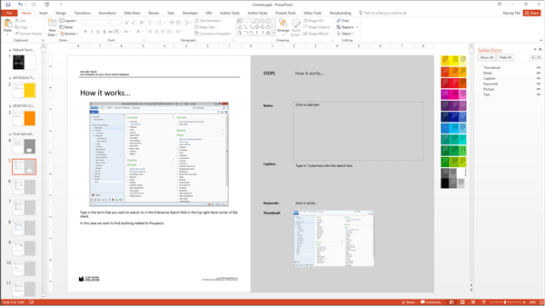
It’s not perfect, but it does scrape the PPT and create a Word document:

All that is left to do is format it which is the easy part.

If anyone knows how to create Add-Ins for PPT and code this in Visual Studio then I will hand over full rights to this idea as long as I can use it 😉
It’s happened to the best of people – Copernicus, Magellan, Scully & Mulder and now me. “What’s that?” I hear you ask. Well let me tell you the story…

Week before last I was at the AXUG (Dynamics AX User Group) Summit and to earn my keep I had 8 presentations and also a four hour training session that I gave titled “How To Implement Dynamics AX In An Afternoon” (which was actually scheduled for the morning slot but that is not what this story is about) where I planned to show how to start with a blank Dynamics AX partition and then load and configure all of the core financial modules (GL, Cash, Payables & Receivables) and then the operations modules (Products, Inventory, Sales & Purchasing).

This was a pretty ambitious undertaking which I thought that I could do, I didn’t have enough time to do a run test run. I have to admit, I was a little worried that I had bit off more than I could chew to compress a 24 hour training class that I had done in the past into 4 hours.

Let’s face it when you boil down Dynamics AX, all you really need to configure is the Ledger, Products, Customers and Vendors and you should be up and running. Everything else is just windows dressing and polishing up of the processes. I had proven that with the Bare Bones Configuration Guide series that I had spent the last two years compiling.

And I wanted to prove a point that Dynamics AX is not a complicated product to set up and it shouldn’t take you weeks (or even months) to configure a base company within Dynamics AX and also show how the students could do this themselves and also learn a lot more about the inner workings of Dynamics AX through the process.

In addition, I wanted to prove that the people who say that Dynamics AX is a complicated product and that it will take an exorbitant amount of time and money to get even this base system up and running are misguided (this is a polite version of the word) and there needs to be a change in attitude.

So I distilled all of my guides into an expert edition that covered 11 of the core guides and with that in hand I dove in head first into the training session.

Now back to the point of the story – which is the unwarranted persecution of people that were trying to fix the misconceptions of the world and make everyone’s life just a little better…

Later on that week I was coming down in the elevator on the way to the conference and a gentleman got on as well. I thought that I would chat to him for the 30 seconds that we were on the elevator to pass the time.

He asked if I was attending the conference, I said yes.

I asked if he was enjoying the sessions and presentations, he was.

He asked me what I was doing there and I mentioned that I was speaking and also had given a training course.

He then asked what the training course was on and I said that it was “How To Implement Dynamics AX in an Afternoon”.

All he could say to that was – “You are a liar!”

OMG – as he stepped out of the elevator I was shocked at the venomous allegation that one small comment provoked. I’m guessing that he made a living from implementing Dynamics AX and I had rattled the foundation of his belief system.

Because the training that I gave worked and I was able to set up all of AX, load in and configure the ledger, set up cash management, load in customers, vendors and products and then configure the inventory, sales and procurement, all within the 4 hour time slot. And all of the students went home with a door prize of a starter kit to do it themselves and also all of the data that I had used for the training so that they could do the same thing themselves.

On the bright side he did prove a point that my mission to convert all of the misguided heathen out there was not done.

PS. For those of you that have been converted and have completed the entire Bare Bones Configuration Series, then you deserve an award. if you can send me proof that you have set up a blank company then I will send you a care package that includes a Bare Bones Configuration Privateer merit badge and also a couple of other goodies.

Having users perform their own reporting has been a dream on both sides of the organization. The IT group don’t particularly like creating reports for the users when they could be spending their time on cooler projects, and users don’t particularly like waiting for IT to create the reports that they need to track the data because it’s never quite what they wanted, and also takes so long to get (because of the first reason) that it’s usually out-of-date. If only there was a solution…

Well there is, because there are so many tools built into Dynamics AX and also the productivity tools like Excel and Word that the users can easily create their own reports themselves without having to get the IT group involved. Everybody wins!

In this series we will show you how the users can do just that, it’s so easy that they may not even realize that they are creating reports.

Using List Pages as User Reports

The first thing that we will highlight is that the Dynamics AX list pages are the best reporting options that is there for the user. The list pages can be rearranged, filtered, have fields added to them, sorted and a whole slew of other personalization options making it the perfect way to review data.
Read More