With Update 1 of Dynamics AX, a new feature was added that allows you to use Microsoft Exchange Server as the e-mail provider for both workflows and also for sending e-mails directly from Dynamics AX. Previously the email transport options were SMTP and the client applications.

This is an important feature because it means that the outgoing emails are tracked within Exchange and stored as sent mail just in case you need to go back and reference them later on. With SMTP, you have no record of the sent e-mail unless you CC yourself. And if you use the client method to create your emails, then you can’t send the emails unless you have Outlook open, which is a little inconvenient.

Getting ready…

Step 1: Configure the Microsoft Exchange Server Parameters

To get this configured within Dynamics AX, first start by making sure that the Microsoft Exchange Server parameters are configured to point to your Exchange server.


Step 2: Use Autodiscovery to set the Microsoft Exchange Settings

If they are not configured, then just click on the Autodiscover button in the menu bar and then type in your Email and Password and then Dynamics AX will discover where the Exchange server is for itself.


Step 3: Set the default Email Provider to Exchange

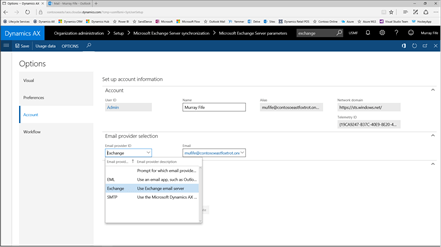
Then within the user Options,
browse to the Account page and click on the Email Provider ID and you will be able to select the Exchange option, which will tell the system to send all of your emails through Microsoft Exchange Server.

How it works…

Step 4: Create a Statement to Contact through Customer Collections

To see this in action, open up a customer and navigate to the Collections form with all of the transactions and history for the customer account.

Then click on the Statement to customer button within the action panel to create a new Statement, and then click on the OK button.


Step 5: Personalize the email

This will automatically create the statement for us ax an Excel file (you can see it at the bottom of the Send Email panel that pops up) and also allow you to personalize the email that you are going to send to the customer.

After updating the Subject and also adding a personal message in the email body, we just need to click on the Send button.


Step 6: Email archived within Exchange

Now if we switch over to our Exchange account we will see that the email that we just created is sitting in our Sent email box.


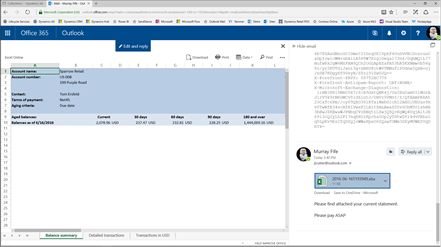
Step 7: The Statement is an Attachment

Also from here we can see that the Statement is attached to the email as well and if we need to peek inside and see what Dynamics AX created for us then we can.

Step 8: There are multiple tabs on the Statement

The statements aren’t just single worksheets as well; they have multiple pages within the workbook which is pretty cool as well.


Summary

If you are wanting to audit emails, or archive correspondence that is sent out to the customer (and vendors etc.) then this is a great way to do it. Also this is a much better option than SMTP or using the client because it is completely hands off and integrated into Dynamics AX.

If you ask me, this is the only way that we should be sending emails.

About the Author

Murray Fife is an Author of over 25 books on Microsoft Dynamics AX including the Bare Bones Configuration Guide series of over 15 books which step the user through the setup of initial Dynamics AX instance, then through the Financial modules and then through the configuration of the more specialized modules like production, service management, and project accounting. You can find all of his books on Amazon here http://www.amazon.com/author/murrayfife.

Murray is also the curator of the Dynamics AX Companions (www.dynamicsaxcompanions.com) site which he built from the ground up as a resource for all of the Dynamics AX community where you can find walkthroughs and blueprints that he created since first being introduced to the Dynamics AX product.

For more information on Murray, here is his contact information:

Email: mcf@dynamicsaxcompanions.com

Twitter: @murrayfife
Facebook: facebook.com/murraycfife
Google: google.com/+murrayfife
LinkedIn: linkedin.com/in/murrayfife

Blog: http://www.atinkerersnotebook.com

Docs: docs.com/mufife
Amazon: amazon.com/author/murrayfife


Dynamics AX allows us to Save document attachments in a number of different locations including within SharePoint. This is a great option because not only do you have a way now to index and manage the documents, but also the documents are also indexed and made available to users through other Office 365 tools like Delve. This provides an enterprise indexing and search option which is extremely helpful, without adding any additional work for the administrators.

Getting ready…

Step 1: Create a Document Type linked to SharePoint

To start off, create a new Document Type within Dynamics AX, and make sure that you set the Location to SharePoint. This will enable the SharePoint Address field and you can click on the pencil icon to the right of the field.


Step 2: Select the SharePoint Document Library

This will allow you to navigate through all of your sites that you have configured within SharePoint and select the default document library that you want to save the document into.

In this example we have created a number of sites, and these are just Office Groups that we created within SharePoint.


How to do it…

Step 3: Open a new Released Product

Now that we have the document types linked to SharePoint we can start saving documents away there. To do this start by opening up a Released Product and then click on the Document Attachment icon (the paper clip) in the top right hand corner of the form.


Step 4: Attach a document within SharePoint

When the Document Attachment window is displayed, attach a file to the record using the SharePoint enabled Document Type that you just created.


How it works…

Step 5: Document saved to SharePoint

Now the document will be saved within SharePoint within the library that you assigned to the Document Type.


Step 6: Document becomes visible within Delve

But there is more. Since the Document has been saved within SharePoint then it will start to be surfaced within Delve as a document that the user created.


Step 7: Open Delve as another user

This becomes even more useful because the document is now searchable through Delve by other users (that have access) to the SharePoint library that you stored the document within.

For example, here we will sign into Delve as Alicia.


Step 8: Document found based on key words

If Alicia searches for any document that has a particular keyword that matches the document, or the indexed contents of the document then she will be able to find the file that we just saved from within Dynamics AX.

More importantly, since we saved a PDF file, Delve will search through the contents of the document as well and allow us to do a full text search within the file.


Summary

By saving Dynamics AX attachments within SharePoint, all of the documents become a resource for the entire organizations. Performing an Enterprise Search using keywords and time frames becomes enabled through not only SharePoint but also through Delve. Along the way these documents can then be Shared with non-Dynamics AX users (that have permission of course) and also we can use Office 365 as a document management system, rather than locking up all of the documents within the database and using up valuable space within SQL.

About the Author

Murray Fife is an Author of over 25 books on Microsoft Dynamics AX including the Bare Bones Configuration Guide series of over 15 books which step the user through the setup of initial Dynamics AX instance, then through the Financial modules and then through the configuration of the more specialized modules like production, service management, and project accounting. You can find all of his books on Amazon here http://www.amazon.com/author/murrayfife.

Murray is also the curator of the Dynamics AX Companions (www.dynamicsaxcompanions.com) site which he built from the ground up as a resource for all of the Dynamics AX community where you can find walkthroughs and blueprints that he created since first being introduced to the Dynamics AX product.

For more information on Murray, here is his contact information:

Email: mcf@dynamicsaxcompanions.com

Twitter: @murrayfife
Facebook: facebook.com/murraycfife
Google: google.com/+murrayfife
LinkedIn: linkedin.com/in/murrayfife

Blog: http://www.atinkerersnotebook.com

Docs: docs.com/mufife
Amazon: amazon.com/author/murrayfife

I’m sure that you all are thinking about your mid-year resolutions, and we can’t think of a better one than to learn how to configure Dynamics AX.


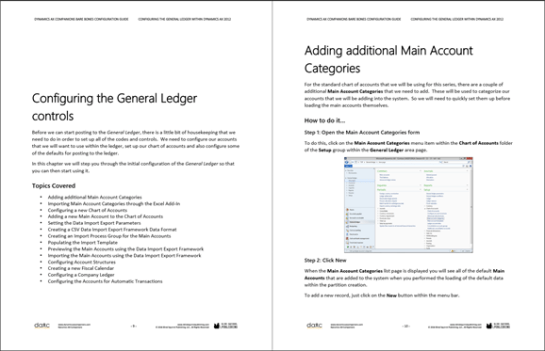
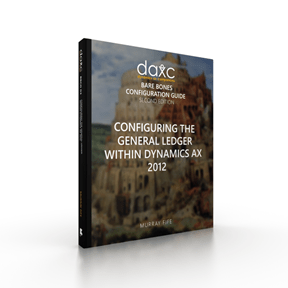
To help you along we have been busy revising and updating our Bare Bones Configuration Guides to make them even more helpful. The first one that we have updated is our Configuring the General Ledger within Dynamics AX 2012 guide, and we are happy to say that it is now available for you all to download.


We listened to all of your feedback from the last version of the guide and with this edition and have:

  • added 137% more content to the guide and in most cases rewrote all of the narratives
  • added more context around the configuration of the General Ledger setup to help you understand the Why of what you are doing
  • included sample data tables to help you as you are setting up data, so that you don’t have to squint at the screen shot as much
  • updated the format of the document to a recipe view, which trimmed up the guide by about 40% even though there is more content.


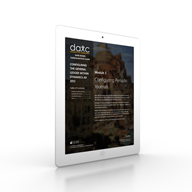
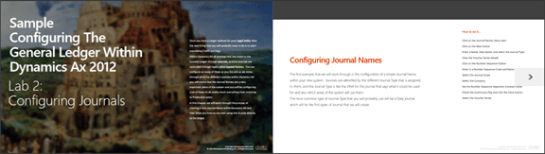
Here is a quick preview of the new guides – we think we did a pretty good job if we do say so ourselves. (We are using our Author Tools to automate the formatting of the guides and it’s working great)


If you want to take a look at it then you can check out the Print and Digital version on the New
Dynamics AX Companions website www.dynamicsaxcompanions.com (we are finally migrating off the old site that has served us well, but had a few quirks that we couldn’t debug)


If you are a Premium Member on the new Dynamics AX Companions then you can download this new guide, right away, at no additional cost. If you want to be a premium member then all you need to do is sign up here: http://bit.ly/25SOcEj


Along the way we have also started the reorganization process for the website to make it easier for you all to find just the resources that you want. One of these bonuses for you all is that we have also split up the guide into the individual modules that you can download in an à la carte fashion. This allows you to pick and choose what you want to learn and choose your own adventure with Dynamics AX.


To sweeten the deal even more you can download the first module Configuring the General Ledger controls within Dynamics AX 2012 for free to test drive the content. We’re sure that once you start the journey you will be hooked and have to do all eight of the modules.


So if you are looking for something to do in the second half of 2016, why not start off by learning the General Ledger within Dynamics AX. All of your friends will be so impressed with you when you start explaining how to configure the Ledger Controls, Journals, Periodic Journals, Organizational Structures, Financial Dimensions, Allocations, Accrual Schemes and Currency Management.

We’re sure you all know about the Bare Bones Configuration Guides for Dynamics AX that we slaved over for about two years to compile. Just in case though and as a reminder there are currently sixteen guides now published that will allow you to lean Dynamics AX by implementing a simple company from scratch. The series includes the following guides:

  • Configuring A Base Dynamics AX 2012 Test System
  • Configuring an Organization within Dynamics AX 2012
  • Configuring the General Ledger within Dynamics AX 2012
  • Configuring Cash and Bank Management within Dynamics AX 2012
  • Configuring Accounts Receivable within Dynamics AX 2012
  • Configuring Accounts Payable within Dynamics AX 2012
  • Configuring Product Information Management within Dynamics AX 2012
  • Configuring Inventory Management  within Dynamics AX 2012
  • Configuring Procurement and Sourcing within Dynamics AX 2012
  • Configuring Sales Order Management within Dynamics AX 2012
  • Configuring Human Resource Management within Dynamics AX 2012
  • Configuring Project Management and Accounting within Dynamics AX 2012
  • Configuring Production Control within Dynamics AX 2012
  • Configuring Sales and Marketing within Dynamics AX 2012
  • Configuring Service Management within Dynamics AX 2012
  • Configuring Warehouse Management within Dynamics AX 2012

If you are wanting to learn more about the guides then you can go to http://www.dynamicsaxcompanions/barebones and if you haven’t pick up your very own copy then just go to the sister site at http://shop.dynamicsaxcompanions.com and we can hook you up with copies.

Now that the hard work is done, we have been working on additional ways that we can help you even more. To do this we are making all of the Bare Bones Configuration Guides available as training guides and PowerPoint presentation so you can take the next step with the Bare Bones Configuration project and give your own training to your customers and peers.

Also in addition to having the content available as the self-paced walkthrough guides with the big pictures, we are offering some more formats specifically designed specifically for the classroom environment. Here is a quick of what we are now letting you take advantage of:

Training PowerPoints


We have taken all of the content from the Bare Bones Configuration guides and formatted them as PowerPoint presentations.

Each step is shown in the PowerPoint including all of the screen shots and there are options to include the Speaker Notes on the PowerPoint to make a Slideument version or have the notes hidden away as Speaker Only notes.

Additionally the guides have been split even more into individual Labs so you can pick and choose the order and the content for the training yourself.

Additionally, since this is a PowerPoint, then you will receive a license to rebrand the content and white label it if you like your own internal training classes.

Here is a link to the sample PowerPoint presentation: https://doc.co/EPqRsR

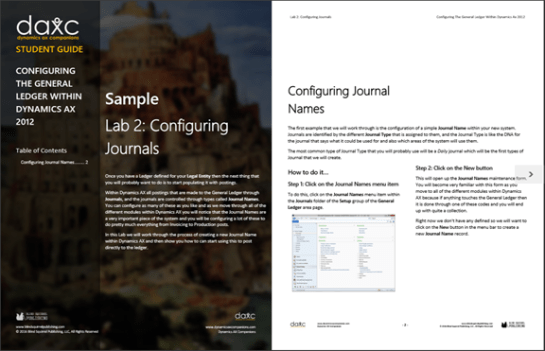
Students Guides


To make this look even more organized we have also converted all of the labs into Student Guides.

These guides are a more concise version of the walkthrough guides which also includes sample data and also some exercises.

To make the guide more manageable for the student we have includes all of the images as well, but these are shown as thumbnail images for reference.

We are making these student labs available in both the Digital and Print format.

If you want to white label these labs then we can definitely help you all with that and work with you all on the design that you like.

If you want to see an example of the Student Lab then here is a link: https://doc.co/8i5Ypd

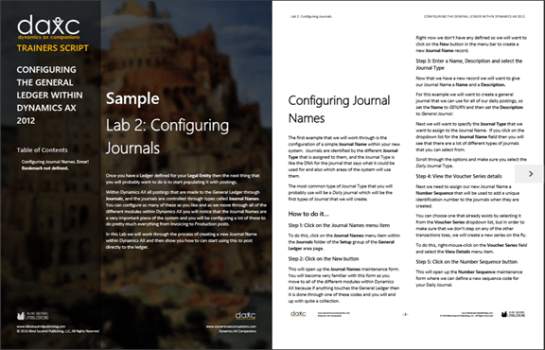
Trainers Script


To finish off the set we have also compiled a Trainers Script which is an even more concise version of the guides. This version though is for the Expert and is designed to be used by the teacher as a guide during the training. No need for pictures in this case.

This will also be available in both the Digital and Print format.

If you would like to see what this document looks like then here is a link: https://doc.co/KDFjaW

Licensing the Source

One final note that we want to highlight is that if you want to repurpose the content and white label it yourself then we are now offering the option to license the source Word File.  This will be the entire content of the guides including all of the images, but the only restriction would be that you don’t republish it in a way that would compete directly with the original content.

This will allow you to convert the training program into other guides, convert into help, use for more extensive training, or just cut up for internal use.

If that sounds like something that would be interesting then just drop us a note.

How can you get these?

Hopefully this has been interesting and shows you how we are taking the Bare Bones Configuration Guides to the next level to help you all out as well. If you want to take advantage of any of these additional offerings then just drop us a note and we will definitely be able to help you all.

I just wanted to drop you all a quick note to show you something that I have been working on over the past 207 days.

Up until then I had been creating PowerPoint Slideuments that I used to document processes and save away all of my notes that I had been making. The problem was that in order to publish them I had to transfer all of the content by hand over to Word documents and then also try to keep all of the formatting consistent. For a typical walkthrough guide that I was developing this would take up to 8 hours of work and was not the most stimulating process because it pretty much consisted of:

  1. Selecting PowerPoint
  2. Selecting the image
  3. Pressing CTRL+C
  4. Selecting Word
  5. Clicking on the next blank location
  6. Pressing CTRL+V
  7. Selecting PowerPoint
  8. Selecting the text
  9. Pressing CTRL+C
  10. Selecting Word
  11. Clicking on the next blank location
  12. Pressing CTRL+V
  13. Repeat 400+ times

I had finally got a little tired of this and I had an idea that I could automate the layout and typesetting of word documents from the PowerPoint documents that I had been creating and publishing up until that time. So on October 28th, 2015 I created my first prototype:


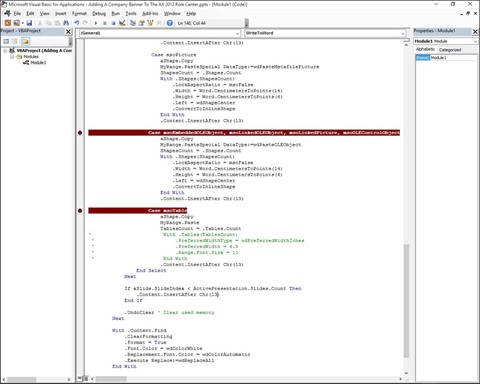
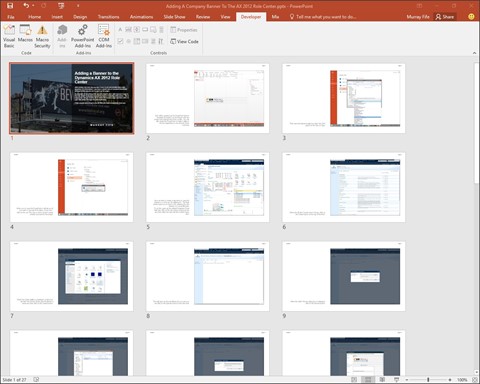
Using a little bit of VBA I was able to take this PowerPoint:


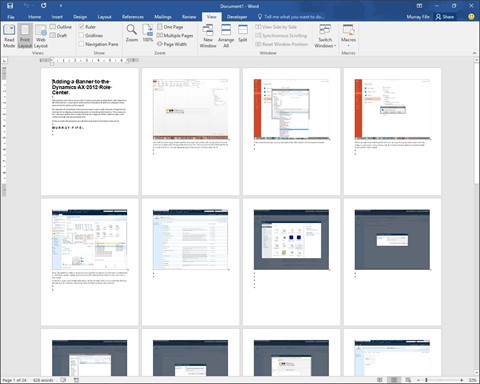
And spit out a word document:


How cool is that. I definitely did that Dance of Joy (https://youtu.be/GfPg5LjGYz8) when this happened.

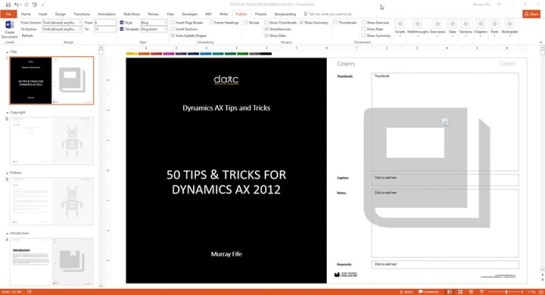
Since then I have upgraded this prototype, re-written it all in Visual Studio – stretching my already limited programming skills to the breaking point and also added a whole slew of bells and whistles to the add in for PowerPoint. Now I can take this storyboard:


And it will format the document every which way I like:


And to boot it will create training PowerPoints for me based on the content:

Yesterday I sat down and created an overview Mix (another great product from Microsoft that people don’t know about – http://mix.office.com) that shows how it works, and after realizing that no-one wants to sit through 50 minutes of me talking online I split the presentation up into 12 smaller lessons that are a little more consumable.

If anyone is interested in seeing how I use this tool to develop content in a whole slew of different formats so quickly then here is the complete set of recordings:

Part 1 – Formatting Your Content: https://mix.office.com/watch/3c2hn74ecj83

Part 2 – The Publishing Ribbon Bar lesson permission: https://mix.office.com/watch/1a86ptimptb6p

Part 3 – Creating Walkthrough Documents: https://mix.office.com/watch/wueq22nl9ibm

Part 4 – Creating Recipe Instructions: https://mix.office.com/watch/1s8r7otdesx7k

Part 5 – Creating Scripts: https://mix.office.com/watch/1s84prdhx49xh

Part 6 – Using Alternate Word Templates: https://mix.office.com/watch/hy3w6lcy6z4x

Part 7 – Creating Thumbnail Reference Guides: https://mix.office.com/watch/6by4gpmhl45i

Part 8 – Creating A Blog Post: https://mix.office.com/watch/cfwyiwf3dzk7

Part 9 – Creating A Print Ready Book: https://mix.office.com/watch/8hir29m3wumb

Part 10 – Creating A Kindle Ready Book: https://mix.office.com/watch/ik6xha11945p

Part 11 – Creating Companion PowerPoints: https://mix.office.com/watch/m1msrobh30rg

Part 12 – Creating Hiding Text In PowerPoint: https://mix.office.com/watch/1gnatgu5c35lz

I am going to be using everything that I show in these presentations to reformat all of the content that I have published on the www.dynamicsaxcompanions.com site into other consumable formats for you all including ready made PowerPoint training documents, more Mixes, and also raw content within Word so that you all can repurpose the content for your own training and marketing programs. So watch out for more richer content in the future.

I hope that this is interesting to you all and if anyone wants more information about the add-in then don’t hesitate to drop me a note.

The AXUG European Congress (http://www.axugcongress.com/home) starts is just under a week and if you are going, then make sure that you track me down, I will be speaking at a few of the sessions and I will do my best to entertain you all, and hopefully educate you on Dynamics AX along the way.

We are doubly excited because with the help of Kurt Mekelburg we have been able to also fully translate the latest guide on Dynamics AX – 50 Tips & Tricks for the New Dynamics AX into German and this would be a great memento for the event – even if you are not there.

Of course, if you don’t want to brush up on the Fatherlands lingo, you can still pick up a copy of the original book in English.

50 Tips & Tricks
für das Neue Dynamics AX (German Edition)

Das neue Dynamics AX beinhaltet große Änderungen im Vergleich zu vorhergehenden Releases. Ein Großteil der Modifikationen betreffen die neue webbasierende Benutzeroberfläche, die Art und Weise wie Sie sich innerhalb der Applikation bewegen und neue Sets von Werkzeugen, die ebenfalls ergänzt wurden.
Diejenigen unter Ihnen, die mit dem älteren Benutzerinterface vertraut sind, werden eine Menge neuer Tricks lernen müssen, um das System wie ein Profi handhaben zu können, und neue Anwender der neuen Dynamics AX Umgebung wollen sicherlich soviele Tips wie möglich erhalten über all die “coolen” Dinge, die innerhalb der Applikation verborgen sind, so dass Sie sehr schnell zu meinem Power User werden.
Falls dies der Fall sein sollte, ist dieser Ratgeber für Sie geeignet – wir haben alle unsere Ressourcen gebündelt, um 50 der nützlichsten Tips und Tricks für das neue Dynamics AX zusammzustellen, die für jeden hilfreich sind – unabhängig davon, ob Sie ein Novize in der Dynamics AX Welt sind, der die Anwendung kennenlernen möchte, oder ob Sie bereits mit den früheren Versionen gearbeitet haben, und sich jetzt die Nuancen des neuen Benutzer Interfaces aneignen möchten.

Für weitere Informationen lesen Sie in der Guide hier: http://bit.ly/23gQRB4

50 Tips & Tricks for the New Dynamics AX (English Edition)

The New Dynamics AX is a big change from the previous releases.  The majority of the changes are around the new web based user interface, the new way that you navigate around in the application and also new sets of tools that have come along for the ride.

For those of you that are familiar with the older user interfaces then you may have to learn a couple of new tricks to get around the system like the pro that you are, and for new users of the New Dynamics AX environments then you will probably want as many tips on all the cool things that you are hidden away within the application so that you can quickly become a power user of the system.

If that’s the case then this is the guide for you – we have scoured all of the resources that we have to compile 50 of the most useful tips and tricks for the New Dynamics AX and that will be useful to everyone, regardless of if you are a novice to Dynamics AX just trying to get around in the application, or have worked with the previous versions of the system, and are just want to learn the nuances of the new user interface.

For more information check out the guide here: http://bit.ly/1TDrWVz

With Dynamics AX the best way to configure a demo environment is through a separate demo tenant (domain name) that is then provisioned and linked with AX.  The other option which is to demo AX using your corporate account causes logistical problems with that is we have multiple personas because you are logging into a browser and making sure that it is not inheriting our main account (for me @microsoft.com) for the authentication becomes troublesome.

Yesterday I sat down and this is what I did to configure my demo Surface.

How it works…

First I set up my demo surface so that I can log in as my tenant’s persona – to do this just create a Live account (account.live.com) that has the same email address and password as your tenant user, and then add it to the local users of the surface so that it shows up on the login page as a persona.


Now when I log in I have my own desktop where all of the credentials are isolated from my normal corporate logins.


When I go to Office 365 now I can see all of the applications under my persona – including CRM, and Dynamics.  LCS should also show up there.  Also notice that when I am in Delve then all of the demo documents that I am working on within any persona show up highlighting office integration – if you export a spreadsheet and save it to SharePoint (which you can now do) then they start adding color to the demo.


Something that I also did was that I changed all of the users within AX to reference my new tenant.  There might be an easier way, but I did them by hand.


Also (with the help of Jeff Einig) I changed the Admin user so that rather than being connected to Julia’s persona I added myself as a worker and connected that worker to the User.


Now when I go to the ESS in the demos it shows me rather than Julia (which is more acceptable in Alabama).


Other tidbits are that I connected up all of my dashboards within PowerBI:


And also I published the dashboards as content packs for the organization so that the other personas can add them to their dashboards without having to redeploy them.


Having a tenant also allowed me to configure e-mail for some (25) of the users.  So I can open my mail through the personas login.


I have configured CRM on my tenant as well so from my shortcuts I can log in (without typing in a second password).


As a bonus I can then connect the tenants CRM to Cortana.


And now the CRM opportunities show up within Cortana’s home page.


Also, this allows us to link the dashboards within Power BI to Cortana and they will show up when you query her.


I also embellished the SharePoint site a little – I will probably do a little more to colorize this site and also add some additional workspaces for documents.  I have started to put demo presentations up here as well since the persona is able to use OneDrive as a storage mechanism.


As I mentioned before now that I can connect up SharePoint to my AX tenant, when I save an export to SharePoint then the document libraries show up.


The one thing that took me the longest amount of time to so though was that I went into O365 and added all of the users from AX in as Active Users, and also assigned as many of them as I could (I only had 25 licenses) to Exchange and CRM.


I also added some others just because I could.


These users can now (because they have e-mail) be invited to the LCS project to add even more color to the demonstration.


This allows me to do something really cool in demos.  Now when I log in you can select different demo personas.


Each one is tailored to the demo persona, and also all of the login information and favorites are cached for that user.  No need to open up in browsing windows to keep everything straight.


We can also set up custom personas for the demonstrations.


These personas have their own desktops and themes to make them easier to recognize within demos.


They can have cut down menu structures because of different demo roles.


And also the look and feel may be tailored to the user as well.


Summary

How cool is that!

Last week we announced that we started working on publishing out as much of the content from the old Dynamics AX Companions resource site (www.dynamicsaxcompanions.com)
over to the new Dynamics AX Companions eBook
Store (shop.dynamicsaxcompanions.com) in preparation for the merging of the two sites.

Also along the way some of you picked up on a small note that said that if you were an eBook subscriber on the original website then you would automatically receive a Premium Subscription to the eBook store as well and not have to re-subscribe annually. Even though we buried the lead on that story at the end of the e-mail, a lot of people picked up on this and also took advantage of the current amnesty program and signed up for the eBook subscription to get all of the books and updates at no extra cost from that point on.

Also to thank all of the monthly subscribers that have also been supporting the project since it started off, we have given them all complementary Premium Subscription to the eBook store as well. We thought it was only fair since most of them have almost paid for an eBook subscription any way. It’s just our way of saying thanks.

But we realized that a Premium Subscription is not much use if there is only one guide to download so we have been furiously collecting all of the content from the old site and getting it moved over to the eBook Store and also making all of it available as a free download for anyone who has received the Premium Subscription to the site.

All 16 of the Bare Bones Configuration Guides modules,
and all 4 of the Tips & Tricks volumes are now available for download from the premium section of the website here: http://shop.dynamicsaxcompanions.com/collections/premium

If you haven’t worked through these guides and taken the Bare Bones Configuration Guide challenge to configure your very own company within Dynamics AX from scratch and become a Bare Bones Configuration Privateer then now it your chance. It comes with bragging rights and a badge:


It’s also a great way that you can learn Dynamics AX from the ground up without having to travel to training, and also to do it on a shoestring budget. The current record for completing the 10 core guides as 13.5 hours. Something you can easily start on weekend morning and be finished in time for dinner, although we may suggest that you do it over two days.

If you don’t have a subscription, and want to grab the deal a deal on the books before all of the cutover date where the old site will be put out to pasture (which at the rate that we are publishing the content won’t be too far off) and the annual membership of $199 a year to access all of the guides will become the only way you can get all of the guides that we are publishing at once, then you can take advantage of the eBook amnesty
and subscription on the Dynamics AX companions site (www.dynamicsaxcompanions.com) for perpetual license and be able to access the guides for life at no extra charge. It’s almost criminal that we are offering this.

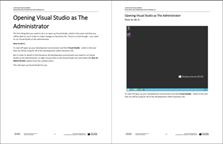
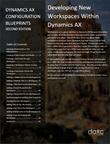
Workspaces are a great addition to (the new) Dynamics AX because they allow you to have all of the functions that you need in order to perform a job task in one place. Out of the box, there are about forty workspaces that have been deployed, but that doesn’t mean that those are the only ones that you need to use. If there are some users within the organization that don’t quite fit into those roles, or if there are users that are a little more specialized, then you can easily create new workspaces for them through Visual Studio and tailor them just the way that you want.

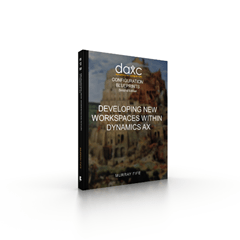
This week I have been working through the process of learning how to develop the workspaces and I created this walkthrough that will show you how to do that as well and also give you a little bit of an introduction to the development environment to show that it’s really not that hard to use.

As a bonus this process will be done without a single line of code, so even if you are not a developer, you can still run through this process.

By the end you will probably be chomping at the bit to create more workspaces yourself.

We have created two different versions of the guides.

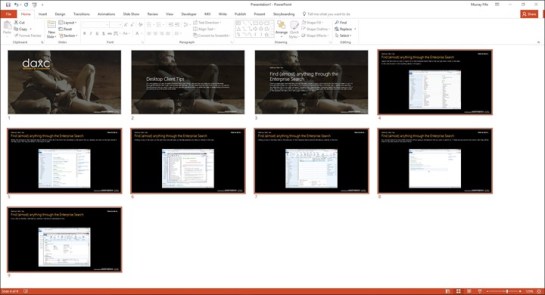
For the novice, or if you are just a mediocre programmer like me then we have created a Walkthrough Guide which has big step by step instructions on what you need to do so that if you don’t quite understand the description of the step then you can look at the picture and see what is going on.


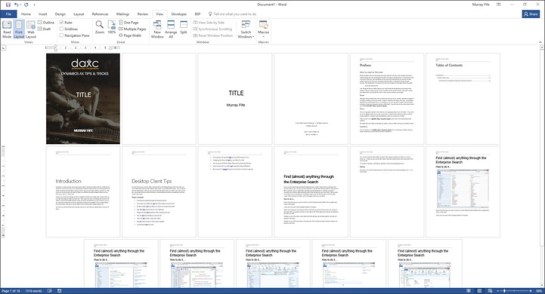
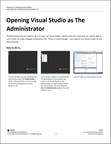
For the expert that just needs a quick reference with all of the steps required to create the workspace then we have the Thumbnail Guide. This is a more concise version of the document – that you could actually print out if you like which gives you thumbnail (hence the name) views of the screens and still has all of the steps that you need to go through in order to set up your workspaces.


If you want to check the books out then here is a link to them on the Dynamics AX Companions Store: http://bit.ly/1pzgT6f

Also, if you are an eBook subscriber on the original Dynamics AX Companions website then there is good news. You all have been converted over to Premium Subscribers on the Dynamics AX Shop (shop.dynamicsaxcompanions.com) and if you log in there and click on the PREMIUM CONTENT menu item, then you will be able to download the complete walkthrough for free – I’m just telling you this so that you don’t e-mail us and ask why the book isn’t on the original site.

Anyone who also signs up for an eBook subscription on the Dynamics AX companions site (www.dynamicsaxcompanions.com) between now and mid-year for the one time only fee of $249 will also get upgraded to the Premium Subscription and will sidestep the upcoming recurring annual membership of $199 a year to access all of the guides through the eBook store. That’s still a great deal if you ask me.

I hope this is useful – I know that I was excited when I was finally able to start developing in the new Dynamics AX, and now that I’ve got a teste for it I think I will be a coding fool for a while.

Over the past couple of weeks we have been working on tidying up the Dynamics AX Companions eBook store (shop.dynamicsaxcompanions.com) in preparation for the merge of the store and the sister resource site (www.dynamicsaxcompanions.com) and I am happy to announce that we have made a little progress.

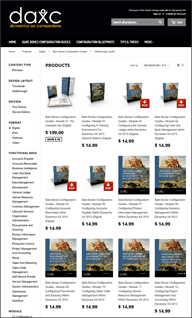
If you visit the eBook store (http://bit.ly/1ppjiA9) now you will see that all of the guides are a little more organized and also there is the ability to filter the guides by functional area, by Bare Bones Configuration Guide module, and also by Dynamics AX version so that you can see if any of the guides apply to AX 2012, R2, R2, and even AX7 – we are in the process of upgrading all of the guides to the new version of Dynamics AX so watch out for more news on these guides.

Also we have taken a play from the Beanie Baby franchise and retired some of the guides that are now obsolete or replaced with the newer (Second Edition) guides so that ther are not cluttering up the store and will make it easier for you to find just the resources that you are looking for.

The website content is now grouped by series to help you find what you need.

The Bare Bones Configuration Guides (http://shop.dynamicsaxcompanions.com/collections/all/series_bare-bones-configuration-guides) section contains all of the setup and training guides that we have been creating and the many of you all have been using for your own self paced training by implementing a blank instance of Dynamics AX yourself by either using a Azure hosted environment, or if you have enough horsepower, a local version of Dynamics AX that you can download from Customer/Partner Source.

One new filter option that you can take advantage of with the website is the ability to filter these guides by Design Layout of Walkthrough and Thumbnail guide.

The traditional walkthrough guides are formatted to give you a step by step guide with full screen illustrations of each of the steps to give you a visual guide as to where in the process you are. Each illustration is a great visual reference as to what you should be seeing on the screen and has a description of exactly what you need to do in order to complete the step. This is an ideal way for a novice user to step through the examples within guide.


The thumbnail guides are formatted to give you a step by step guide with thumbnail illustrations of each of the steps to give you a visual guide as to where in the process you are. Each thumbnail has a description of exactly what you need to do in order to complete the step, and is an ideal way for an experienced user to step through the examples.


Also, as we release out the Second Edition of all of the guides then you will also have the ability to access all of the guides as individual Labs which are perfect for student training guides as they are bite sized versions of each of the chapters in the original guides. You can see a couple of them on the site already but there will be more to come.

Additionally the Configuration Blueprints section (http://shop.dynamicsaxcompanions.com/collections/all/series_configuration-blueprints) contains all of the guides that are just a little too small to be included in the Bare Bones Configuration Guides or which are worked examples that may span a number of different functional areas.

And the Tips & Tricks section (http://shop.dynamicsaxcompanions.com/collections/all/series_tips-and-tricks) contains all of the morsels of information that are too small to even be Configuration Blueprints but too valuable not to forget. Over the next couple of weeks we will be transferring as many of the tips that were on the sister site over here for you all to download, with a big added benefit of indexing these by functional area so that when you are looking for information on Sales Order Management for example the tips will show up alongside all of the other big boy guides (http://shop.dynamicsaxcompanions.com/collections/all/functional-area_sales-order-management) so that it is much easier to track down just the information that you are looking for.

Just as a heads up, if you are an eBook subscriber on the original Dynamics AX Companions website then you will still be able to access all of the guides from there, but by mid-year (hopefully) we will make it possible for you all to grab all of the guides from this site as well. You all will be even luckier because we will be transitioning to an annual membership of $199 a year to access all of the guides through the eBook store, but anyone who has signed up through the eBook subscription on the Dynamics AX companions site (www.dynamicsaxcompanions.com) will have a perpetual license and be able to access the guides for life at no extra charge. That’s a great deal if you ask me.

I hope that you all like the changes that we have made to the eBook store and that it makes it easier for you all to access the content that you need for your Dynamics AX Projects.