The date of 3/9/2016 will probably go down in history along with other milestone dates in software engineering like 1/12/1997 and 4/19/2011 because, as you all may know, yesterday was the official release date of the new version of Dynamics AX.

Some of you all may know it by its full name of Microsoft Dynamics AX 7, but just like many other superstars out there like Cher, Madonna, and Sting it has dropped the last name and will forever be known as just Microsoft Dynamics AX.  It didn’t go the full route and replace its name with a symbol like the Artist that was formerly known as Prince, but there is still time.

Last year I released a guide on the new version of Microsoft Dynamics AX to help you all see what all of the fuss was about, but in the three months since it was released there have been a lot of cool changes to the user interface and some more cool features have been added to the user interface that make it even better than the pre-release so I have updated the guide to include all new screen shots of the product and also a number of new sections for you all to learn from.

This is a great reference for you all if you are

  • a consultant wanting to learn how the new Microsoft Dynamics AX works, or
  • a customer wanting to know how to navigate through the New Dynamics AX user interface, or
  • a Demo Jockey like me and are looking for scripts on how to get the most bang out of the new Microsoft Dynamics AX presentations, or
  • just curious about the new Microsoft Dynamics AX

If you want to grab a copy of the guide then just follow this link: http://bit.ly/1mAzKf6

I hope this is useful for you all, and piques your interest in the new Microsoft Dynamics AX – I know that I am super geeked about this release and already am hooked on a lot of the new features that are not available within the 2012 release.  I’m sure you all will feel the same way once you start using it.

PS. Don’t buy the version on Amazon just yet – I haven’t had time to update the contents of the book so you would be ordering an older version – but I do have a number of other books there that you may like as well… hint… hint… http://www.amazon.com/Murray-Fife/e/B00G9CNJPQ

Workspaces are a great place to live within because they give you access to all of the key information that you may need all in one page. One of the new metaphors that are introduced with the Workspaces are the tiles which show up on the left hand side of the workspace and give you the ability to see a count of records that you may be working through and also allow you to quickly jump to the data by clicking on them.

The workspaces come pre-populated with a set of common tiles that you may want to use, but that is just the beginning, because you can add additional tiles yourself to the workspaces and add links to other data that you may be interested in seeing within the Workspace overview page to help you with your day to day work.

In this example we will walk you through the addition of the tiles to the workspaces and show you how they work.

How to do it…

To do this, start off by opening up the list page that you want to create a new workspace tile for. In this example we opened up the All Sales Orders list page.

If you want to filter the data, then just click on the fields filter dropdown list and enter in the filter criteria. In this case we selected the order Status field and then entered in Delivered into the criteria field.

Then click on the Apply button.

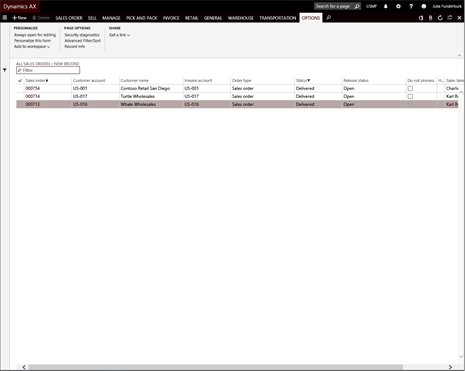
Now you have a filtered list.

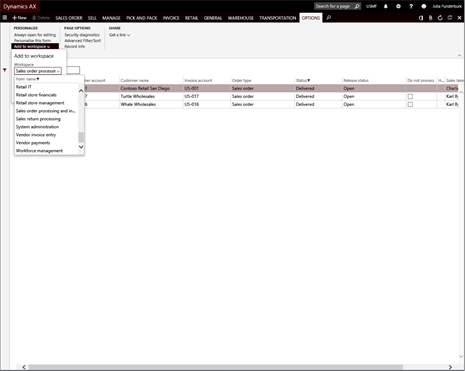
Next, switch to the Options ribbon bar.

This will allow you to then click on the Add to Workspace dropdown menu.

Click on the Workspace dropdown list and select the workspace that you want to add the tile to. In our example we selected the Sales Order Processing and Invoicing workspace.

Then click on the Presentation dropdown list and select the type of view you want to create. We selected Tile in this example, but if you choose List then it will still add the view, but it will be in the List section of the workspace.

After you have done that, click on the Configure button.

This will open up an Add as tile dialog box of the right hand side of the form.

If you want, you can rename the Name on tile to make it more specific to the query. We named ours Delivered Sales Orders.

Then click on the OK button.

When you open up the workspace that you added the tile to then you will see that it is now available for everyone to click on.

Clicking on it will take you straight to the list page and filter out the data for you.

Review

Being able to add tiles to your workspace is a great productivity tool to have in your back pocket. Although you may want to see all of the data sometimes, usually people are working with subsets of the data, and addressing exceptions rather than all of the information. By filtering out the data to just the information that you want to see and adding it as a tile (or as a list) then you get a way to track how much work that you have, and also make sure that you are working on all of the items that you need to work on. There is nothing worse than hunting through pages of data to find the exceptions.

The tiles allow you to get all the information that you need to see all packaged up within a box – literally.

A few weeks ago I released out a new version of my Configuring a Training Environment for Dynamics AX 2012 guide to you which stepped you all through the process of provisioning a new training environment for Dynamics AX within Azure and also shows you how you can create the blank training partition which will be used as the base learning environment for all of the other books in the series.

Over the past week or so I have had the chance to expand out this guide by adding in a few new sections including how to install and configure a local version of the Dynamics AX 2012 Virtual Machine, how to license the virtual machines if they expire, and incorporated the second guide on configuring a base partition and legal entity into the guide as well. Here is the full TOC from the new version of the guide.

CHAPTER 1: USING LIFECYCLE SEVICES AND AZURE TO HOST DYNAMICS AX

  • Signing Up for an Azure Account
  • Registering for your own Lifecycle Services Account
  • Creating Your First Lifecycle Services Project
  • Linking Lifecycle Services And Azure
  • Creating an Azure Hosted Environment through Lifecycle Services
  • Accessing Your Virtual Machine From Azure
  • Viewing The Lifecycle Services Methodologies
  • Turning Your Virtual Machine Off

CHAPTER 2: CONFIGURING A LOCAL VIRTUAL MACHINE (NEW)

  • Downloading the Virtual Machine Image from CustomerSource
  • Decompressing the Virtual Machine
  • Enabling Hyper-V
  • Mounting the Virtual Machine Through Hyper-V

CHAPTER 3: MAINTAINING YOUR VIRTUAL MACHINE LICENSES (NEW)

  • Relicensing the Virtual Machine for 180 Days
  • Relicensing Dynamics AX

CHAPTER 4: CREATING A NEW PARTION

  • Creating A New Partition
  • Creating A New Shortcut To The Partition
  • Initializing The Partition

CHAPTER 5: CONFIGURING THE SYSTEM FOR THE FIRST TIME

  • Changing The Default Company
  • Configure The Default Document Types Storage Locations
  • Importing Default User Profiles
  • Adding Your User To A Role
  • Importing Additional Users
  • Configuring Enterprise Portal Links
  • Configuring Enterprise Search Server

CHAPTER 6: CONFIGURING YOUR ORGANIZATION

  • Initialize the Organizations Number Sequences
  • Importing Address Zip Code, City, State & County Components
  • Configuring The Global Address Book Properties
  • Configuring Default Address Books
  • Configure Working Time Templates
  • Configuring Your Organizational Calendar
  • Creating A Default Email Template
  • Configuring Your Default Workflow Parameters
  • Configure The Alert Notification Parameters
  • Creating A New Worker Record
  • Associating Users With Workers

CHAPTER 7: CONFIGURING YOUR LEGAL ENTITY

  • Adding an Address to the Legal Entity
  • Adding A Logo To Your Legal Entity

This has expanded the guide from 188 or so pages to around 420 pages, and is now a complete reference for people who want to set up their own version of Dynamics AX 2012 for testing and training, and also shows how to configure the base system in order to be ready to move through all of the Bare Bones Configuration Guides that I have developed.

If you haven’t seen any of my guides, then this walkthrough guide is formatted to give you a step by step guide with full screen illustrations of each of the steps to give you a visual guide as to where in the process you are. Each illustration is a great visual reference as to what you should be seeing on the screen and has a description of exactly what you need to do in order to complete the step. This is an ideal way for a novice user to step through the examples within guide.


If you have already picked up a copy of the original guide that I published a couple of weeks ago then don’t frett, you should have already received a link to where you can re-download the updated version of the guide. Being an early ready does have it’s perks.

I hope this is useful to everyone and that you all start learning Dynamics AX 2012 – then when the new release of Dynamics AX comes out you will be up to speed on that version as well because all of the business functionality from Dynamics AX 2012 applies to that version as well.

The New Dynamics AX is a big change from the previous releases. The majority of the changes are around the new web based user interface, the new way that you navigate around in the application and also new sets of tools that have come along for the ride.

For those of you that are familiar with the older user interfaces then you may have to learn a couple of new tricks to get around the system like the pro that you are, and for new users of the New Dynamics AX environments then you will probably want as many tips on all the cool things that you are hidden away within the application so that you can quickly become a power user of the system.

I have scoured all of the resources that I have to compile the most useful tips and tricks for the New Dynamics AX and that will be useful to everyone, regardless of if you are a novice to Dynamics AX just trying to get around in the application, or have worked with the previous versions of the system, and are just want to learn the nuances of the new user interface.

Filtering lists

The list pages are a great way for you to create simple reports directly from the application, but you probably don’t want to see all of the data. We have shown you how you can filter based off the main data, but you can also filter based on any of the fields that are shown on the form.

How it works…

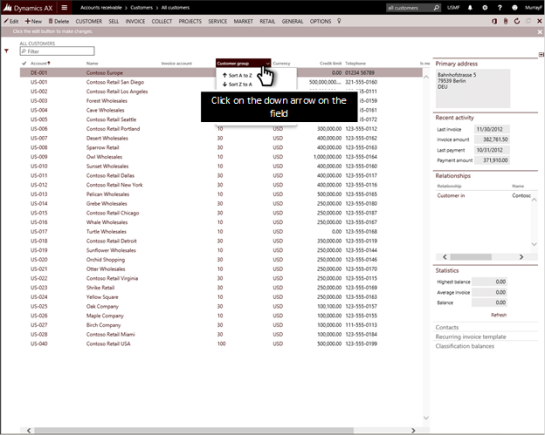
To filter any of the fields, just click on the Down Arrow icon at the right end of the field heading to pull up the field options.

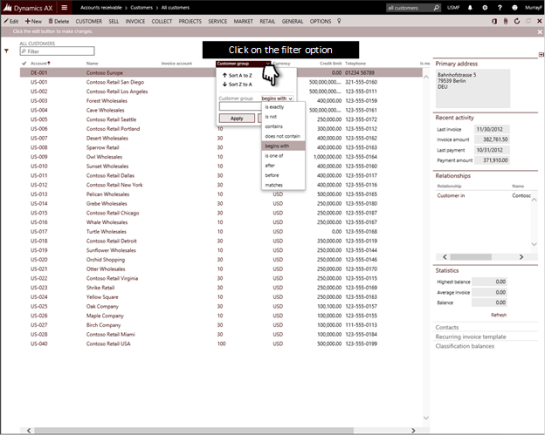
If you click on the filter criteria you will see that there are a number of different ways that you can filter including contains, begins with, etc.

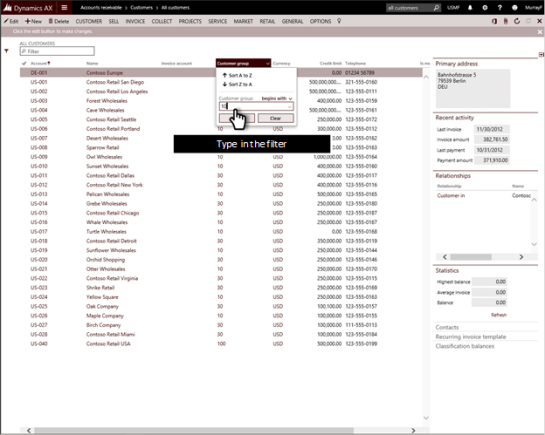
Then type in the filter that you want to apply to the field.

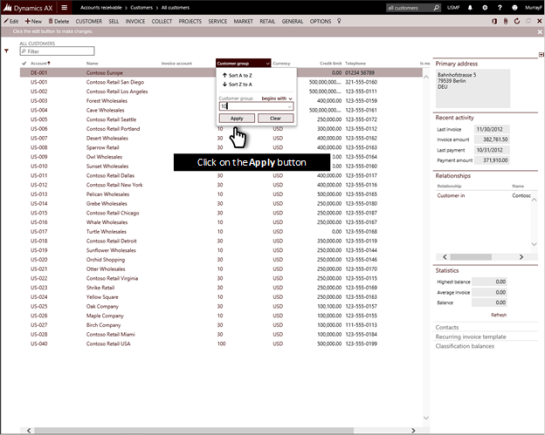
And then click on the Apply button to apply the filter.

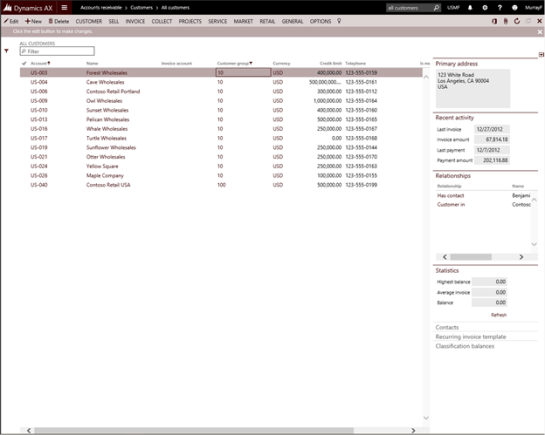
When you return back to the form you will see that the list page has been filtered to just show you the information that matches.

Want more?

If you liked this post and want to see more tips and tricks for the New Dynamics AX then I have compiled the 50 initial tips and tricks into a new guide for you all. If you want to get all of the tips and tricks in one place, then just follow the link: http://bit.ly/1mAzKf6

Also, if you are looking for more resources on Dynamics AX in general, then make sure you check out the Dynamics AX Companions site at www.dynamicsaxcompanions.com and also the Blind Squirrel Publishing site at www.blindsquirrelpublishing.com for more articles and books.

About the Author

Murray Fife is an Author of over 25 books on Microsoft Dynamics AX including the Bare Bones Configuration Guide series of over 15 books which step the user through the setup of initial Dynamics AX instance, then through the Financial modules and then through the configuration of the more specialized modules like production, service management, and project accounting. You can find all of his books on Amazon (www.amazon.com/author/murrayfife) and also even more on the BSP (www.blindsquirrelpublishing.com) site.

Murray is also the curator of the Dynamics AX Companions (www.dynamicsaxcompanions.com) site which he built from the ground up as a resource for all of the Dynamics AX community where you can find walkthroughs and blueprints that he created since first being introduced to the Dynamics AX product.

Throughout his 25+ years of experience in the software industry he has worked in many different roles during his career, including as a developer, an implementation consultant, a trainer and a demo guy within the partner channel which gives him a great understanding of the requirements for both customers and partner’s perspective.

For more information on Murray, here is his contact information:

Email:         mcf@blindsquirrelpublishing.com
Twitter:    @murrayfife
Facebook:    facebook.com/murraycfife
Google:        google.com/+murrayfife
LinkedIn:    linkedin.com/in/murrayfife
Blog:        atinkerersnotebook.com
Docs:        docs.com/mufife
Amazon:    amazon.com/author/murrayfife

Hey all. Time is running out to register for the upcoming Microsoft Dynamics Technical Conference… a little bird told me that the event is nearly sold out!

If you are wanting to know about the newest Microsoft Dynamics AX release (formerly known as ‘AX 7’) then this is the place to be. You can see the product in action as this year’s event will provide partners and users with an exclusive opportunity to gain deep technical knowledge in three short days. If you want to get a jump on the crowds, then don’t forget that I have the one and only book that’s available on AX 7 which you can pick up here: http://bit.ly/1JLxJHS

There are more than 130 Breakout Sessions, Instructor-led Labs, Ask the Experts panels, and Focus Rooms are planned which you can see in the Session Catalog You can filter or select “Show all sessions” to see the session content the Microsoft Dynamics AX R&D team has planned.

If you are wanting hands-on training then you’ll want to check out the
Deep Dive Workshops.
This is scheduled after the Microsoft Dynamics Technical Conference, these intensive workshops will help you leverage your travel to Seattle to maximize your learning. Especially cool are the Microsoft Dynamics Retail Conference, Advanced Presales Workshop, and Budget Planning Workshop.

Don’t miss out!

Whether you’re new to the product or looking to enhance your knowledge, the Microsoft Dynamics Technical Conference provides the unique opportunity to connect and interact directly with the people that build Microsoft Dynamics AX. This is the technical learning opportunity of the year for the new release of Microsoft Dynamics AX.

As you all might have noticed, I blog a lot, and I think that blogging is something that everyone should do, especially if you are on the front lines of a product or technology and you are learning something before others are. There is no point in hoarding information away from others because in the end the knowledge will pass away with you and be lost to the world. Also, by blogging and sharing with others you will find that you will start to be recognized more as an expert in your field regardless of how big or small it may be.

What you might not know about this though is that it really doesn’t consume that much of my time. If you make blogging a part of your everyday life, then you will find that it integrates in almost naturally into everything that you do and really won’t take much more time than what you were doing in the past. And also if there is something that you find that you need to note down in a blog for yourself to remember, then chances are pretty high that there are others out there that would like to know the answer. At the very least, you will start to build your own library of knowledge that you can reference back to.

Previously I showed some of you though my first Author Workshop how to quickly and almost mechanically create your content for your blogs and recently I sat down and documented the second half of this process which is the actual blogging process and also all of the different social media channels that I use while I am publishing my blogs. If you want to get some insight into my processes and how maybe you all can take advantage of them then maybe you might want to pick up a copy.

Here is a link to the guide: http://bit.ly/1PDHrrK

I have broken this guide down into two sections. The first will show you how easy it is to publish traditional blogs through one of my favorite blogging tools – WordPress, and in the second part we will look at some alternative blogging channels that you may want to take a look at and also how you can repurpose your content to be published as presentations and other media types.

Hopefully this along with the exercises that we have included in the guide will get you motivated to start blogging and sharing with your community.

The New Dynamics AX is a big change from the previous releases. The majority of the changes are around the new web based user interface, the new way that you navigate around in the application and also new sets of tools that have come along for the ride.

For those of you that are familiar with the older user interfaces then you may have to learn a couple of new tricks to get around the system like the pro that you are, and for new users of the New Dynamics AX environments then you will probably want as many tips on all the cool things that you are hidden away within the application so that you can quickly become a power user of the system.

I have scoured all of the resources that I have to compile the most useful tips and tricks for the New Dynamics AX and that will be useful to everyone, regardless of if you are a novice to Dynamics AX just trying to get around in the application, or have worked with the previous versions of the system, and are just want to learn the nuances of the new user interface.

Moving fields on forms

Some fields may be more important to you than others, and sometimes you may want to move the fields around and show them in different orders.

How to do it…

To move a field, start off by right-mouse-clicking on the field heading that you want to move.

Then when the context menu is displayed, click on the Personalize field option.

This will open up the personalization options, and you can click on the Move left or Move right links to move it left or right on the page.

After you have moved the fields to where you want them to then press the ESC key to exit from the personalization.

When you return to the form you will see that the fields have been moved for you.

Want more?

If you liked this post and want to see more tips and tricks for the New Dynamics AX then I have compiled the 50 initial tips and tricks into a new guide for you all. If you want to get all of the tips and tricks in one place, then just follow the link: http://bit.ly/1mAzKf6

Also, if you are looking for more resources on Dynamics AX in general, then make sure you check out the Dynamics AX Companions site at www.dynamicsaxcompanions.com and also the Blind Squirrel Publishing site at www.blindsquirrelpublishing.com for more articles and books.

About the Author

Murray Fife is an Author of over 25 books on Microsoft Dynamics AX including the Bare Bones Configuration Guide series of over 15 books which step the user through the setup of initial Dynamics AX instance, then through the Financial modules and then through the configuration of the more specialized modules like production, service management, and project accounting. You can find all of his books on Amazon (www.amazon.com/author/murrayfife) and also even more on the BSP (www.blindsquirrelpublishing.com) site.

Murray is also the curator of the Dynamics AX Companions (www.dynamicsaxcompanions.com) site which he built from the ground up as a resource for all of the Dynamics AX community where you can find walkthroughs and blueprints that he created since first being introduced to the Dynamics AX product.

Throughout his 25+ years of experience in the software industry he has worked in many different roles during his career, including as a developer, an implementation consultant, a trainer and a demo guy within the partner channel which gives him a great understanding of the requirements for both customers and partner’s perspective.

For more information on Murray, here is his contact information:

Email:         mcf@blindsquirrelpublishing.com
Twitter:    @murrayfife
Facebook:    facebook.com/murraycfife
Google:        google.com/+murrayfife
LinkedIn:    linkedin.com/in/murrayfife
Blog:        atinkerersnotebook.com
Docs:        docs.com/mufife
Amazon:    amazon.com/author/murrayfife


The New Dynamics AX is a big change from the previous releases. The majority of the changes are around the new web based user interface, the new way that you navigate around in the application and also new sets of tools that have come along for the ride.

For those of you that are familiar with the older user interfaces then you may have to learn a couple of new tricks to get around the system like the pro that you are, and for new users of the New Dynamics AX environments then you will probably want as many tips on all the cool things that you are hidden away within the application so that you can quickly become a power user of the system.

I have scoured all of the resources that I have to compile the most useful tips and tricks for the New Dynamics AX and that will be useful to everyone, regardless of if you are a novice to Dynamics AX just trying to get around in the application, or have worked with the previous versions of the system, and are just want to learn the nuances of the new user interface.

Adding additional fields

Another personalization that you can perform is the adding of additional fields to the forms that may not already be on the form.

How to do it…

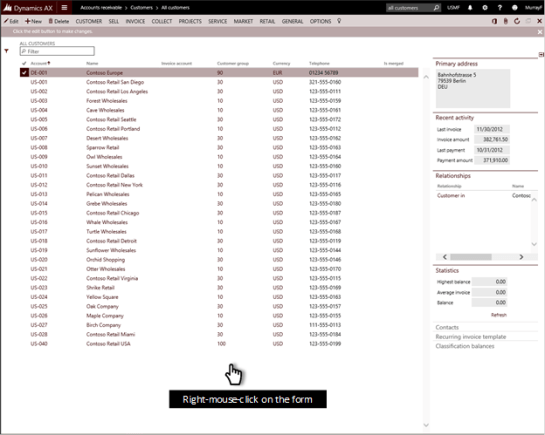
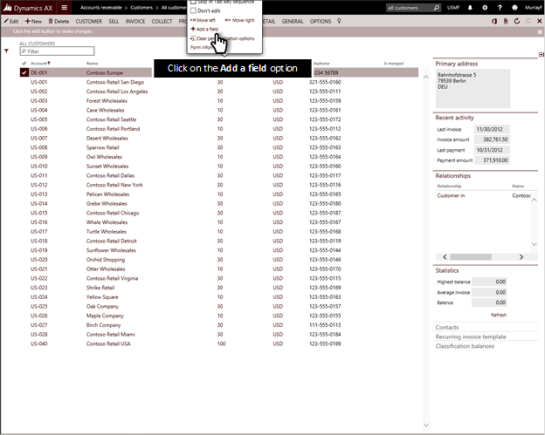
To do this, right-mouse-click on the form.

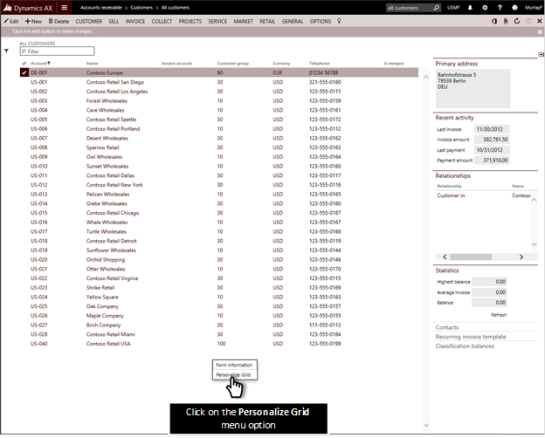
When the context menu item is displayed, click on the Personalize Grid option.

This will open up a personalization selector and you can then click on the Add a field link.

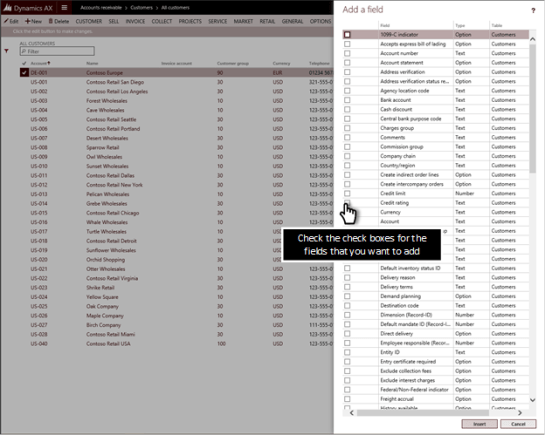
This will then open up a Add a Field dialog and all you need to do is check the additional fields that you want to show on the form.

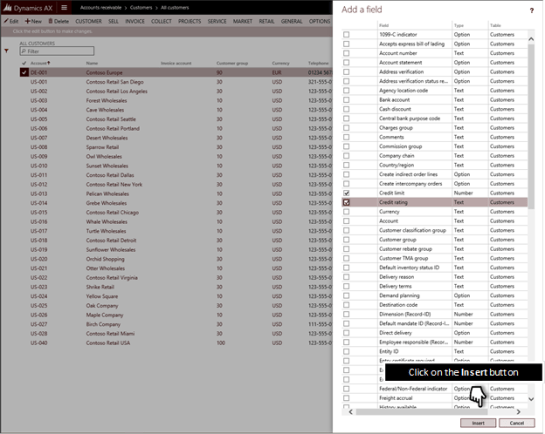
After you have selected the fields, click on the Insert button.

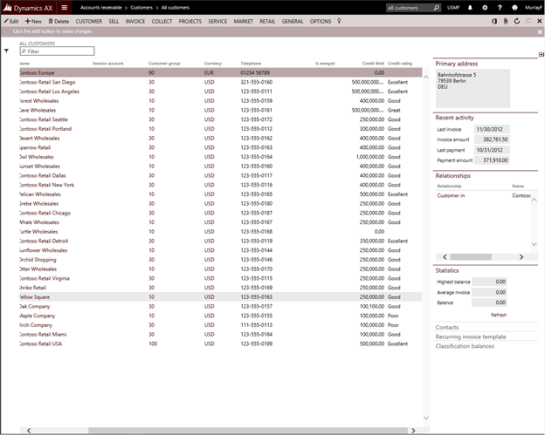
When you return back to the form you will see that the fields have been added to the list page.

Want more?

If you liked this post and want to see more tips and tricks for the New Dynamics AX then I have compiled the 50 initial tips and tricks into a new guide for you all. If you want to get all of the tips and tricks in one place, then just follow the link: http://bit.ly/1mAzKf6

Also, if you are looking for more resources on Dynamics AX in general, then make sure you check out the Dynamics AX Companions site at www.dynamicsaxcompanions.com and also the Blind Squirrel Publishing site at www.blindsquirrelpublishing.com for more articles and books.

About the Author

Murray Fife is an Author of over 25 books on Microsoft Dynamics AX including the Bare Bones Configuration Guide series of over 15 books which step the user through the setup of initial Dynamics AX instance, then through the Financial modules and then through the configuration of the more specialized modules like production, service management, and project accounting. You can find all of his books on Amazon (www.amazon.com/author/murrayfife) and also even more on the BSP (www.blindsquirrelpublishing.com) site.

Murray is also the curator of the Dynamics AX Companions (www.dynamicsaxcompanions.com) site which he built from the ground up as a resource for all of the Dynamics AX community where you can find walkthroughs and blueprints that he created since first being introduced to the Dynamics AX product.

Throughout his 25+ years of experience in the software industry he has worked in many different roles during his career, including as a developer, an implementation consultant, a trainer and a demo guy within the partner channel which gives him a great understanding of the requirements for both customers and partner’s perspective.

For more information on Murray, here is his contact information:

Email:         mcf@blindsquirrelpublishing.com
Twitter:    @murrayfife
Facebook:    facebook.com/murraycfife
Google:        google.com/+murrayfife
LinkedIn:    linkedin.com/in/murrayfife
Blog:        atinkerersnotebook.com
Docs:        docs.com/mufife
Amazon:    amazon.com/author/murrayfife

Writing walkthrough guides is easy. It’s the formatting of the content that will take you forever to do, especially of you are wanting to repurpose the content into other formats like scripts, blog posts, summaries and even books. And if you want to make a change to a guide, or correct mistakes then that can take just as much time because you might break some of the formatting, or pagination, or you may miss one of the formats. And if you wanted to have specific page breaks, formatting requirements or different page sizes for different versions then it just doubles or triples the work.

Some people may have lackeys or interns that they can give this job to, but I wasn’t one of them, and have literally spent weekends formatting books and transferring images one by one into Word so that I can publish document or create detailed blog post series.

One day it became too much and I decided that I had to stop the insanity and find a better way. Because I capture all of my walkthroughs in PowerPoint – just because it makes everything look consistent and tidy – I looked into how I could automate the process and have it do all of the work for me. I blew the dust off my copy of Visual Studio and created Author Tools for PowerPoint.

These tools automate a lot of the leg work that I used to do manually by using PowerPoint as a repository for all of the walkthrough details and then uses pre-defined word templates as a basis which it then transfers all of the images and text automatically and also formats all of the walkthroughs in a number of different ways based on how you are wanting the information to be consumed. For example, if you are building a book then you may want headings on pages, but if you are publishing it as a blog then you probably don’t.

This reduces the time to format a 400+ page book from 8+ hours and tens of thousands of repetitive keystrokes to probably about half an hour and a single click.

In this walkthrough (which is created with Author Tools for PowerPoint) I will show some of the setup and also how it works.

Creating Companion PowerPoints from Storyboards

If you are using the walkthrough guides for training or for product overviews, then you may be wanting to create companion PowerPoint presentations to help keep everything on track. Although the Storyboard that we create within the Author Tools is a PowerPoint itself, it’s really not designed to be presented to anyone other than you since it’s a framework rather than a polished presentation.

Luckily we thought of that and there is a third component called Present within the Author Tools for PowerPoint that will publish out your storyboard in a more presentable manner, but rather than creating a Word document, it creates a PowerPoint for you based off any PowerPoint template that you have configured with the Author Tools building blocks.

Once you have a storyboard, all you need to do to create the companion PowerPoint is push a button.

How it works…

To do this, all you need to do is open up the Storyboard that you want to convert over into a PowerPoint presentation and the switch to the Present ribbon bar. There you will see a number of different options for publishing your Storyboard to PowerPoint.
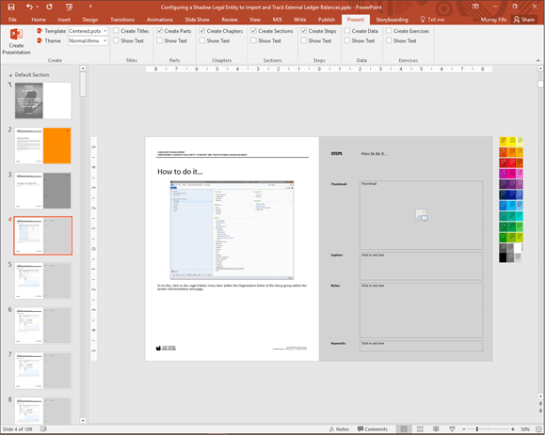
If you click on the Template button, you will see all of the different templates that are stored within the AuthorTools/Templates folder for you to create your presentation based on.

To create the PowerPoint, just click on the Create Presentation button within the Create button group.
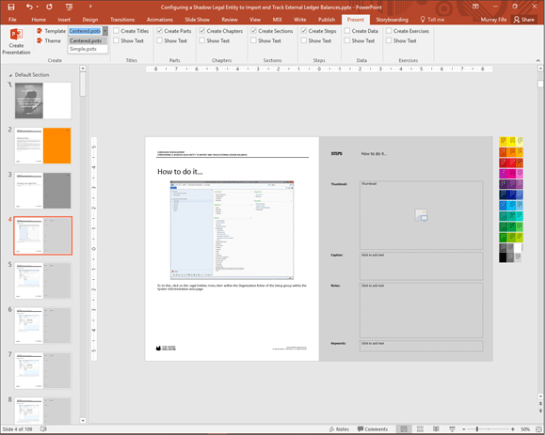
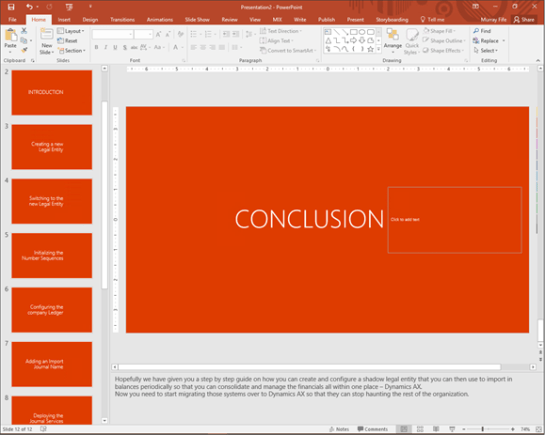
This will then go out and create the presentation for you.

Also note that although the text is not showing on the presentation itself, the narratives from the Storyboard is actually within the Notes section.
Including Steps in The PowerPoint Presentation

By default, the presentation that is created will be a summary presentation that just includes the Parts, Chapters and Sections for you to use more as an agenda. You can pick and choose from these options, and also you can include detail like the steps within the PowerPoint as well to create more of a self-guided PowerPoint Slideument.

How it works…

If you look on the Present ribbon bar you will see that each of the building blocks for the storyboard are listed there with the option to include them in the presentation.
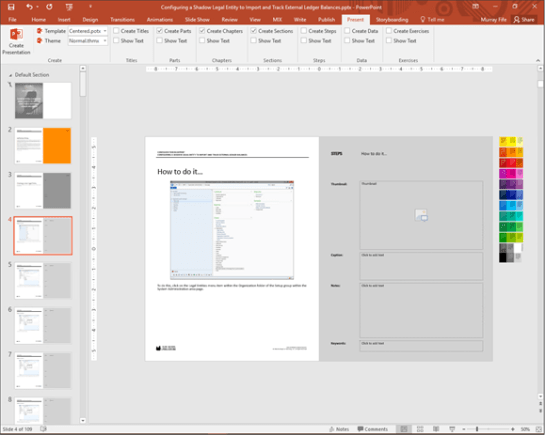
To include the Steps in the presentation, just click on the Create Steps checkbox to enable it.

Then click on the Create Presentation button within the Create button group.
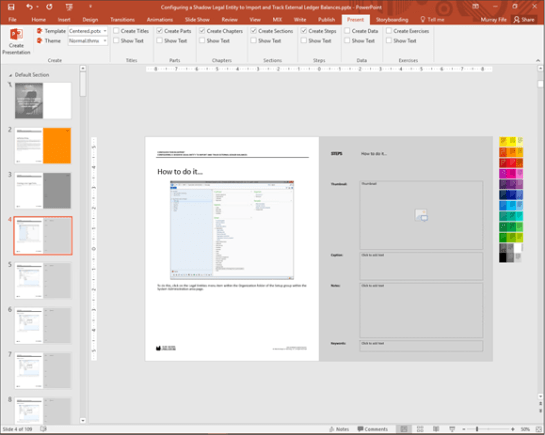
Now when the presentation gets created, you will see that all of the steps with the pictures have been included in the presentation.
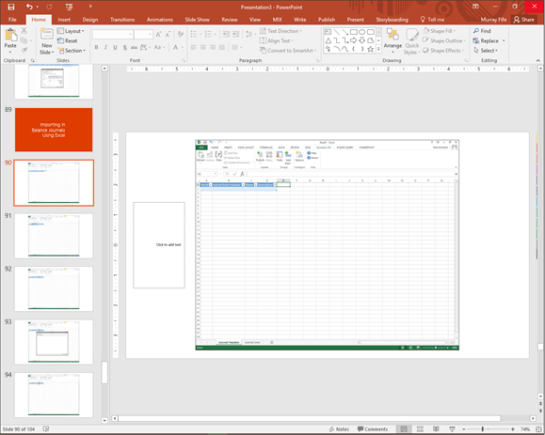
Including Text Within the Slides

Although you don’t normally want to have all of the text from the storyboard within the presentation that you are creating – mainly because it turns the presentation into more of a document, sometimes it is nice to include it as a caption. Don’t fret, you can do this automatically.

How it works…

On any of the building blocks you may have noticed that there is an option to show the text within the slide itself.
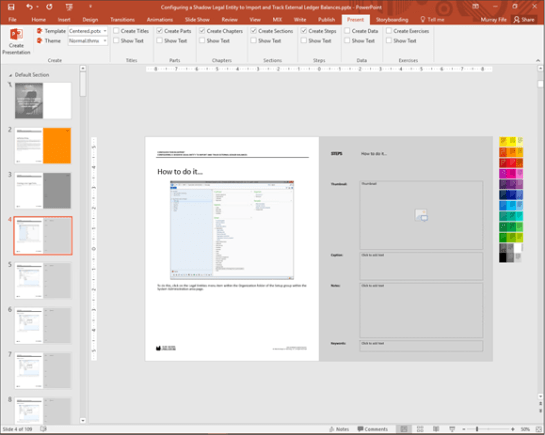
To include the text from the steps into the slides, just check the Show Text flag within the Steps button group, and then click on the Create Presentation button.
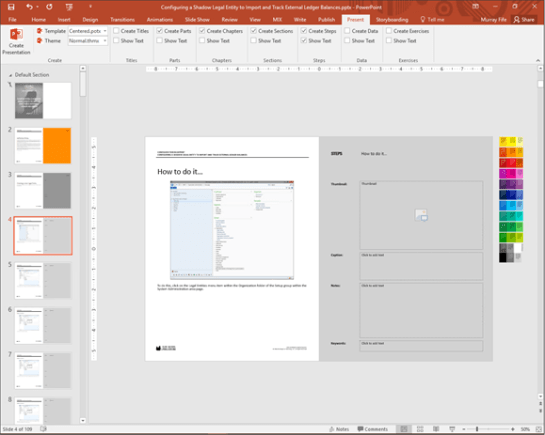
Now when the presentation gets created, each of the steps within the PowerPoint will have the narrative beside it.
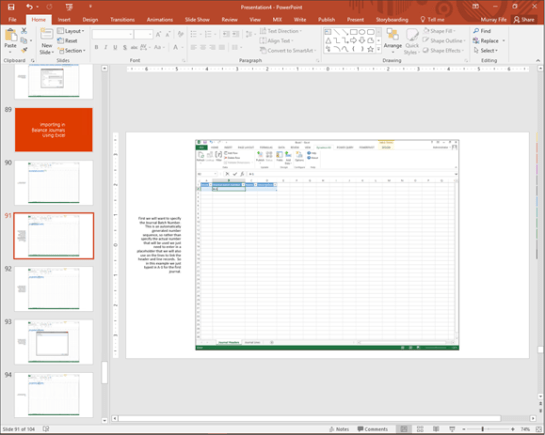
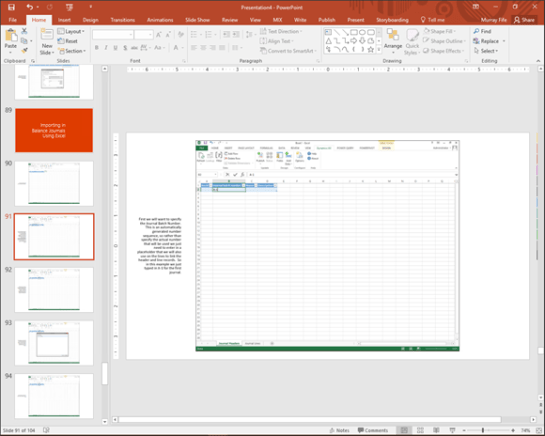
Creating a companion PowerPoint for your document is a great thing to do especially if you have a branded template. You can use the PowerPoint for training, as an overview to your walkthrough, and even as an additional output format to be published on sites like SlideShare. Not having to have to create them by hand is definitely a bonus.

More information…

If this has piqued your curiosity then you can test it out yourself, we have made the install kit available for download for free as the Student Edition.

Just download the kit, install it and then follow along with the examples that are in the book, and also use the samples that are included with the software to see the same examples on your system. You should be able to get it up and running pretty easily and maybe you will find that writing and publishing is not that hard at all.

If you want to grab it, then just follow this link: http://bit.ly/1ZEF5Uo

Also, if you are looking for more resources on then make sure you check out the Blind Squirrel Publishing site at www.blindsquirrelpublishing.com for more articles and books.

About the Author

Murray Fife is an Author of over 25 books which you can find all of his books on Amazon (www.amazon.com/author/murrayfife) and also even more on the BSP (www.blindsquirrelpublishing.com) site.

Throughout his 25+ years of experience in the software industry he has worked in many different roles during his career, including as a developer, an implementation consultant, a trainer and a demo guy within the partner channel which gives him a great understanding of the requirements for both customers and partner’s perspective.

For more information on Murray, here is his contact information:

Email:     mcf@blindsquirrelpublishing.com
Twitter:    @murrayfife
Facebook:    facebook.com/murraycfife
Google:    google.com/+murrayfife
LinkedIn:    linkedin.com/in/murrayfife
Blog:    atinkerersnotebook.com
Docs:    docs.com/mufife
Amazon:    amazon.com/author/murrayfife
The New Dynamics AX is a big change from the previous releases. The majority of the changes are around the new web based user interface, the new way that you navigate around in the application and also new sets of tools that have come along for the ride.

For those of you that are familiar with the older user interfaces then you may have to learn a couple of new tricks to get around the system like the pro that you are, and for new users of the New Dynamics AX environments then you will probably want as many tips on all the cool things that you are hidden away within the application so that you can quickly become a power user of the system.

I have scoured all of the resources that I have to compile the most useful tips and tricks for the New Dynamics AX and that will be useful to everyone, regardless of if you are a novice to Dynamics AX just trying to get around in the application, or have worked with the previous versions of the system, and are just want to learn the nuances of the new user interface.

Unhiding fields

If you have hidden a field, it is not gone forever. You can easily re-enable it so that you can reuse them again.

How to do it…

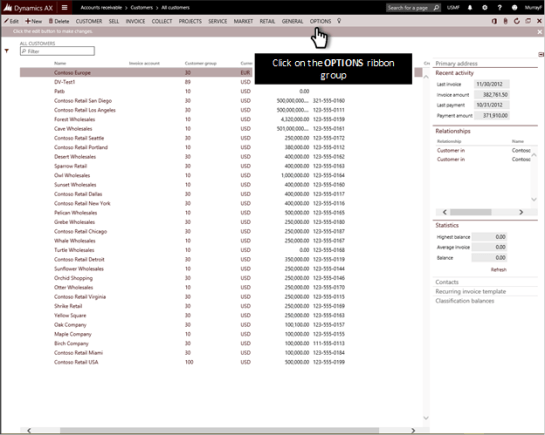
In order to re-enable the hidden fields you need to turn on the option that will allow you to see all of the hidden fields so that you can manipulate the personalization. To do this, click on the OPTIONS ribbon bar button.

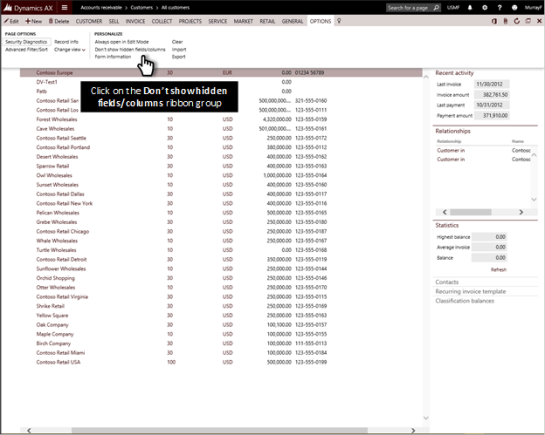
When the Options ribbon bar is shown click on the Show hidden fields/columns link within the Personalize button group.

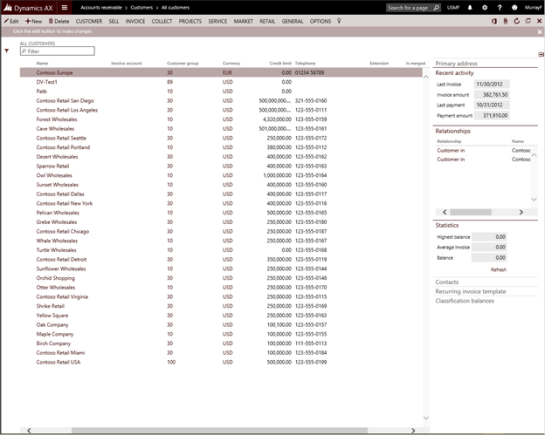
This will allow you to see the hidden fields.

Now you can right-mouse-click on the hidden fields header.

This will open up the options menu and then you can click on the Personalize Extension menu item.

This will open up the Personalization options for the form.

Now you can uncheck the Hide flag for the field.

Now the field will be unhidden.

Just as a side note, you may also want to click on the OPTIONS and then click on the Don’t show hidden fields/columns menu link.

This will return the view back to the original state.

Want more?

If you liked this post and want to see more tips and tricks for the New Dynamics AX then I have compiled the 50 initial tips and tricks into a new guide for you all. If you want to get all of the tips and tricks in one place, then just follow the link: http://bit.ly/1mAzKf6

Also, if you are looking for more resources on Dynamics AX in general, then make sure you check out the Dynamics AX Companions site at www.dynamicsaxcompanions.com and also the Blind Squirrel Publishing site at www.blindsquirrelpublishing.com for more articles and books.

About the Author

Murray Fife is an Author of over 25 books on Microsoft Dynamics AX including the Bare Bones Configuration Guide series of over 15 books which step the user through the setup of initial Dynamics AX instance, then through the Financial modules and then through the configuration of the more specialized modules like production, service management, and project accounting. You can find all of his books on Amazon (www.amazon.com/author/murrayfife) and also even more on the BSP (www.blindsquirrelpublishing.com) site.

Murray is also the curator of the Dynamics AX Companions (www.dynamicsaxcompanions.com) site which he built from the ground up as a resource for all of the Dynamics AX community where you can find walkthroughs and blueprints that he created since first being introduced to the Dynamics AX product.

Throughout his 25+ years of experience in the software industry he has worked in many different roles during his career, including as a developer, an implementation consultant, a trainer and a demo guy within the partner channel which gives him a great understanding of the requirements for both customers and partner’s perspective.

For more information on Murray, here is his contact information:

Email:         mcf@blindsquirrelpublishing.com
Twitter:    @murrayfife
Facebook:    facebook.com/murraycfife
Google:        google.com/+murrayfife
LinkedIn:    linkedin.com/in/murrayfife
Blog:        atinkerersnotebook.com
Docs:        docs.com/mufife
Amazon:    amazon.com/author/murrayfife