Having users perform their own reporting has been a dream on both sides of the organization. The IT group don’t particularly like creating reports for the users when they could be spending their time on cooler projects, and users don’t particularly like waiting for IT to create the reports that they need to track the data because it’s never quite what they wanted, and also takes so long to get (because of the first reason) that it’s usually out-of-date. If only there was a solution…

Well there is, because there are so many tools built into Dynamics AX and also the productivity tools like Excel and Word that the users can easily create their own reports themselves without having to get the IT group involved. Everybody wins!

In this series we will show you how the users can do just that, it’s so easy that they may not even realize that they are creating reports.

Using List Pages as User Reports

The first thing that we will highlight is that the Dynamics AX list pages are the best reporting options that is there for the user. The list pages can be rearranged, filtered, have fields added to them, sorted and a whole slew of other personalization options making it the perfect way to review data.
Read More

Humor me, because I’m sure that this has never happened to you all but, have you ever had a situation where it seemed like your workspace windows within Dynamics AX seemed like they were replicating like Tribbles? And like Kirk, all you wanted to do was just get rid of them all?

If you are one of the few that this has happened to then here is a quick tip that will save you from playing whack-a-mole with the windows and close them all with just a click of the button.

How to do it…

  1. To close all of the windows, all you need to do is click on the Workspaces icon in the top right hand corner of the Dynamics AX client and then select the Close All option.

How it works…

Like magic, all of the windows will close down and you will have a nice clean workspace again.

Summary

The only thing that we can’t guarantee is that they won’t start replicating again, but that is now your fault…

Acknowledgements

I have to thank Deborah Vermillion for this tip – I saw her do this and was mortified that I have been doing this the hard way for… well… forever.

I am a firm believes that Dynamics AX is not a hard product to learn, but the problem is where do you start. Which is why I developed the Bare Bones Configuration Guides. The aim of this series is to step you though the configuration of Dynamics AX from a blank system, and then step you through the setup of all of the core modules within Dynamics AX. I start with the setup of a base system, then move on to the financials, distribution, and operations modules. Each book builds upon the previous ones, and by the time you have worked through all of the guides then you will have completely configured a simple (but functional) Dynamics AX 2012 instance. To make it even more worthwhile you will have a far better understanding of Dynamics AX and also how everything fits together.

As of now there are 16 guides in this series broken out as follows:

  • M01 Configuring A Base Dynamics AX 2012 Test System
  • M02 Configuring an Organization within Dynamics AX 2012
  • M03 Configuring the General Ledger within Dynamics AX 2012
  • M04 Configuring Cash and Bank Management within Dynamics AX 2012
  • M05 Configuring Accounts Receivable within Dynamics AX 2012
  • M06 Configuring Accounts Payable within Dynamics AX 2012
  • M07 Configuring Product Information Management within Dynamics AX 2012
  • M08 Configuring Inventory Management within Dynamics AX 2012
  • M09 Configuring Procurement and Sourcing within Dynamics AX 2012
  • M10 Configuring Sales Order Management within Dynamics AX 2012
  • M11 Configuring Human Resource Management within Dynamics AX 2012
  • M12 Configuring Project Management and Accounting within Dynamics AX 2012
  • M13 Configuring Production Control within Dynamics AX 2012
  • M14 Configuring Sales and Marketing within Dynamics AX 2012
  • M15 Configuring Service Management within Dynamics AX 2012
  • M18 Configuring Warehouse Management within Dynamics AX 2012

Although you can get each of these guides individually, and I think that each one is a great Visual resources to step you through each of the particular modules, for those of you that want to take full advantage of the series, you will want to start from the beginning and work through them one by one. After you have done that you would have done people told me was impossible for one persons to do, and that is to configure all of the core modules within Dynamics AX.

I challenge all of you out there from any level of AX experience – from those of you that are new to Dynamics AX and want to learn how it works, to the seasoned AX consultant that knows areas of AX inside and out but haven’t got out of their comfort zone and learn the other areas – to sit down and learn how to implement a company in Dynamics AX from the ground up.

For the brave and adventurous souls, and those of you with a thirst for knowledge, that are willing to take on this challenge I have just set up a bundle option for the Bare Bones Configuration Guides within the Blind Squirrel Publishing site that will allow you to get all of the books at once, and for a discount. You can save yourself from the possibility of contracting RSI from selecting each book individually and get them with just by starting with one click of the mouse. They are not free, but they are worth it. I guarantee that you will learn more than you expect form this process.

Here is a link to where you can get the complete set of guides: http://www.blindsquirrelpublishing.com/products/s01-bare-bones-configuration-guides-all-access-ebook-bundle?variant=6822663681

Consider the gauntlet thrown down.

The Charge Codes within Dynamics AX are great ways to add upcharges and adjustments to Sales Orders and Quotations without having to add additional dummy part codes to the system and also without having them clutter up the order lines and make everyone try to decipher what charge is associated with which line.

To make the Charge Codes even better, you can take advantage of the Auto Charge feature that allows you to create rules that will automatically add the Charges to your order header and lines without even lifting a finger. This allows you to have additional surcharges and adjustments automatically show up on the Sales Orders and Quotations which is a great time saver in itself.

You can take the automatic addition of the Charge Codes one step further if you like and link it with the Modes of Delivery that you assign to the Sales Orders and Quotations and have the Freight Charges automatically added based on the method that you are using for the shipment. If you don’t have the time or the inclination to use the Transportation Management to do this then it’s definitely the second best option for you.

In this guide we will show you how to set up all of the necessary links within Dynamics AX to do just that.

So lets start.

Adding Modes of Delivery

Before we start we need to make sure that we need to make sure that we have some Modes of Delivery defined within Dynamics AX.

How to Do It…

To check this, click on the Modes of Delivery menu item within the Distribution folder of the Setup group of the Sales and Marketing area page.
When the Modes of Delivery maintenance form is displayed you should see all of the different ways that you can deliver your products. Click on the New button in the menu bar to create a new record.
Set the Mode of Delivery code to UPS-PARCEL and the Description to UPS Parcel.
After you have done that, click on the Close button to exit from the form.

Creating a Delivery Charge Code

The way that the automatic freight charges will be added is through the Charge Codes which allow you to attach additional charges to either the header or the line of the sales orders and quotations. These are really useful because they allow you to add upcharges and adjustments to orders without having to add additional order lines.

How to Do It…

So Next we will want to make sure that we have a Charge Codes defined that we will be able to use assign to our Modes of Delivery.
When the Modes of Delivery Maintenance form is displayed, click on the New button in the menu bar to create a new record.
Then set the Charge Code to UPS-PARCEL and the Description to UPS Flat Rate Parcel Charge.
Now we want to set up the Posting profile for the freight charge. For the Debit postings we will want to post to the Customer (or Vendor) account, so click on the Type dropdown list within the Debit field group and select the Customer/Vendor option.
Now we want to define the Credit account that we will be charging the freight to. In this case we will want to post it to a ledger account rather than a default on the Customer or Vendor posting profile. So leave the Type field within the Credit field group as Ledger Account and then click on the Posting dropdown list and select the Order, freight option.
Now click on the Account dropdown list within the Credit field group and select the Outbound Freight account that you want to post this charge to. In our system this is the 403500 account code.

Once you have done that then you are done setting up the Charge Codes and you can click on the Close button to exit from the form.

Creating Automatic Charges Based On Modes of Delivery

Now that we have the Charge codes defined and also the Mode of Delivery set up we can start tying them together so that they will be added automatically to the Sales Order or the Quotation. We do that by creating an Automatic Charge rule within Dynamics AX.

How to Do It…

To do this, click on the Auto Charges menu item within the Charges folder of the Setup group within the Accounts Receivable area page.
When the Auto Charges maintenance form is displayed, click on the New button in the menu bar to create a new record.
We will now want to define the selection criteria that we will use to trigger the automatic charge. For this example we will want the charge to apply to all of the customers, so click on the Account Code dropdown list and select the All option.
Next we will want to associate the automatic charge with the Mode of Delivery that we just created. To do this click on the dropdown list for the Mode of Delivery Code and select the Table option to indicate that this will be related to one single record.
This will enable the Mode of Delivery Relation field and you can then click on it and select the UPS-PARCEL code that you just created.
After you have done that save the record by pressing CTRL+S and you will notice now that you have the option to click on the Add button within the Lines grid.

When the new line is created, click on the Charge Code dropdown list and select UPS-PARCEL charge code that you just created. This is telling the system that to automatically add this charge code to the Sales Order or Quotation.
Finally, enter in a Charges Value for the amount that you want to assign to the automatic charge. We will set it to $25.95.

Now that you have added your Automatic Charge you are done and you can just click on the Close button to exit from the form.

Entering a Sales Order with Automatic Freight Charges

Now that everything is set up we can test the Automatic Charge out by creating a Sales Order and seeing if the charge is added to the record automatically.

How to Do It…

To do this, click on the All Sales Orders menu item within the Sales Orders folder of the Common group within the Accounts Receivable area page.
When the All Sales Orders list page is displayed, click on the Sales Order button within the New button group of the Sales Order ribbon bar.
When the Create Sales Order dialog box is displayed, enter in the Customer Account to select the customer. We will use 100120 and place an order for Rosebud Gifts.
Before we continue on though we need to make sure that the order has the Mode of Delivery that we just set up and also linked the Automatic Charge to. To do this, expand out the Shipping fast tab and you will see that there is an option to set the Mode of Delivery for the order. Click on the Mode of Delivery dropdown list and select the UPS-PARCEL code that you just created.

Now you can just click on the OK button to create your order.
When the Sales Order maintenance form is displayed, add a few lines.
Then switch to the Sell ribbon bar and click on the Charges button within the Charges button group.

This will open up the Charges Transactions maintenance form and you will notice that the system has automatically added in the charge code for us.

Also, if you print the Order Confirmation then you will see that the charge code is also listed in the footer of the document.

How cool is that.

Get the Expert Guide for Your Own Training

If you want to get a more detailed version of this blog post then you can grab the Expert Guide which includes step by step visual walkthroughs of all of the steps that are shown in this blog post, and also examples of the sample data that we used to give you all a quick reference if you want to use the guide for your own training.

You can find all of the information here:

http://www.blindsquirrelpublishing.com/products/e01-configuring-automatic-freight-charges-based-on-modes-of-delivery?variant=6705901953

Need More Help With Dynamics AX?

The Bare Bones Configuration Guides for Dynamics AX was developed to show you how to set up a company from the ground up and configure all of the common modules that most people would need, and a few that you might want to use.

It aims to demystify the setup process and prove that Dynamics AX is only as hard to configure as you make it, and if you are a mid-range customer that even you can get a company configured and working without turning on every bell and whistle and without breaking the bank.

There are 15 volumes in the current series and although each of these guides have been designed to stand by themselves as reference material for each of the modules within Dynamics AX, if they are taken as a whole series they are also a great training system that will allow even a novice on Dynamics AX work through the step by step instructions and build up a new company from scratch and learn a lot of the ins and outs of the system right away. The current guides are:

  1. Configuring a Base Dynamics AX 2012 System
  2. Configuring an Organization Within Dynamics AX 2012
  3. Configuring The General Ledger Within Dynamics AX 2012
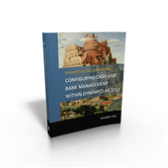
  4. Configuring Cash And Bank Management Within Dynamics AX 2012
  5. Configuring Accounts Receivable Within Dynamics AX 2012
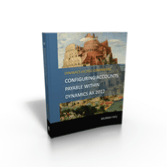
  6. Configuring Accounts Payable Within Dynamics AX 2012
  7. Configuring Product Information Management Within Dynamics AX 2012
  8. Configuring Inventory Management Within Dynamics AX 2012
  9. Configuring Procurement & Sourcing Within Dynamics AX 2012
  10. Configuring Sales Order Management Within Dynamics AX 2012
  11. Configuring Human Resources Within Dynamics AX 2012
  12. Configuring Project Management & Accounting Within Dynamics AX 2012
  13. Configuring Production Control Within Dynamics AX 2012
  14. Configuring Sales & Marketing Within Dynamics AX 2012
  15. Configuring Service Management Within Dynamics AX 2012

If you are interested in finding out more about the series and also view all of the details including topics covered within the module then browse to the Bare Bones Configuration Guide landing page on the Dynamics AX Companions website. You will find all of the details, and also downloadable resources that help you with the setup of Dynamics AX here:

http://www.dynamicsaxcompanions.com/barebonesconfig

About the Author

Murray Fife is an Author of over 25 books on Microsoft Dynamics AX including the Bare Bones Configuration Guide series of over 15 books which step the user through the setup of initial Dynamics AX instance, then through the Financial modules and then through the configuration of the more specialized modules like production, service management, and project accounting. You can find all of his books on Amazon (www.amazon.com/author/murrayfife) and also even more on the BSP (www.blindsquirrelpublishing.com) site.

Murray is also the curator of the Dynamics AX Companions (www.dynamicsaxcompanions.com) site which he built from the ground up as a resource for all of the Dynamics AX community where you can find walkthroughs and blueprints that he created since first being introduced to the Dynamics AX product.

Throughout his 25+ years of experience in the software industry he has worked in many different roles during his career, including as a developer, an implementation consultant, a trainer and a demo guy within the partner channel which gives him a great understanding of the requirements for both customers and partner’s perspective.

Everyone who is in the know knows that it is the Squirrel New Year right now and that means that we are celebrating like is 3145 AS (Anno Scurrius) – which it is. I know you all are probably asking – “What do Squirrels do when they celebrate the SNY? They do what they have always done as far back as they can remember – they brush up on the Financials modules of Dynamics AX.

To make it easier for you all to join in on the festivities we have bundled the first six books within the Bare Bones Configuration Guide series and you can get them all at once at for 20% off the list price. “Oh my!” I hear you say – “That’s a deal and is all I need be fully prepared for the SNY”. And you are right. You too can get all of this and be set for the next 103 days before the next Squirrel New Year.

You can learn how to set up your own pilot environment in Azure, create a new Company within Dynamics AX, and then configure the General Ledger, Cash & Bank Management, Accounts Receivable, & Accounts Payable modules. All by yourself!
How awesome is that!

What are you waiting for?

This week is the Microsoft Dynamics US FY16 Kick Off event in Nashville. Maybe I will see some of you all there J


A couple of weeks ago I offered a free download of one of my books (An Introduction To Dynamics AX 2012) , and was swamped with downloads and was almost overwhelmed by the response, but I have upgraded my shopping cart and streamlined the process and to celebrate the Kick Off Event in my own little way I have decided to let you all download not one, but two of my books for free.

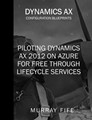
For this week only (Aug 16th-23rd) you are able to download the An Introduction To Dynamics AX 2012 reference guide which will show you a lot of the cool usability features that are available within Dynamics AX 2012, and also the Piloting Dynamics AX 2012 On Azure For Free Through Lifecycle Services guide that I recently released that will show you how to set up your very own pilot system for Dynamics AX through Azure – even if you are not a customer!

If you want to pick up a copy then here are the links to them J

Happy downloading.

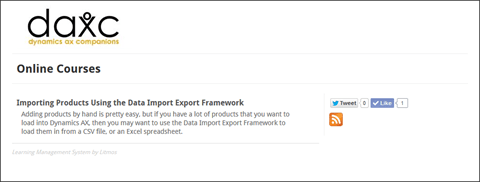
This weekend we are testing out a new offering for the Dynamics AX Companions project which is online training courses based on the Bare Bones Configuration Guides series of books and also the Dynamics AX Tips and Tricks series of books. If we decide to start transferring all of the content that we have over to this platform then it could be a personal training resource for you all on Dynamics AX, and even a corporate training platform to get everyone in your implementation team up and going with Dynamics AX and also provide a way to track the learning paths for everyone to see if they are doing their homework.

This platform is not cheap to set up and configure so we wanted to get some feedback from you all to see if this would be something useful so we’ve opened up the sample courses for everyone while we pilot the service.

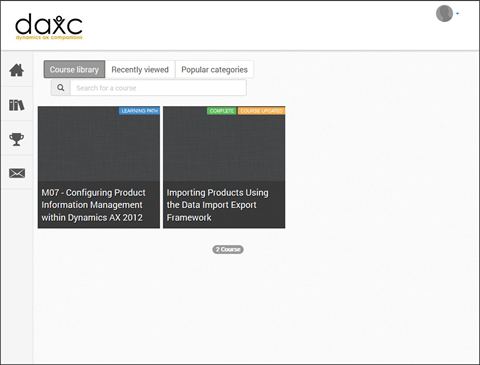
If you want to check out the sample course that we have used to test this service then you can see it here: http://daxc.litmos.com/online-courses

After you register and log in then you will be able to see the course and also the learning path which will eventually be populated with all of the modules that are related together so that you have a roadmap for your training.

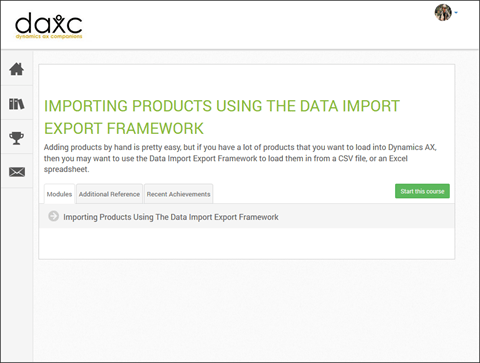
All you need to do is click on the course and you will be able to start the walkthrough.

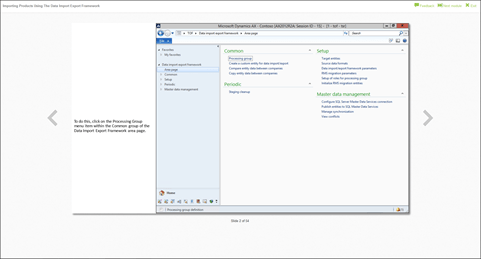
We have included step by step instructions on how to perform the hands on training lab – although it will be prettied up a little more in the future so don’t judge it off the current template:

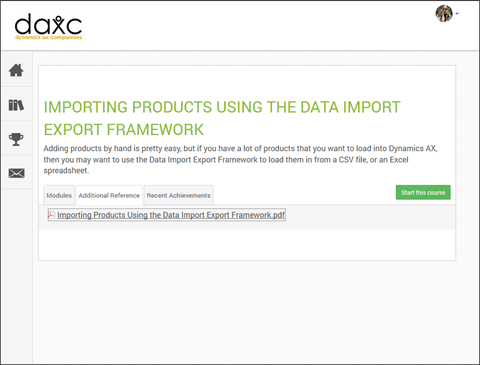
And also if you look in the Additional Reference tab for the training you will see that there is a downloadable cheat sheet that you can use to help you along the way as well.

Please take a look and drop us a note on what you think about it.

When you are first introduced to Dynamics AX, it may seem a little overwhelming because there is so much that it is able to do. It may seem like you’ve been dropped in a completely foreign land, unable to speak the language, and not knowing which direction to start walking in.

It may be even worse if you are in the middle of a software selection where you are looking at a number of different options (including Dynamics AX) because you need to understand what the differences are, and also remember which feature applies to which application. In that case, you are in multiple foreign lands, and no-one is speaking the same language.

You may have picked up a book or two on Dynamics AX to start your self-guided learning, but even then it may be too much because they usually assume that you have had some familiarity with the system, and you still don’t have a basic foundation knowledge. Rather than wanting to read the The Principia : Mathematica, you are at more of a See Spot Run level when it comes to Dynamics AX.

This is what this book is designed to achieve, and is aimed to give you a high level introduction to Dynamics AX. It is split into two parts as well, the first is a general overview of the system, showing you all of the usability features, and the second part is a functional overview that highlights all of the functional features within Dynamics AX. In essence it teaches you the language of this new land, and also gives you a map of the land so that you can then start heading in the direction that is important to you.

Hopefully this guide will help you quickly get comfortable with Dynamics AX and some of its capabilities. As a bonus you can download a copy of the book for free from the BSP website.

I03: An Introduction To Dynamics AX 2012
By Murray Fife Paperback: 147 pages
Language: English
ISBN-10: 1515201104
ISBN-13: 978-1515201106

Link: http://www.blindsquirrelpublishing.com/collections/introduction-guides/products/m00-an-introduction-to-dynamics-ax-2012

Get it while you can – the head squirrel will notice this eventually and put a stop to it.

*** Sorry – the squirrels noticed the surge in downloads and stopped the free promotion – we will try to sneak some more past them in the future ***

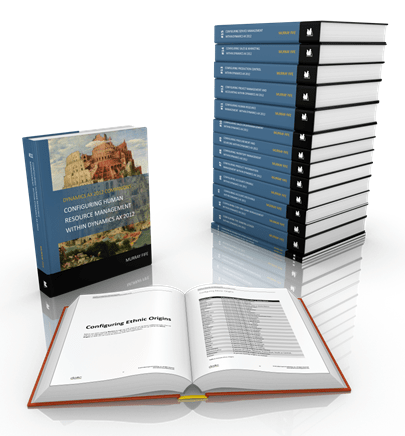
Over the past year and a half I have been working on one of my largest personal projects that I have ever worked on, which has been to create a series of guides for Dynamics AX that show you how to set up a company from the ground up and configure all of the common modules that most people would need, and a few that you might want to use.   The goal was to demystify the setup process and prove that Dynamics AX is only as hard to configure as you make it, and if you are a mid-range customer that even you can get a company configured and working without turning on every bell and whistle and without breaking the bank. If I can do it then you all surely can as well.   This week marks a major milestone in the project which is that I finally finished the last book in series, #11 – Configuring Human Resource Management within Dynamics AX which filled the gap in the 15 volumes which are:

  1. Configuring a Base Dynamics AX 2012 System
  2. Configuring an Organization Within Dynamics AX 2012
  3. Configuring The General Ledger Within Dynamics AX 2012
  4. Configuring Cash And Bank Management Within Dynamics AX 2012
  5. Configuring Accounts Receivable Within Dynamics AX 2012
  6. Configuring Accounts Payable Within Dynamics AX 2012
  7. Configuring Product Information Management Within Dynamics AX 2012
  8. Configuring Inventory Management Within Dynamics AX 2012
  9. Configuring Procurement & Sourcing Within Dynamics AX 2012
  10. Configuring Sales Order Management Within Dynamics AX 2012
  11. Configuring Human Resources Within Dynamics AX 2012
  12. Configuring Project Management & Accounting Within Dynamics AX 2012
  13. Configuring Production Control Within Dynamics AX 2012
  14. Configuring Sales & Marketing Within Dynamics AX 2012
  15. Configuring Service Management Within Dynamics AX 2012

Each of these guides have been designed to stand by themselves as reference material for each of the modules within Dynamics AX, but if taken as a whole series they are also a great training system that will allow even a novice on Dynamics AX work through the step by step instructions and build up a new company from scratch and learn a lot of the ins and outs of the system right away. I was able to prove this myself by using these guides as the basis for an series of 8 hands on training classes that I hosted for the AXUG Academy this year.   So who needs these books and why?

  • If you are Evaluating Dynamics AX then these are a great reference that allows you to get a grounding on Dynamics AX without all of the sales hype.
  • If you are Implementing Dynamics AX then these are a great reference that allow you to get a foundation of knowledge about Dynamics AX so that you can talk on a more level playing field with your implementation partner.
  • If you are an Implementer of Dynamics AX then these are great training guides that you can use before you start the pilot.
  • If you have Implemented Dynamics AX then these are a great reference for brushing up on the new features in Dynamics AX.
  • If you are Interviewing for jobs based on Dynamics AX then these guides will educate you on Dynamics AX and give you a jumpstart on your resume.
  • If you are Competing against Dynamics AX then this is a great way to be demoralized and see how easy Dynamics AX is to implement.

To tell you the truth, everyone needs a copy of these books. Even your grandmother needs a copy.   If you are interested in finding out more about the series and also view all of the details including topics covered within the module then browse to the Bare Bones Configuration Guide landing page on the Dynamics AX Companions website. You will find all of the details, and also downloadable resources that help you with the setup of Dynamics AX. If you decipher the code in the signature at the bottom of this email then you can get 20% off the books. Here is the full link:

http://www.dynamicsaxcompanions.com/barebonesconfig

  What is next? It’s revision time, so now I start the process of reviewing the guides and adding more sample data, case studies, and exercised to make the guides even better. And then I can start working on the AX7 version editions when it is officially released.

Today I have been working with the Product Configurator within Dynamics AX trying to find the tidiest way to set up the following configuration scenario and as I did this I discovered some pretty cool things that you can do through the calculations.

The scenario is that I want to set up a Configuration Model with multiple pages or User Configurations, but the selection for one attribute on one page will affect the selections on another page.

For example: If the user selects a Wattage of 4000 on this Base page…

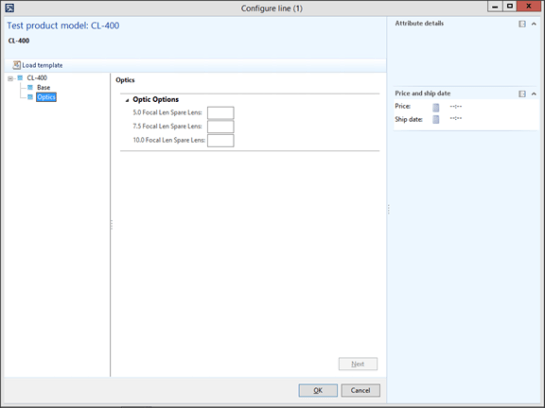
Then on the Optics page below, the 5.0 Focal Length attribute needs to be disabled.


The problem with the Expression Editor though within the Product Configurator is that it is only able to see the attributes within the Parent level, and you cannot see any of the other User Components attributes.

Here Is How You Solve It:
Read More