The New Dynamics AX is a big change from the previous releases. The majority of the changes are around the new web based user interface, the new way that you navigate around in the application and also new sets of tools that have come along for the ride.

For those of you that are familiar with the older user interfaces then you may have to learn a couple of new tricks to get around the system like the pro that you are, and for new users of the New Dynamics AX environments then you will probably want as many tips on all the cool things that you are hidden away within the application so that you can quickly become a power user of the system.

I have scoured all of the resources that I have to compile the most useful tips and tricks for the New Dynamics AX and that will be useful to everyone, regardless of if you are a novice to Dynamics AX just trying to get around in the application, or have worked with the previous versions of the system, and are just want to learn the nuances of the new user interface.

Document detail forms and fast tabs

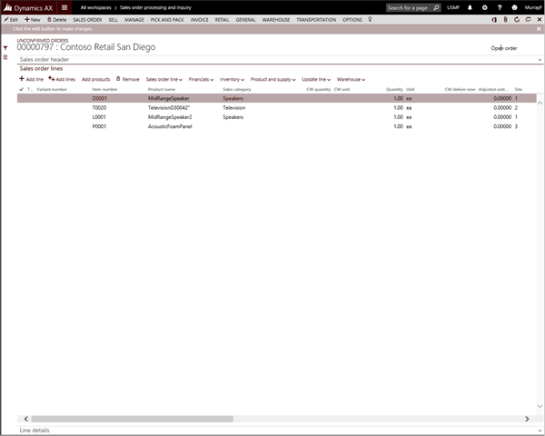
Now that we are looking at the document record we are in the Document detail view. This view is different from the list views that we have been seeing so far because you have multiple groups of data that may be hidden as compressed Fast tabs.

Fast tabs are really useful because they allow you to pick and choose which sets of data that you want to see and also hide away the data that you don’t necessarily need on a daily basis.

How it works…

In this example we are seeing the order lines, but also there is a fast tab that contains all of the order header details.

If you want to expand (or collapse) any of the fast tabs then all you need to do is click on the expand/collapse arrow which is at the top of each fast tab ion the right hand side.

This will expand out the fast tab and you will be able to see all of the fields that were hidden away from you.

Want more?

If you liked this post and want to see more tips and tricks for the New Dynamics AX then I have compiled the 50 initial tips and tricks into a new guide for you all. If you want to get all of the tips and tricks in one place, then just follow the link: http://bit.ly/1mAzKf6

Also, if you are looking for more resources on Dynamics AX in general, then make sure you check out the Dynamics AX Companions site at www.dynamicsaxcompanions.com and also the Blind Squirrel Publishing site at www.blindsquirrelpublishing.com for more articles and books.

About the Author

Murray Fife is an Author of over 25 books on Microsoft Dynamics AX including the Bare Bones Configuration Guide series of over 15 books which step the user through the setup of initial Dynamics AX instance, then through the Financial modules and then through the configuration of the more specialized modules like production, service management, and project accounting. You can find all of his books on Amazon (www.amazon.com/author/murrayfife) and also even more on the BSP (www.blindsquirrelpublishing.com) site.

Murray is also the curator of the Dynamics AX Companions (www.dynamicsaxcompanions.com) site which he built from the ground up as a resource for all of the Dynamics AX community where you can find walkthroughs and blueprints that he created since first being introduced to the Dynamics AX product.

Throughout his 25+ years of experience in the software industry he has worked in many different roles during his career, including as a developer, an implementation consultant, a trainer and a demo guy within the partner channel which gives him a great understanding of the requirements for both customers and partner’s perspective.

For more information on Murray, here is his contact information:

Email:         mcf@blindsquirrelpublishing.com
Twitter:    @murrayfife
Facebook:    facebook.com/murraycfife
Google:        google.com/+murrayfife
LinkedIn:    linkedin.com/in/murrayfife
Blog:        atinkerersnotebook.com
Docs:        docs.com/mufife
Amazon:    amazon.com/author/murrayfife
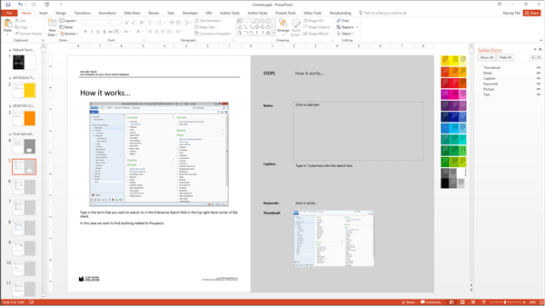
If you are creating walkthroughs that include screen shots, then it is sometimes useful to include elements that highlight what is being done. This could include mouse clicks that are being performed, text that is being entered, or simply areas that you want to highlight or emphasize in the document.

It is a big hassle to go and edit the pictures each time in order to include the added information, and also you corrupt the original image when you do this. A better way to include tips is just to add them as shapes on the draft.

By default, though the Author Tools copy the main picture to the documents, but there is an option that will allow you to merge both the Picture and the extra graphics together when the document is being generated to create a merged illustration.

Here is how you can do that.

How to do it…

Start off with your PowerPoint step that you want to add a tip to.

Then add the tip shapes on top of the picture.

Make sure that the shape is either called Tip or if you have multiple shapes that make up the tip graphic that the parent shape is called Tip. This will be how the tools are able to find the tip and merge it.

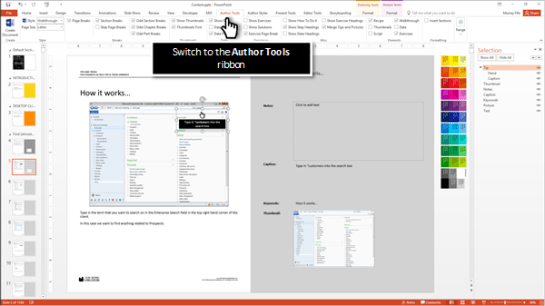
Then switch to the Author Tools ribbon bar.

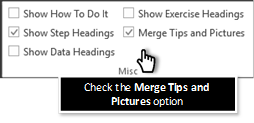
Make sure that the Merge Tips and Pictures check box is checked. If you have this unchecked, then the document that you create will just have the Picture element and not the tip – which is useful if you are wanting to create clean documents and have the tips as captions.

How it works…

To see the finished walkthrough, just click on the Create Walkthrough button within the Author Tools ribbon bar.

When the walkthrough is created the image that is pasted into the document will include both the Picture and also the Tip element

Review

This is a great tool that allows you to add annotations to your walkthroughs and screen shots without adding a lot of editing administration to the draft content. Additionally, the way that the tips appear in the draft is how they will appear within the document so you don’t have the situation where the illustrations don’t match because of resizing of the image components.

How easy is that!

About the Author

Murray Fife is an Author of over 25 books on Microsoft Dynamics AX including the Bare Bones Configuration Guide series of over 15 books which step the user through the setup of initial Dynamics AX instance, then through the Financial modules and then through the configuration of the more specialized modules like production, service management, and project accounting. You can find all of his books on Amazon (www.amazon.com/author/murrayfife) and also even more on the BSP (www.blindsquirrelpublishing.com) site.

Murray is also the curator of the Dynamics AX Companions (www.dynamicsaxcompanions.com) site which he built from the ground up as a resource for all of the Dynamics AX community where you can find walkthroughs and blueprints that he created since first being introduced to the Dynamics AX product.

Throughout his 25+ years of experience in the software industry he has worked in many different roles during his career, including as a developer, an implementation consultant, a trainer and a demo guy within the partner channel which gives him a great understanding of the requirements for both customers and partner’s perspective.

For more information on Murray, here is his contact information:

Email:         mcf@blindsquirrelpublishing.com
Twitter:    @murrayfife
Facebook:    facebook.com/murraycfife
Google:        google.com/+murrayfife
LinkedIn:    linkedin.com/in/murrayfife
Blog:        atinkerersnotebook.com
Docs:        docs.com/mufife
Amazon:    amazon.com/author/murrayfife

The New Dynamics AX is a big change from the previous releases. The majority of the changes are around the new web based user interface, the new way that you navigate around in the application and also new sets of tools that have come along for the ride.

For those of you that are familiar with the older user interfaces then you may have to learn a couple of new tricks to get around the system like the pro that you are, and for new users of the New Dynamics AX environments then you will probably want as many tips on all the cool things that you are hidden away within the application so that you can quickly become a power user of the system.

I have scoured all of the resources that I have to compile the most useful tips and tricks for the New Dynamics AX and that will be useful to everyone, regardless of if you are a novice to Dynamics AX just trying to get around in the application, or have worked with the previous versions of the system, and are just want to learn the nuances of the new user interface.

Drilling into details through hyperlinks

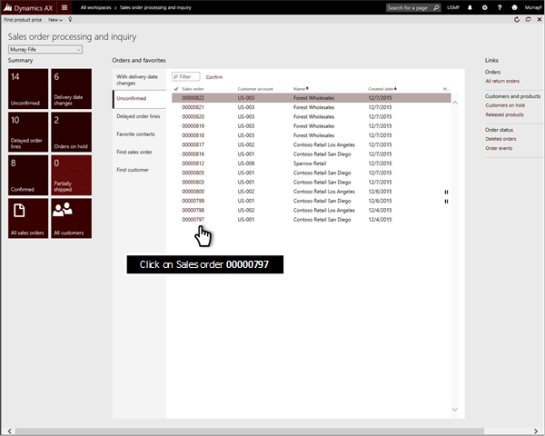
If you need to view any of the detailed information for the transaction or document that you are looking at then all you need to do is click on the hyperlink for the transaction.

How it works…

For example, if you want to see the order 00000797, then just click on it.

This will take you straight into the detail form showing you all of the sales order lines.

Want more?

If you liked this post and want to see more tips and tricks for the New Dynamics AX then I have compiled the 50 initial tips and tricks into a new guide for you all. If you want to get all of the tips and tricks in one place, then just follow the link: http://bit.ly/1mAzKf6

Also, if you are looking for more resources on Dynamics AX in general, then make sure you check out the Dynamics AX Companions site at www.dynamicsaxcompanions.com and also the Blind Squirrel Publishing site at www.blindsquirrelpublishing.com for more articles and books.

About the Author

Murray Fife is an Author of over 25 books on Microsoft Dynamics AX including the Bare Bones Configuration Guide series of over 15 books which step the user through the setup of initial Dynamics AX instance, then through the Financial modules and then through the configuration of the more specialized modules like production, service management, and project accounting. You can find all of his books on Amazon (www.amazon.com/author/murrayfife) and also even more on the BSP (www.blindsquirrelpublishing.com) site.

Murray is also the curator of the Dynamics AX Companions (www.dynamicsaxcompanions.com) site which he built from the ground up as a resource for all of the Dynamics AX community where you can find walkthroughs and blueprints that he created since first being introduced to the Dynamics AX product.

Throughout his 25+ years of experience in the software industry he has worked in many different roles during his career, including as a developer, an implementation consultant, a trainer and a demo guy within the partner channel which gives him a great understanding of the requirements for both customers and partner’s perspective.

For more information on Murray, here is his contact information:

Email:         mcf@blindsquirrelpublishing.com
Twitter:    @murrayfife
Facebook:    facebook.com/murraycfife
Google:        google.com/+murrayfife
LinkedIn:    linkedin.com/in/murrayfife
Blog:        atinkerersnotebook.com
Docs:        docs.com/mufife
Amazon:    amazon.com/author/murrayfife

The New Dynamics AX is a big change from the previous releases. The majority of the changes are around the new web based user interface, the new way that you navigate around in the application and also new sets of tools that have come along for the ride.

For those of you that are familiar with the older user interfaces then you may have to learn a couple of new tricks to get around the system like the pro that you are, and for new users of the New Dynamics AX environments then you will probably want as many tips on all the cool things that you are hidden away within the application so that you can quickly become a power user of the system.

I have scoured all of the resources that I have to compile the most useful tips and tricks for the New Dynamics AX and that will be useful to everyone, regardless of if you are a novice to Dynamics AX just trying to get around in the application, or have worked with the previous versions of the system, and are just want to learn the nuances of the new user interface.

Switching favorites lists

You will notice that there are a number of different favorites listed in this example, and as you switch between them you will be able to see different groups of data, and also some of the data has different data. Read More

Sandeep Chaudhury's avatarMicrosoft Dynamics 365 Blog

Hello All,

With the Public Preview of the “New Microsoft Dynamics AX” now out, I am sure all of us are excited to learn more about it and start exploring all possibilities with the new version.

Read  more about the new Dynamics AX on the Blog Post on SBS Group’s Blog spot.

Regards,

Sandeep

View original post

The New Dynamics AX is a big change from the previous releases. The majority of the changes are around the new web based user interface, the new way that you navigate around in the application and also new sets of tools that have come along for the ride.

For those of you that are familiar with the older user interfaces then you may have to learn a couple of new tricks to get around the system like the pro that you are, and for new users of the New Dynamics AX environments then you will probably want as many tips on all the cool things that you are hidden away within the application so that you can quickly become a power user of the system.

I have scoured all of the resources that I have to compile the most useful tips and tricks for the New Dynamics AX and that will be useful to everyone, regardless of if you are a novice to Dynamics AX just trying to get around in the application, or have worked with the previous versions of the system, and are just want to learn the nuances of the new user interface.

Workspace favorites lists

In the center of the form you will see an area where you can see more links to documents and transactions that should be important for your job. Read More

The New Dynamics AX is a big change from the previous releases. The majority of the changes are around the new web based user interface, the new way that you navigate around in the application and also new sets of tools that have come along for the ride.

For those of you that are familiar with the older user interfaces then you may have to learn a couple of new tricks to get around the system like the pro that you are, and for new users of the New Dynamics AX environments then you will probably want as many tips on all the cool things that you are hidden away within the application so that you can quickly become a power user of the system.

I have scoured all of the resources that I have to compile the most useful tips and tricks for the New Dynamics AX and that will be useful to everyone, regardless of if you are a novice to Dynamics AX just trying to get around in the application, or have worked with the previous versions of the system, and are just want to learn the nuances of the new user interface.

Workspace tiles

On the left hand side of the page you will see the workspace tiles. These are quick visuals that show you how many particular transactions are sitting within the status, and also quick links to other detail and list pages within the application. Read More

The New Dynamics AX is a big change from the previous releases. The majority of the changes are around the new web based user interface, the new way that you navigate around in the application and also new sets of tools that have come along for the ride.

For those of you that are familiar with the older user interfaces then you may have to learn a couple of new tricks to get around the system like the pro that you are, and for new users of the New Dynamics AX environments then you will probably want as many tips on all the cool things that you are hidden away within the application so that you can quickly become a power user of the system.

I have scoured all of the resources that I have to compile the most useful tips and tricks for the New Dynamics AX and that will be useful to everyone, regardless of if you are a novice to Dynamics AX just trying to get around in the application, or have worked with the previous versions of the system, and are just want to learn the nuances of the new user interface.

The New Dynamics AX Workspaces

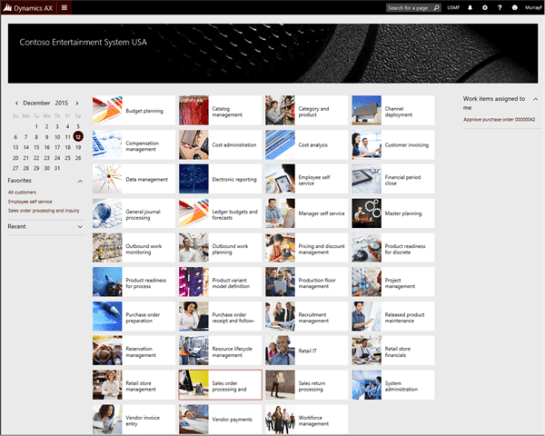
The first type of page that we will see is the main dashboard view. Here you will see that there are a number of Workspaces that are available that have been tailored to specific roles within the organization.

To go to any particular workspace, then all you have to do is click on the tile.

How they work…

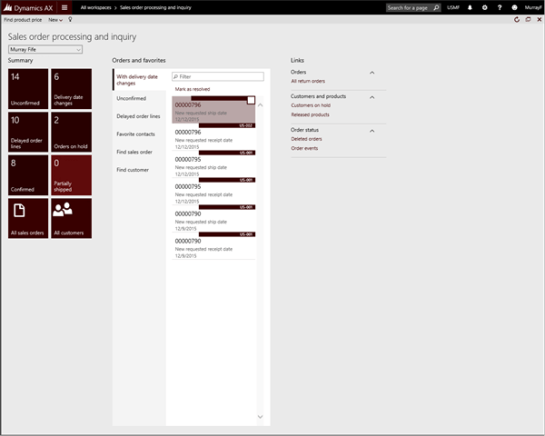
For example, if you were an order entry clerk then you would probably just click on the Sales Order Processing and Inquiry workspace tile.

Now you are within the Sales order processing and inquiry workspace you will be presented with all of the core information that is necessary to track all of your sales orders and also link out to the other areas that you may need to help you along the way.

Want more?

If you liked this post and want to see more tips and tricks for the New Dynamics AX then I have compiled the 50 initial tips and tricks into a new guide for you all. If you want to get all of the tips and tricks in one place, then just follow the link: http://bit.ly/1mAzKf6

Also, if you are looking for more resources on Dynamics AX in general, then make sure you check out the Dynamics AX Companions site at www.dynamicsaxcompanions.com and also the Blind Squirrel Publishing site at www.blindsquirrelpublishing.com for more articles and books.

About the Author

Murray Fife is an Author of over 25 books on Microsoft Dynamics AX including the Bare Bones Configuration Guide series of over 15 books which step the user through the setup of initial Dynamics AX instance, then through the Financial modules and then through the configuration of the more specialized modules like production, service management, and project accounting. You can find all of his books on Amazon (www.amazon.com/author/murrayfife) and also even more on the BSP (www.blindsquirrelpublishing.com) site.

Murray is also the curator of the Dynamics AX Companions (www.dynamicsaxcompanions.com) site which he built from the ground up as a resource for all of the Dynamics AX community where you can find walkthroughs and blueprints that he created since first being introduced to the Dynamics AX product.

Throughout his 25+ years of experience in the software industry he has worked in many different roles during his career, including as a developer, an implementation consultant, a trainer and a demo guy within the partner channel which gives him a great understanding of the requirements for both customers and partner’s perspective.

For more information on Murray, here is his contact information:

Email: mcf@blindsquirrelpublishing.com
Twitter:  @murrayfife

Facebook:  facebook.com/murraycfife
Google:  google.com/+murrayfife
LinkedIn:  linkedin.com/in/murrayfife

Blog:  atinkerersnotebook.com

Docs:  docs.com/mufife
Amazon:  amazon.com/author/murrayfife
Last month I held an online seminar on A Beginners Guide To Writing And Publishing Visual Walkthrough Guides where I walked through the process that I use to publish my books, and also how to repurpose the content into other formats for blogs and presentations. And from the feedback that I got I think I succeeded in kick starting some other experts writing projects.

That seminar didn’t give many people much in the way of advance notice (I think it was just 5 days) so I wanted to give everyone a little bit more notice for the next seminar that I am planning to hold on Monday, December 21st, at 12pm Eastern Time ‎(UTC-5).  If you have all of your Christmas shopping done and want to learn how to get your writing career chugging along then I would definitely like to see you all online.

For the on-line seminar where I will walk you through all of these steps in real time.  In addition to showing you how easy writing and publishing books are, I will also give the seminar attendees:

  • All of the PowerPoint templates that I use to streamline the process
  • All of the Publisher files that make the cover creation a breeze
  • And also the beta of my Author Tools add in for PowerPoint that will re-publish all of the PowerPoints into Word and reformat your content for publishing, blogging, scripts, and other formats
  • Also you will get a digital copy of the companion guide for class that I finished last week as well to follow during the class.

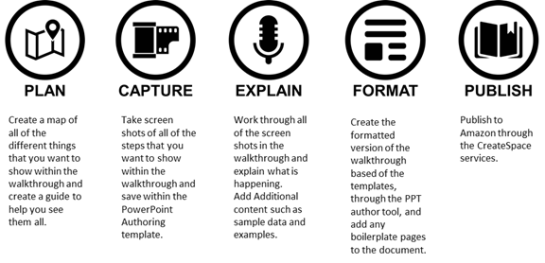
I will be walking through the five steps that I work through when I am writing my visual walkthrough guides and I am sure that when you see how easy this is to do you will want to start up your own little publishing business as well. I have distilled the process into these simple steps.


I used this process to create the companion guide for this event, and all up it took about 10 hours of work, which isn’t that much time if you ask me.

If you are interested in attending then you can sign up for the session here http://bit.ly/1lRsRp8 – this is a paid training event so I will then send you instructions on how to pay the $99.95 and then we will send you all the required login details and password to the event. We need the RSVP’s so that I can make sure that my GoToWebinar account is able to handle the number of attendees

I just thought that I would drop you all a note to say that I have set a date and a time for the first one and that is next Monday, November 30th, at 2pm Eastern Time ‎(UTC-5).  I realize that this is short notice, and this may not be the best time for everyone, and if this session is successful then I will try to hold another one next month, so if you can’t make it then I will understand.

For the on-line seminar where we will walk you through all of these steps in real time.  In addition to showing you how easy writing and publishing books are, we will also give the seminar attendees:

  • All of the PowerPoint templates that I use to streamline the process
  • All of the Publisher files that make the cover creation a breeze
  • And also the beta of my Author Tools add in for PowerPoint that will re-publish all of the PowerPoints into Word and reformat your content for publishing, blogging, scripts, and other formats
  • Also you will get a digital copy of the companion guide for class that I finished last week as well to follow during the class.

I will be walking through the five steps that I work through when I am writing my visual walkthrough guides and I am sure that when you see how easy this is to do you will want to start up your own little publishing business as well. I have distilled the process into these simple steps.


I used this process to create the companion guide for this event, and all up it took about 10 hours of work, which isn’t that much time if you ask me.

If you are interested in attending then you can sign up for the session here http://bit.ly/21k9Dcs – this is a paid training event so we will then send you instructions on how to pay the $99.95 and then we will send you all the required login details and password to the event. We need the RSVP’s so that I can make sure that my GoToWebinar account is able to handle the number of attendees

Drop me a note if you have any questions.