It’s happened to the best of people – Copernicus, Magellan, Scully & Mulder and now me. “What’s that?” I hear you ask. Well let me tell you the story…

Week before last I was at the AXUG (Dynamics AX User Group) Summit and to earn my keep I had 8 presentations and also a four hour training session that I gave titled “How To Implement Dynamics AX In An Afternoon” (which was actually scheduled for the morning slot but that is not what this story is about) where I planned to show how to start with a blank Dynamics AX partition and then load and configure all of the core financial modules (GL, Cash, Payables & Receivables) and then the operations modules (Products, Inventory, Sales & Purchasing).

This was a pretty ambitious undertaking which I thought that I could do, I didn’t have enough time to do a run test run. I have to admit, I was a little worried that I had bit off more than I could chew to compress a 24 hour training class that I had done in the past into 4 hours.

Let’s face it when you boil down Dynamics AX, all you really need to configure is the Ledger, Products, Customers and Vendors and you should be up and running. Everything else is just windows dressing and polishing up of the processes. I had proven that with the Bare Bones Configuration Guide series that I had spent the last two years compiling.

And I wanted to prove a point that Dynamics AX is not a complicated product to set up and it shouldn’t take you weeks (or even months) to configure a base company within Dynamics AX and also show how the students could do this themselves and also learn a lot more about the inner workings of Dynamics AX through the process.

In addition, I wanted to prove that the people who say that Dynamics AX is a complicated product and that it will take an exorbitant amount of time and money to get even this base system up and running are misguided (this is a polite version of the word) and there needs to be a change in attitude.

So I distilled all of my guides into an expert edition that covered 11 of the core guides and with that in hand I dove in head first into the training session.

Now back to the point of the story – which is the unwarranted persecution of people that were trying to fix the misconceptions of the world and make everyone’s life just a little better…

Later on that week I was coming down in the elevator on the way to the conference and a gentleman got on as well. I thought that I would chat to him for the 30 seconds that we were on the elevator to pass the time.

He asked if I was attending the conference, I said yes.

I asked if he was enjoying the sessions and presentations, he was.

He asked me what I was doing there and I mentioned that I was speaking and also had given a training course.

He then asked what the training course was on and I said that it was “How To Implement Dynamics AX in an Afternoon”.

All he could say to that was – “You are a liar!”

OMG – as he stepped out of the elevator I was shocked at the venomous allegation that one small comment provoked. I’m guessing that he made a living from implementing Dynamics AX and I had rattled the foundation of his belief system.

Because the training that I gave worked and I was able to set up all of AX, load in and configure the ledger, set up cash management, load in customers, vendors and products and then configure the inventory, sales and procurement, all within the 4 hour time slot. And all of the students went home with a door prize of a starter kit to do it themselves and also all of the data that I had used for the training so that they could do the same thing themselves.

On the bright side he did prove a point that my mission to convert all of the misguided heathen out there was not done.

PS. For those of you that have been converted and have completed the entire Bare Bones Configuration Series, then you deserve an award. if you can send me proof that you have set up a blank company then I will send you a care package that includes a Bare Bones Configuration Privateer merit badge and also a couple of other goodies.

The AXUG Summit starts in just a couple of days and here are the sessions that I will either be hosting, or sitting in on as a panelist. If you are attending then make sure you mark them down on your dance card and drop on by so that I’m not lonely.

Creating Your Own Product Information Management Processes With Cases and Project Management

Wednesday, October 14 • 11:00am – 12:00pm

Although Dynamics AX is not a complete New Product Development (NPD) and formulation system, as it does not calculate nutritional details or perform least cost formulation, it does allow you to manage all of your product, costs, formulations, nutritional details, and more. Additionally, it has a lot of capabilities to help you streamline management of the NPD/New Product Introduction (NPI) process. In this presentation, we will show an example of how you can use Cases, Workflow, and Projects within Dynamics AX to manage the entire NPD/NPI process.

Using Cases To Do Almost Anything Your Dynamics AX Doesn’t Do

Wednesday, October 14 • 1:00pm – 2:00pm

Step right up and dare to experience for yourself the one, the only, the world’s largest, strongest tool ever! It walks, it talks, it crawls on its belly!!! — We’re talking about Cases within Dynamics AX, of course. They are the ‘Swiss Army knife’ of Dynamics AX functionality, and if there is something you want to track that isn’t tracked already, you can probably do it through Cases. With Cases you can track incidents, record quality results, track projects, and even create custom workflows to track whether Cases are followed up upon in a timely manner. Cases are accessible virtually everywhere within Dynamics AX; you practically can’t open up a screen without seeing them. In this presentation, we will show you how to configure Cases and will walk through a few examples of how you can use them right now within your implementation of Dynamics AX.

Getting The Most Out Of Dynamics AX Data With PowerBI

Thursday, October 15 • 8:00am – 9:00am

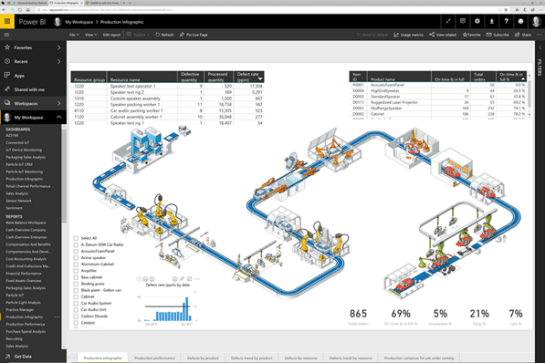
Do you think the only thing better than PowerBI within Excel is PowerBI running within Office 365? Come to this session and we’ll show you why everyone needs to use the much simpler PowerBI Designer available within the Office 365-hosted PowerBI portal! PowerBI is a standalone dashboard designing tool that takes all of the great features within Excel like Power Query, Power View, and Power Pivot and puts them in one single place to make all of your reporting a synch. After you have finished building your dashboards, you can publish them to the new hosted Power BI portal, create your own custom dashboards, and even perform Q&A on the data just by typing in the questions you want answered. In this overview, we will look at this new tool and how you can use it to quickly analyze all your Dynamics AX data and blend multiple data feeds into one dashboard to view all the data you need in one place!

Challenge the AX Experts

Thursday, October 15 • 3:15pm – 4:15pm & Friday, October 16 • 1:00pm – 2:00pm

This is the session to get your answers! Join in on the fun in this fast-moving roundtable where the Microsoft Dynamics AX Experts will field all questions from the audience. There has to be at least one question you wanted answered while at Summit – and this the session to do it. No question is out of bounds, regardless of version, function, or technology!

Self Service Reporting Within Dynamics AX

Thursday, October 15 • 4:45pm – 6:00pm

Having Users perform their own reporting has been a dream on both sides of the organization. IT staff do not particularly like creating reports for Users when they could be spending time on cooler projects, and Users don’t particularly like waiting for IT to create reports because it’s not timely or exactly what they wanted.  The solution is found in the many tools built into Dynamics AX and productivity tools such as Excel and Word. In this session, learn how Users can easily create their own reports without having to get the IT group involved; it’s so easy they may not realize they are creating reports. Join this session and learn how everybody can win!

WOW – The 50 Best Tips and Tricks for Dynamics AX 2012

Friday, October 16 • 2:15pm – 3:15pm

Dynamics AX is full of features you can implement at the module level, but the true power of the product comes from the plethora of smaller features built into the User interface.  You can make Dynamics AX even more powerful by taking advantage of the other foundation products such as SharePoint and Office.  The real trick is to know what the capabilities are. Join us for this session. Even the most seasoned Dynamics AX User or Administrator should find a new tip or trick to make them look like a rock star!

Getting Things Done with Office 365

Friday, October 16 • 3:30pm – 4:30pm

In this session we will show you how you can use Microsoft Office tools like Outlook, OneDrive and OneNote to get organized, get things done, and even get your life back. We will show you how to free yourself from your desk because everything you need is also available on your tablet and phone!

Also, I am still on a one-man mission to help all of you learn Dynamics AX by doing. For those of you that don’t think that you can configure Dynamics AX yourself, here is a starter kit for you to get your feet wet, and realize that you can. It will step you through the first 2.25 guides in the Bare Bones Configuration Guides and you will learn how to create your own Dynamics AX learning environment, configure a new organization, and then set up the General Ledger controls. If you like what you see, then you may want to keep on going.

As an extra incentive, anyone who does complete the entire Bare Bones Configuration Series, then you will become a Bare Bones Configuration Privateer, and I am having merit badges created for you all. If that doesn’t make you just rush out and configure Dynamics AX for yourself then I don’t know what will – everyone wants merit badges 😉

If any of you catch me at the AXUG and promise to take up the challenge, then I will have some USB Wafer drives with the guide and also all of the resources that you need to start.

For those of you that are not able to make it to the Summit, for this week only, use this discount code – AXUGSUMMIT15 – and download the digital version for free.

I’m looking forward the Summit, and seeing some of you this week in Reno, NV.

Having users perform their own reporting has been a dream on both sides of the organization. The IT group don’t particularly like creating reports for the users when they could be spending their time on cooler projects, and users don’t particularly like waiting for IT to create the reports that they need to track the data because it’s never quite what they wanted, and also takes so long to get (because of the first reason) that it’s usually out-of-date. If only there was a solution…

Well there is, because there are so many tools built into Dynamics AX and also the productivity tools like Excel and Word that the users can easily create their own reports themselves without having to get the IT group involved. Everybody wins!

In this presentation we will show you how the users can do just that, it’s so easy that they may not even realize that they are creating reports.

Adding Additional Fields to List Page Views

One of the benefits of the list pages within Dynamics AX is that you can add additional fields to the views, so if there is something that you need for reporting and analysis that isn’t currently on the form then all you need to do is add it.

How To Do It…

To do this, just right-mouse-click on the data within the list page, or the heading in the list page and then click on the Personalize option.

This will open up the Personalization form and you will be able to see all of the fields that are currently displayed within the list page. To add a new field all you need to do is click on the Add Fields button.

This will open up the Field Explorer and you will be able to see all of the fields that are associated with the form and also any related tables as well.

If you expand out the Addresses field group then you will see all of the address fields that are related to the Sales Orders.

If you want to report off geographic information then you can click City, State, ZIP/Postal Code and Country/Region fields and then click on the Add button to add them to the form. When you have done selecting your additional fields then just close down the Field Explorer.

When you return to the Personalization form you see that the fields have been added with little green + signs beside them which mean that these are custom fields that have been added to the view. When you are done here you can close down the form by clicking on the Close icon in the top right hand corner of the window.

When you return back to the form you will notice that some of the fields have not been populated yet. Don’t worry. All you need to do here is press F5 to refresh the view.

Now all of the new data will be displayed on the form for you and all of the new fields are displayed on the list page as columns that you can use for your own reporting.

Summary

Not everyone wants the same fields to show up on their forms, and no-one wants the fields that everyone else wants cluttering up their list pages that they use every dat. This is a great way to get information that you need onto your forms without having to do any development and also a very fast way to add additional information that you may only need for a little while and then remove them later on.

Original

To view the original article, click here: http://bit.ly/1hqEFfE

About The Author

Murray Fife is a Technical Solution Professional at Microsoft and Author of over 25 books on Microsoft Dynamics AX including the Bare Bones Configuration Guide Series which contains over 15 books that show novice users host to set up Dynamics AX using visual walkthroughs.  These guides start off with the Financial modules of Dynamics AX and then progress through the Operational, Distribution, and then the more specialized modules like production, service management, and project accounting.  You can find all of his books on Amazon (www.amazon.com/author/murrayfife) and also even more on the independent BSP (www.blindsquirrelpublishing.com) site.

Murray is also the curator of the Dynamics AX Companions (www.dynamicsaxcompanions.com) site which he built from the ground up as a resource for all of the Dynamics AX community where you can find walkthroughs and blueprints that he created since first being introduced to the Dynamics AX product.

Throughout his 25+ years of experience in the software industry he has worked in many different roles during his career, including as a developer, an implementation consultant, a trainer and a demo guy within the partner channel which gives him a great understanding of the requirements for both customers and partners perspective.

He is also a great supporter of the Dynamics AX community and has hosted scores webinars for the AX User Group (www.axug.com) and MS Dynamics World (www.msdynamicsworld.com), and has speaks at Microsoft Convergence and AXUG Summit conferences regularly.

Having users perform their own reporting has been a dream on both sides of the organization. The IT group don’t particularly like creating reports for the users when they could be spending their time on cooler projects, and users don’t particularly like waiting for IT to create the reports that they need to track the data because it’s never quite what they wanted, and also takes so long to get (because of the first reason) that it’s usually out-of-date. If only there was a solution…

Well there is, because there are so many tools built into Dynamics AX and also the productivity tools like Excel and Word that the users can easily create their own reports themselves without having to get the IT group involved. Everybody wins!

In this series we will show you how the users can do just that, it’s so easy that they may not even realize that they are creating reports.

Use Edit in Grid as your Reporting Worksheet

Most of the list pages within Dynamics AX have a second version which is called the Edit in Grid view. This is a great way to have a master reporting form for the users and not clutter up the main list page with the extra fields that they may need to report off.
Read More

Having users perform their own reporting has been a dream on both sides of the organization. The IT group don’t particularly like creating reports for the users when they could be spending their time on cooler projects, and users don’t particularly like waiting for IT to create the reports that they need to track the data because it’s never quite what they wanted, and also takes so long to get (because of the first reason) that it’s usually out-of-date. If only there was a solution…

Well there is, because there are so many tools built into Dynamics AX and also the productivity tools like Excel and Word that the users can easily create their own reports themselves without having to get the IT group involved. Everybody wins!

In this series we will show you how the users can do just that, it’s so easy that they may not even realize that they are creating reports.

Using List Pages as User Reports

The first thing that we will highlight is that the Dynamics AX list pages are the best reporting options that is there for the user. The list pages can be rearranged, filtered, have fields added to them, sorted and a whole slew of other personalization options making it the perfect way to review data.
Read More

Humor me, because I’m sure that this has never happened to you all but, have you ever had a situation where it seemed like your workspace windows within Dynamics AX seemed like they were replicating like Tribbles? And like Kirk, all you wanted to do was just get rid of them all?

If you are one of the few that this has happened to then here is a quick tip that will save you from playing whack-a-mole with the windows and close them all with just a click of the button.

How to do it…

  1. To close all of the windows, all you need to do is click on the Workspaces icon in the top right hand corner of the Dynamics AX client and then select the Close All option.

How it works…

Like magic, all of the windows will close down and you will have a nice clean workspace again.

Summary

The only thing that we can’t guarantee is that they won’t start replicating again, but that is now your fault…

Acknowledgements

I have to thank Deborah Vermillion for this tip – I saw her do this and was mortified that I have been doing this the hard way for… well… forever.

I am a firm believes that Dynamics AX is not a hard product to learn, but the problem is where do you start. Which is why I developed the Bare Bones Configuration Guides. The aim of this series is to step you though the configuration of Dynamics AX from a blank system, and then step you through the setup of all of the core modules within Dynamics AX. I start with the setup of a base system, then move on to the financials, distribution, and operations modules. Each book builds upon the previous ones, and by the time you have worked through all of the guides then you will have completely configured a simple (but functional) Dynamics AX 2012 instance. To make it even more worthwhile you will have a far better understanding of Dynamics AX and also how everything fits together.

As of now there are 16 guides in this series broken out as follows:

  • M01 Configuring A Base Dynamics AX 2012 Test System
  • M02 Configuring an Organization within Dynamics AX 2012
  • M03 Configuring the General Ledger within Dynamics AX 2012
  • M04 Configuring Cash and Bank Management within Dynamics AX 2012
  • M05 Configuring Accounts Receivable within Dynamics AX 2012
  • M06 Configuring Accounts Payable within Dynamics AX 2012
  • M07 Configuring Product Information Management within Dynamics AX 2012
  • M08 Configuring Inventory Management within Dynamics AX 2012
  • M09 Configuring Procurement and Sourcing within Dynamics AX 2012
  • M10 Configuring Sales Order Management within Dynamics AX 2012
  • M11 Configuring Human Resource Management within Dynamics AX 2012
  • M12 Configuring Project Management and Accounting within Dynamics AX 2012
  • M13 Configuring Production Control within Dynamics AX 2012
  • M14 Configuring Sales and Marketing within Dynamics AX 2012
  • M15 Configuring Service Management within Dynamics AX 2012
  • M18 Configuring Warehouse Management within Dynamics AX 2012

Although you can get each of these guides individually, and I think that each one is a great Visual resources to step you through each of the particular modules, for those of you that want to take full advantage of the series, you will want to start from the beginning and work through them one by one. After you have done that you would have done people told me was impossible for one persons to do, and that is to configure all of the core modules within Dynamics AX.

I challenge all of you out there from any level of AX experience – from those of you that are new to Dynamics AX and want to learn how it works, to the seasoned AX consultant that knows areas of AX inside and out but haven’t got out of their comfort zone and learn the other areas – to sit down and learn how to implement a company in Dynamics AX from the ground up.

For the brave and adventurous souls, and those of you with a thirst for knowledge, that are willing to take on this challenge I have just set up a bundle option for the Bare Bones Configuration Guides within the Blind Squirrel Publishing site that will allow you to get all of the books at once, and for a discount. You can save yourself from the possibility of contracting RSI from selecting each book individually and get them with just by starting with one click of the mouse. They are not free, but they are worth it. I guarantee that you will learn more than you expect form this process.

Here is a link to where you can get the complete set of guides: http://www.blindsquirrelpublishing.com/products/s01-bare-bones-configuration-guides-all-access-ebook-bundle?variant=6822663681

Consider the gauntlet thrown down.

The Charge Codes within Dynamics AX are great ways to add upcharges and adjustments to Sales Orders and Quotations without having to add additional dummy part codes to the system and also without having them clutter up the order lines and make everyone try to decipher what charge is associated with which line.

To make the Charge Codes even better, you can take advantage of the Auto Charge feature that allows you to create rules that will automatically add the Charges to your order header and lines without even lifting a finger. This allows you to have additional surcharges and adjustments automatically show up on the Sales Orders and Quotations which is a great time saver in itself.

You can take the automatic addition of the Charge Codes one step further if you like and link it with the Modes of Delivery that you assign to the Sales Orders and Quotations and have the Freight Charges automatically added based on the method that you are using for the shipment. If you don’t have the time or the inclination to use the Transportation Management to do this then it’s definitely the second best option for you.

In this guide we will show you how to set up all of the necessary links within Dynamics AX to do just that.

So lets start.

Adding Modes of Delivery

Before we start we need to make sure that we need to make sure that we have some Modes of Delivery defined within Dynamics AX.

How to Do It…

To check this, click on the Modes of Delivery menu item within the Distribution folder of the Setup group of the Sales and Marketing area page.
When the Modes of Delivery maintenance form is displayed you should see all of the different ways that you can deliver your products. Click on the New button in the menu bar to create a new record.
Set the Mode of Delivery code to UPS-PARCEL and the Description to UPS Parcel.
After you have done that, click on the Close button to exit from the form.

Creating a Delivery Charge Code

The way that the automatic freight charges will be added is through the Charge Codes which allow you to attach additional charges to either the header or the line of the sales orders and quotations. These are really useful because they allow you to add upcharges and adjustments to orders without having to add additional order lines.

How to Do It…

So Next we will want to make sure that we have a Charge Codes defined that we will be able to use assign to our Modes of Delivery.
When the Modes of Delivery Maintenance form is displayed, click on the New button in the menu bar to create a new record.
Then set the Charge Code to UPS-PARCEL and the Description to UPS Flat Rate Parcel Charge.
Now we want to set up the Posting profile for the freight charge. For the Debit postings we will want to post to the Customer (or Vendor) account, so click on the Type dropdown list within the Debit field group and select the Customer/Vendor option.
Now we want to define the Credit account that we will be charging the freight to. In this case we will want to post it to a ledger account rather than a default on the Customer or Vendor posting profile. So leave the Type field within the Credit field group as Ledger Account and then click on the Posting dropdown list and select the Order, freight option.
Now click on the Account dropdown list within the Credit field group and select the Outbound Freight account that you want to post this charge to. In our system this is the 403500 account code.

Once you have done that then you are done setting up the Charge Codes and you can click on the Close button to exit from the form.

Creating Automatic Charges Based On Modes of Delivery

Now that we have the Charge codes defined and also the Mode of Delivery set up we can start tying them together so that they will be added automatically to the Sales Order or the Quotation. We do that by creating an Automatic Charge rule within Dynamics AX.

How to Do It…

To do this, click on the Auto Charges menu item within the Charges folder of the Setup group within the Accounts Receivable area page.
When the Auto Charges maintenance form is displayed, click on the New button in the menu bar to create a new record.
We will now want to define the selection criteria that we will use to trigger the automatic charge. For this example we will want the charge to apply to all of the customers, so click on the Account Code dropdown list and select the All option.
Next we will want to associate the automatic charge with the Mode of Delivery that we just created. To do this click on the dropdown list for the Mode of Delivery Code and select the Table option to indicate that this will be related to one single record.
This will enable the Mode of Delivery Relation field and you can then click on it and select the UPS-PARCEL code that you just created.
After you have done that save the record by pressing CTRL+S and you will notice now that you have the option to click on the Add button within the Lines grid.

When the new line is created, click on the Charge Code dropdown list and select UPS-PARCEL charge code that you just created. This is telling the system that to automatically add this charge code to the Sales Order or Quotation.
Finally, enter in a Charges Value for the amount that you want to assign to the automatic charge. We will set it to $25.95.

Now that you have added your Automatic Charge you are done and you can just click on the Close button to exit from the form.

Entering a Sales Order with Automatic Freight Charges

Now that everything is set up we can test the Automatic Charge out by creating a Sales Order and seeing if the charge is added to the record automatically.

How to Do It…

To do this, click on the All Sales Orders menu item within the Sales Orders folder of the Common group within the Accounts Receivable area page.
When the All Sales Orders list page is displayed, click on the Sales Order button within the New button group of the Sales Order ribbon bar.
When the Create Sales Order dialog box is displayed, enter in the Customer Account to select the customer. We will use 100120 and place an order for Rosebud Gifts.
Before we continue on though we need to make sure that the order has the Mode of Delivery that we just set up and also linked the Automatic Charge to. To do this, expand out the Shipping fast tab and you will see that there is an option to set the Mode of Delivery for the order. Click on the Mode of Delivery dropdown list and select the UPS-PARCEL code that you just created.

Now you can just click on the OK button to create your order.
When the Sales Order maintenance form is displayed, add a few lines.
Then switch to the Sell ribbon bar and click on the Charges button within the Charges button group.

This will open up the Charges Transactions maintenance form and you will notice that the system has automatically added in the charge code for us.

Also, if you print the Order Confirmation then you will see that the charge code is also listed in the footer of the document.

How cool is that.

Get the Expert Guide for Your Own Training

If you want to get a more detailed version of this blog post then you can grab the Expert Guide which includes step by step visual walkthroughs of all of the steps that are shown in this blog post, and also examples of the sample data that we used to give you all a quick reference if you want to use the guide for your own training.

You can find all of the information here:

http://www.blindsquirrelpublishing.com/products/e01-configuring-automatic-freight-charges-based-on-modes-of-delivery?variant=6705901953

Need More Help With Dynamics AX?

The Bare Bones Configuration Guides for Dynamics AX was developed to show you how to set up a company from the ground up and configure all of the common modules that most people would need, and a few that you might want to use.

It aims to demystify the setup process and prove that Dynamics AX is only as hard to configure as you make it, and if you are a mid-range customer that even you can get a company configured and working without turning on every bell and whistle and without breaking the bank.

There are 15 volumes in the current series and although each of these guides have been designed to stand by themselves as reference material for each of the modules within Dynamics AX, if they are taken as a whole series they are also a great training system that will allow even a novice on Dynamics AX work through the step by step instructions and build up a new company from scratch and learn a lot of the ins and outs of the system right away. The current guides are:

  1. Configuring a Base Dynamics AX 2012 System
  2. Configuring an Organization Within Dynamics AX 2012
  3. Configuring The General Ledger Within Dynamics AX 2012
  4. Configuring Cash And Bank Management Within Dynamics AX 2012
  5. Configuring Accounts Receivable Within Dynamics AX 2012
  6. Configuring Accounts Payable Within Dynamics AX 2012
  7. Configuring Product Information Management Within Dynamics AX 2012
  8. Configuring Inventory Management Within Dynamics AX 2012
  9. Configuring Procurement & Sourcing Within Dynamics AX 2012
  10. Configuring Sales Order Management Within Dynamics AX 2012
  11. Configuring Human Resources Within Dynamics AX 2012
  12. Configuring Project Management & Accounting Within Dynamics AX 2012
  13. Configuring Production Control Within Dynamics AX 2012
  14. Configuring Sales & Marketing Within Dynamics AX 2012
  15. Configuring Service Management Within Dynamics AX 2012

If you are interested in finding out more about the series and also view all of the details including topics covered within the module then browse to the Bare Bones Configuration Guide landing page on the Dynamics AX Companions website. You will find all of the details, and also downloadable resources that help you with the setup of Dynamics AX here:

http://www.dynamicsaxcompanions.com/barebonesconfig

About the Author

Murray Fife is an Author of over 25 books on Microsoft Dynamics AX including the Bare Bones Configuration Guide series of over 15 books which step the user through the setup of initial Dynamics AX instance, then through the Financial modules and then through the configuration of the more specialized modules like production, service management, and project accounting. You can find all of his books on Amazon (www.amazon.com/author/murrayfife) and also even more on the BSP (www.blindsquirrelpublishing.com) site.

Murray is also the curator of the Dynamics AX Companions (www.dynamicsaxcompanions.com) site which he built from the ground up as a resource for all of the Dynamics AX community where you can find walkthroughs and blueprints that he created since first being introduced to the Dynamics AX product.

Throughout his 25+ years of experience in the software industry he has worked in many different roles during his career, including as a developer, an implementation consultant, a trainer and a demo guy within the partner channel which gives him a great understanding of the requirements for both customers and partner’s perspective.

Everyone who is in the know knows that it is the Squirrel New Year right now and that means that we are celebrating like is 3145 AS (Anno Scurrius) – which it is. I know you all are probably asking – “What do Squirrels do when they celebrate the SNY? They do what they have always done as far back as they can remember – they brush up on the Financials modules of Dynamics AX.

To make it easier for you all to join in on the festivities we have bundled the first six books within the Bare Bones Configuration Guide series and you can get them all at once at for 20% off the list price. “Oh my!” I hear you say – “That’s a deal and is all I need be fully prepared for the SNY”. And you are right. You too can get all of this and be set for the next 103 days before the next Squirrel New Year.

You can learn how to set up your own pilot environment in Azure, create a new Company within Dynamics AX, and then configure the General Ledger, Cash & Bank Management, Accounts Receivable, & Accounts Payable modules. All by yourself!
How awesome is that!

What are you waiting for?

This week is the Microsoft Dynamics US FY16 Kick Off event in Nashville. Maybe I will see some of you all there J


A couple of weeks ago I offered a free download of one of my books (An Introduction To Dynamics AX 2012) , and was swamped with downloads and was almost overwhelmed by the response, but I have upgraded my shopping cart and streamlined the process and to celebrate the Kick Off Event in my own little way I have decided to let you all download not one, but two of my books for free.

For this week only (Aug 16th-23rd) you are able to download the An Introduction To Dynamics AX 2012 reference guide which will show you a lot of the cool usability features that are available within Dynamics AX 2012, and also the Piloting Dynamics AX 2012 On Azure For Free Through Lifecycle Services guide that I recently released that will show you how to set up your very own pilot system for Dynamics AX through Azure – even if you are not a customer!

If you want to pick up a copy then here are the links to them J

Happy downloading.